Table of Contents
PaymentCloud LLC. • 800-988-2215 • support@paymentcloudinc.com
Additional Information
Spec Sheet
Shop PAX SP30
V.022025 8
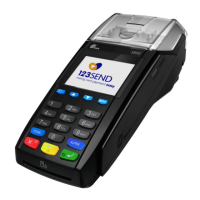
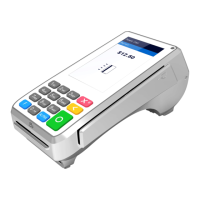
PAX SP30
User Manual & Setup Guide
Troubleshooting & Tips
How to reset the PAX SP30
1. Start by unplugging your SP30 from its power source.
2. Plug your SP30 back into its power source.
3. Reboot should commence shortly after.
A Note About Firmware Updates
You may need to update your rmware if your terminal displays
specic error codes, like ERROR LOOKUP DNS or WARNING APP
EXCEPTION. Per PAX, all rmware updates should be performed
with the assistance of a technical support analyst. For more
information on this process, contact PAX customer support.
How to do a Factory Reset
Note: Performing a factory reset will erase all data on the device,
including transaction history and customized settings. Be sure to
back up any important data before proceeding with a factory reset.
1. From your home menu, select REMOTE DOWNLOAD.
2. Scroll to select REMOTE IP.
3. Enter your IP address when prompted.
4. Press the green ENTER key.
5. A display will appear on your screen reading REMOTE PORT.
6. Enter your password.
7. When asked if you want to ENABLE DHCP, select 1 for YES.
8. Enter your TERMINAL ID #, then press the green ENTER key
to proceed.
9. A DOWNLOAD will begin on your SP30 screen. Following
this, you will reboot your PAX SP30.
How to Reach Customer Service
If you have any customer service issues related to your
PAX device, contact PAX support via email (support@pax.us)
or telephone (877-859-0099).
Accept Payments
4
Setup
3
Rights Reserved
9
Settings
7
Troubleshooting
& Tips
8
Overview
2



 To Next Page