Table of Contents
PaymentCloud LLC. • 800-988-2215 • support@paymentcloudinc.com
Additional Information
Spec Sheet
Shop PAX SP30
V.022025 4
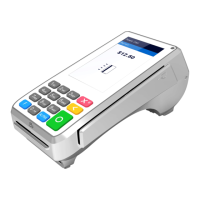
PAX SP30
User Manual & Setup Guide
Accept Payments
Chip Credit Sale
Manual Entry Credit Sale
Debit Sale
How to Process a Sale
1. If you are pairing the PAX SP30 with an external terminal,
enter the total amount for the sale and press ENTER.
2. If prompted, select CREDIT and follow any on-screen
instructions for inserting an EMV chip card.
3. Insert the EMV chip card into the EMV reader located near the
bottom of your PAX SP30.
4. Remove the card when prompted.
5. An alert reading PROCESSING… will display on your screen as
the payment is processed.
6. Once the payment is approved, an alert will appear on your
screen reading APPROVED THANK YOU!
7. Press ENTER to print the customer receipt or CANCEL to skip.
1. If you are pairing the PAX SP30 with an external terminal,
enter the total amount for the sale and press ENTER.
2. Enter the credit card number on the SP30 pin pad to initiate a
manual sale, then press ENTER.
3. Enter the expiration date, CVV details, and billing zip code.
If prompted, enter further billing address details, then press
ENTER to conrm.
4. Once the payment is approved, an alert will appear on your
screen reading APPROVED THANK YOU!
5. Press ENTER to print the customer receipt or CANCEL to skip.
1. If you are pairing the PAX SP30 with an external terminal,
enter the total amount for the sale and press ENTER.
2. If prompted, select DEBIT and follow any on-screen
instructions for inserting an EMV chip card.
3. Swipe or insert your debit card to proceed. Enter PIN details
when prompted.
4. An alert reading PROCESSING… will display on your screen as
the payment is processed.
5. Once the payment is approved, an alert will appear on your
screen reading APPROVED THANK YOU!
6. Press ENTER to print the customer receipt or CANCEL to skip.
Accept Payments
4
Setup
3
Rights Reserved
9
Settings
7
Troubleshooting
& Tips
8
Overview
2


 To Next Page
 Loading...