PCAN-USB Hub – User Manual
20
Do the following to start and initialize PCAN-View:
1. Open the Windows Start menu and select PCAN-View.
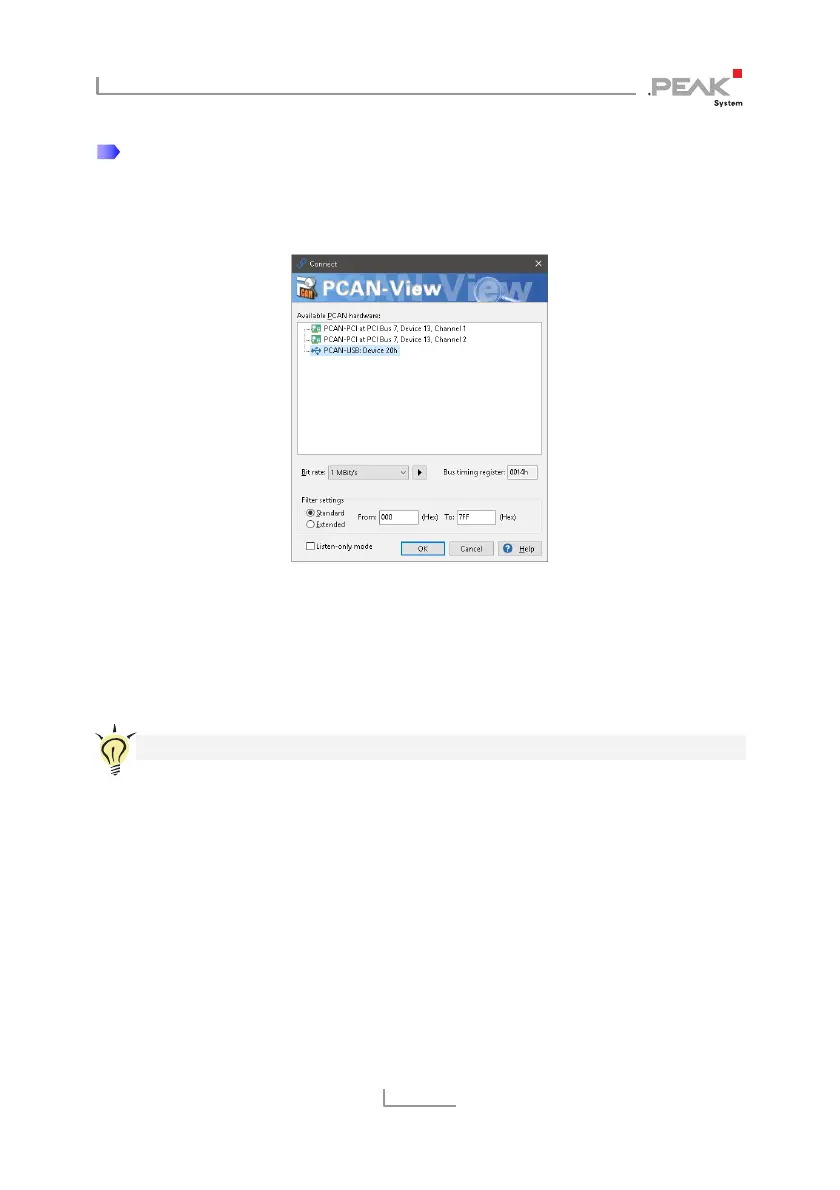
The Connect dialog box appears.
Figure 10: Selection of the specific hardware and parameters
2. Select an interface from the list.
3. From the drop-down list, select the Bit rate that is used by
all nodes on the CAN bus.
Tip: You can create custom bit rates by using the button ().
4. Under Filter settings you can limit the range of CAN IDs to
be received, either for standard frames (11-bit IDs) or for
extended frames (29-bit IDs).
5. Activate the Listen-only mode if you do not actively
participate in the CAN traffic and just want to observe.
This also avoids unintended disruption of an unknown
CAN environment (e.g. due to different bit rates).
6. Confirm the settings in the dialog box with OK. The main
window of PCAN-View appears (see Figure 11).


 To Next Page