DDC Instructions (Continued)
107T6 CRT
Go to cover page
25
Step 3: Installation of EDID46.EXE
Method 1: Start on DDC program
Start Microsoft Windows.
1. The Program"EDID46.EXE" in service manual cd-rom be copyed to C:\ .
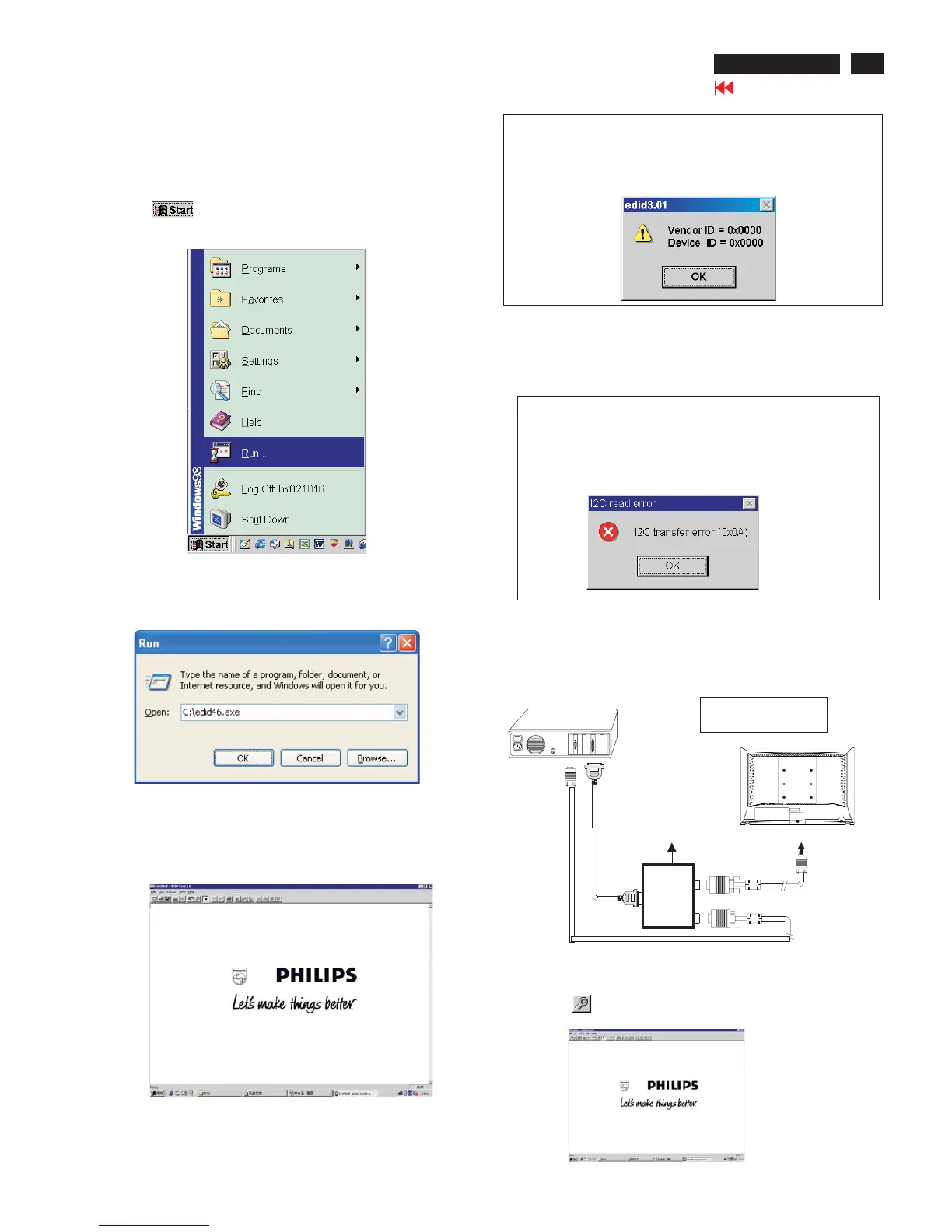
2. Click , choose Run at start menu of Windows as shown
In Fig. 4.
Fig. 4
4. Click button. The main menu appears (as shown in Fig. 6).OK
This is for initialize alignment box.
Fig. 6
Fig. 5
Fig. 7
Note 1: If the connection is improper, you will see the following error
message (as shown in Fig. 7) before entering the main menu.
Meanwhile, the (read EDID) function will be disable. At this
time, please make sure all cables are connected correctly and
fixedly, and the procedure has been performed properly.
3. At the submenu, type the letter of your computer's hard disk drive
followed by :EDID46 (for example, C:\EDID46, as shown in Fig. 5).
Note 2: During the loading, EDID46 will verify the EDID data which just
loaded from monitor before proceed any further function, once
the data structure of EDID can not be recognized, the following
error message will appear on the screen as below. Please
confirm following steps to avoid this message.
1. The data structure of EDID was incorrect.
2. DDC IC that you are trying to load data is empty.
3. Wrong communication channel has set at configuration setup
windows.
4. Cables loosed or poor contact of connection.
1
Fig. 8
Re-programming EEPROM(Software DDC IC)
Step 1: After initialize alignment box, connecting all cables and
box as shown in Fig. 9
Fig. 10
Step 2: Read DDC data from monitor
1. Click icon as shown in Fig. 10 from the tool bar to bring up
the Channels "Configuration Setup" windows as shown in Fig. 11.
Fig. 9
1=Power connector
2=D-SUB connector
~
~
PC
To printer port (LTP1)
DC Power
8-12V
Printer
Port
To
Monitor
To PC
1
2
----->
----->
To PC Video port (D-sub)



 To Next Page