Setting the language
You can select the language for the on-screen display (OSD).
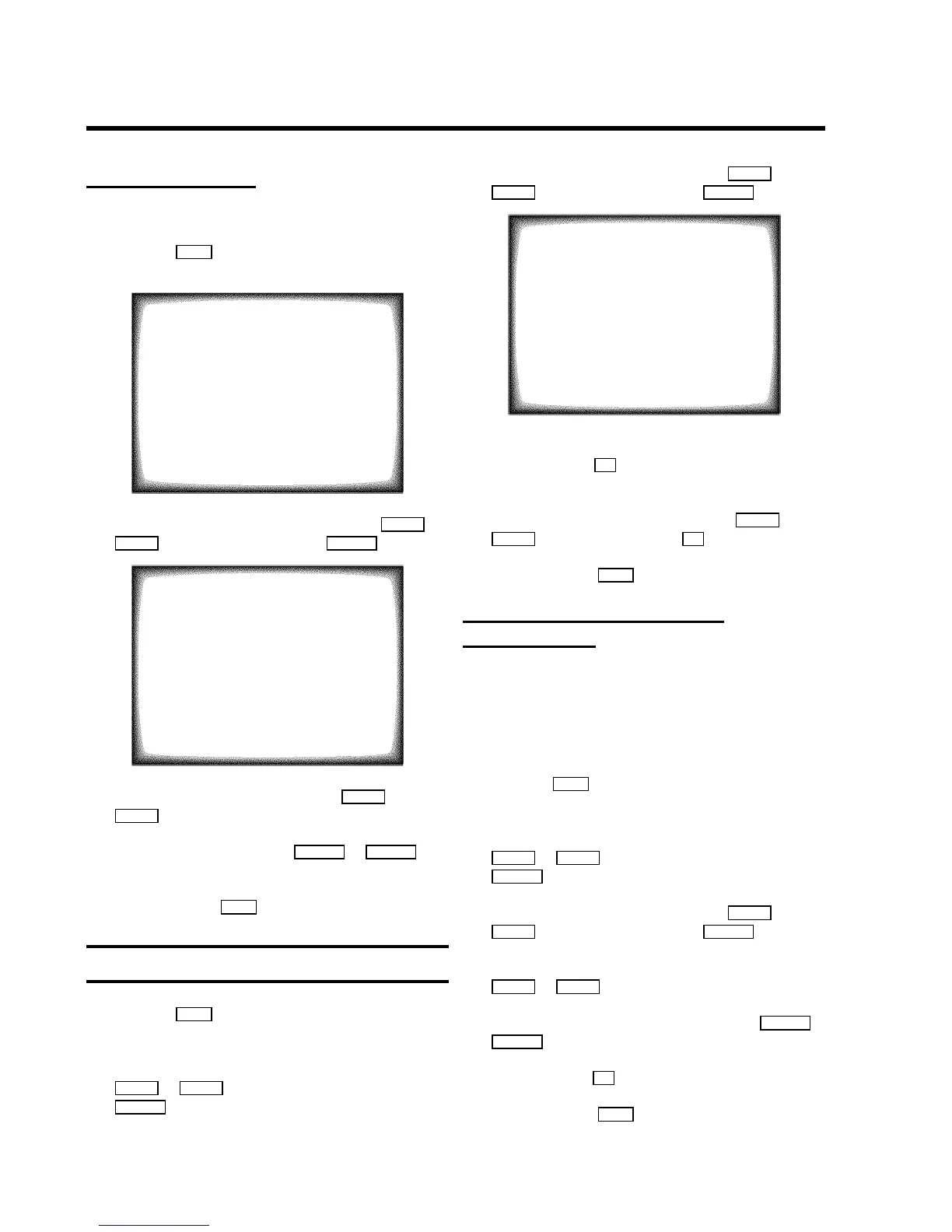
a Press the MENU button on the remote control. The main
menu will appear.
MAIN MENU
Picture
Sound
Setup
Tape
Installation
ã Exit:
« press MENU
b Select the line ’Installation’ with the BP r or
AP q button and confirm with the SqC button.
INSTALLATION
Add new channels
Sort channels
Autoinstall
Manual store
Set clock
Language ENGLISH
ã Exit:
« press MENU
c Select the line ’Language’ with the BP r or
AP q button.
d Select your language with the DSr or SqC
button.
e To end, press the MENU button.
Setting the time and date
a Press the MENU button on the remote control. The main
menu will appear.
b Select the line ’Installation’ with the buttons
BP r or AP q and confirm with the button
SqC .
c Select the line ’Set clock’ with the BP r or
AP q button and confirm with the SqC button.
SET CLOCK
Time 15:36
Year 2000
Month 06
Date 08
Smart clock ON
ã Exit:
« press MENU
d Check the time in line ’Time’. If required, please change
the time with the 0-9 buttons on the remote control.
e Check ’Year’, ’Month’ and ’Date’ in the same way.
You can switch between entry fields with BP r or
AP q button. Confirm with the OK button.
f To end, press the MENU button.
Automatic time and date setting
(SMART CLOCK)
DIf a television programme, which transmits TELETEXT, is
stored with programme number ’P01’, time and date will
be set automatically.
DThe time will automatically be adjusted to winter time and
summer time.
a Press the MENU button on the remote control. The main
menu will appear.
b Select the line ’Installation’ with the buttons
BP r or AP q and confirm with the button
SqC .
c Select the line ’Set clock’ with the BP r or
AP q button and confirm with the SqC button.
d Select the line ’Smart clock’ with the menu buttons
BP r or AP q .
e Switch the function on with the menu buttons DSr or
SqC .
f Confirm with the OK button.
g To end, press the MENU button.
9








 To Next Page