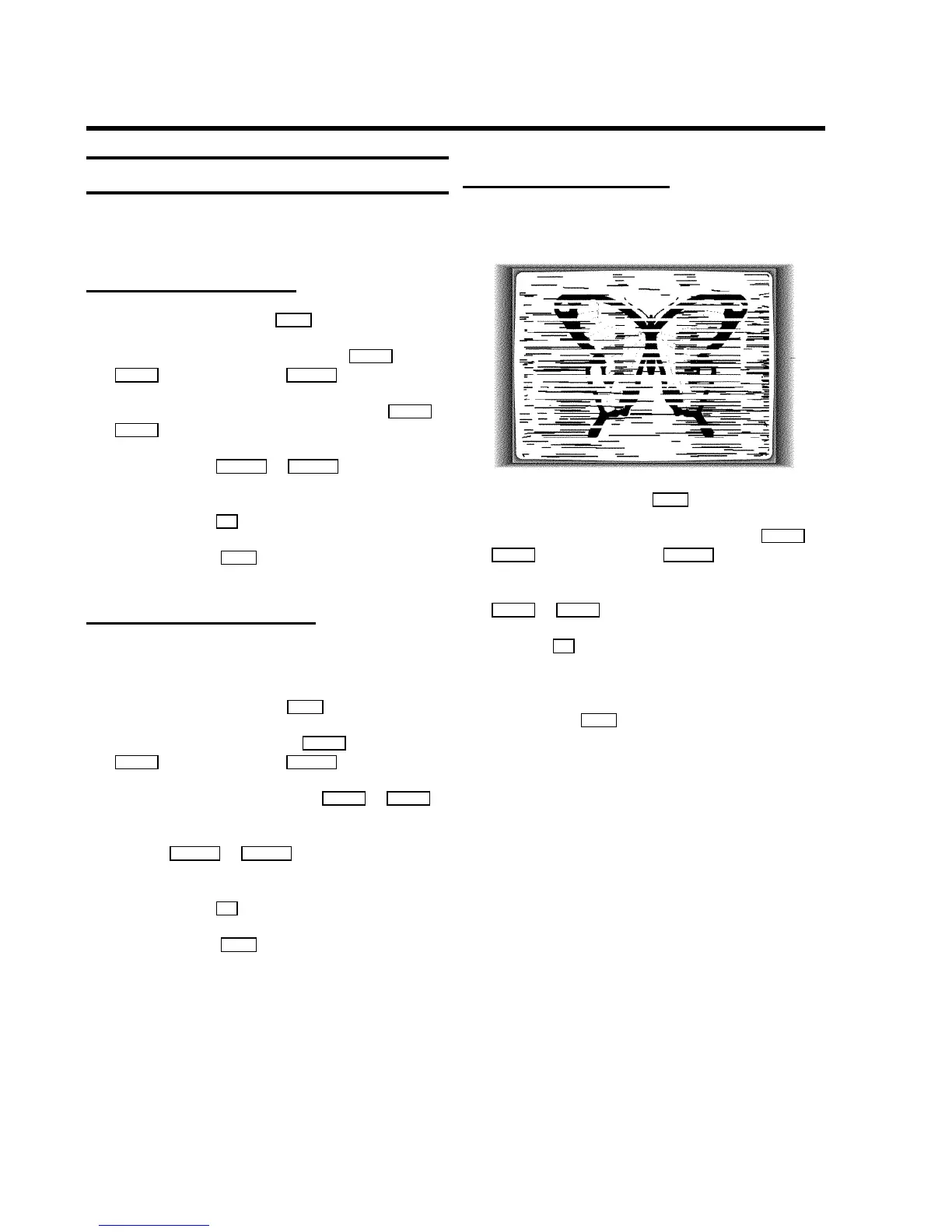
Picture interference
When the picture quality is poor when you play a cassette,
please follow these instructions.
Tracking during playback
a During playback, press the MENU button.
b Select the line ’Tape’ with the buttons BP r or
AP q and confirm with the SqC button.
c Select the line ’Tracking’ with the buttons BP r or
AP q .
d Hold the buttons DSr or SqC until the playback
quality is at its best.
e Confirm with the OK button.
f To end, press the MENU button. This setting will remain
until you remove the cassette.
Tracking during still picture
If the still picture vibrates vertically, you can improve the still
picture as follows:
a During still picture, press the MENU button.
b Select the line ’Tape’ with the BP r button or
AP q and confirm with the SqC button.
c Select the line ’Jitter’ with the BP r or AP q
button.
d Hold the DSr or SqC button until the picture
quality is at its best.
e Confirm with the OK button.
f To end, press the MENU button.
DPlease note, however, that interference may still
occur with poor quality cassettes.
Cleaning the video heads
If horizontal lines appear on the screen when you play a
cassette, you should clean the video heads.
a During playback, press the MENU button.
b Select the line ’Tape’ with the menu buttons BP r or
AP q and confirm with the SqC button.
c Select the line ’Cleaning’ with the menu buttons
BP r or AP q .
d Press the OK button. ’CLEANING’ appears on the
screen.
e Wait a few seconds, until the message disappears and
then press the MENU button.
15






 To Next Page