7.5
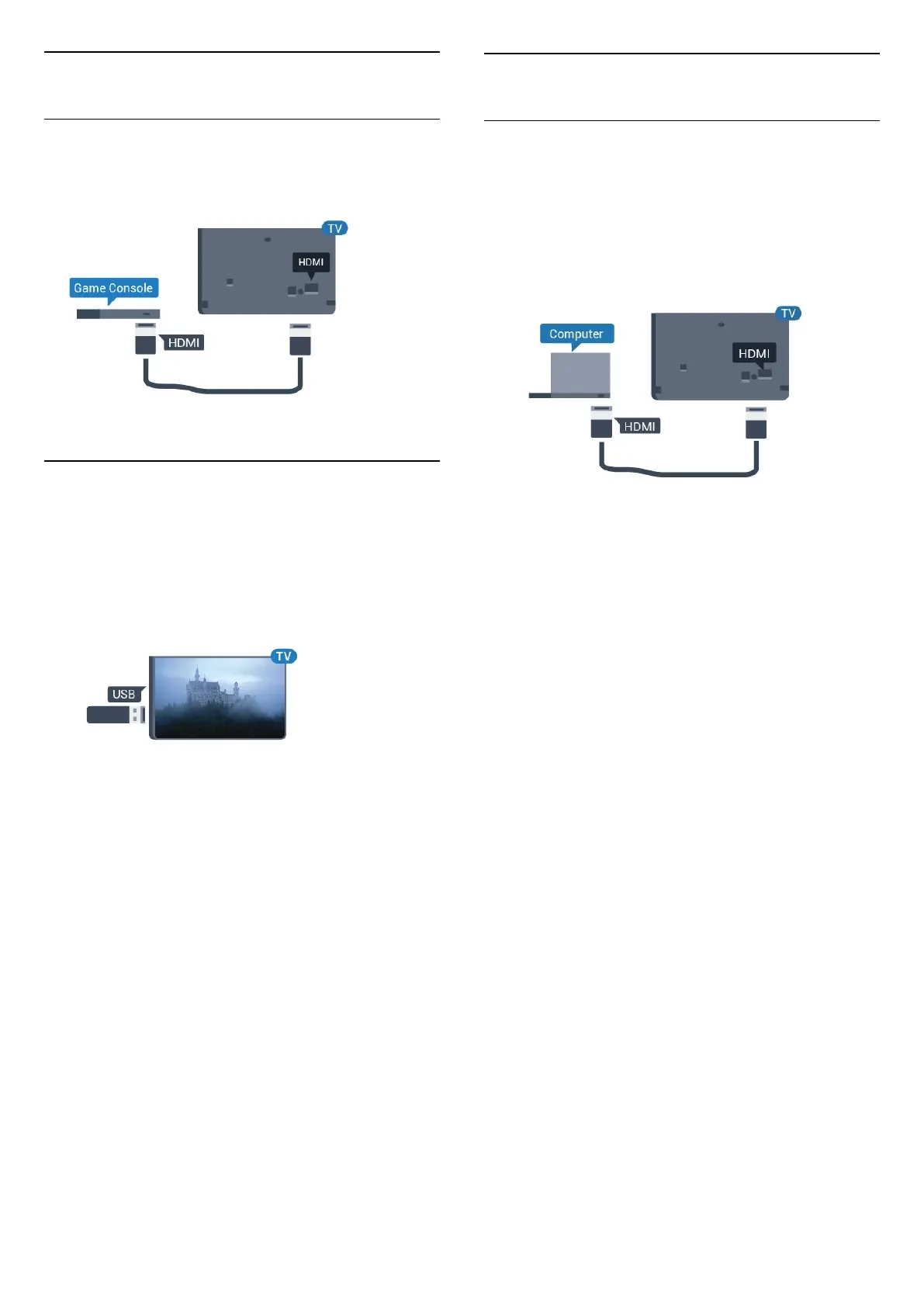
Game Console
HDMI
For best quality, connect the game console with a
High speed HDMI cable to the TV.
7.6
USB Flash Drive
You can view photos or play your music and videos
from a connected USB flash drive.
Insert a USB flash drive in one of
the USB connections on the TV while the TV is
switched on.
The TV detects the flash drive and opens a list
showing its content.
If the contents list does not appear automatically...
Professional Mode
OFF Press Home, select
Apps, select Sources. Choose USB press OK.
Professional Mode On Press Home,
select TV Channels , select SOURCES .
Choose USB and press OK.
To stop watching the USB flash drive content,
press or select another activity.
To disconnect the USB flash drive, you can pull out
the flash drive anytime.
7.7
Computer
Connect
You can connect your computer to the TV and use
the TV as a PC monitor.
With HDMI
Use an HDMI cable to connect the computer to the
TV.
13





 To Next Page