poor, press Search again. If you want to store the
channel, select Done and press OK.
• Store
You can store the channel on the current channel
number or as a new channel number.
Select Store Current Channel or Store as New
Channel and press OK. The new channel number is
shown briefly.
You can redo these steps until you have found all
available analogue TV channels.
11.7
Internet
Start Internet
You can browse the Internet on your TV. You can
view any Internet website but most of them are not
prepared for a TV screen.
• Some plug-ins (e.g. to view pages or videos) are not
available on your TV.
• You cannot send or download files.
• Internet pages are shown one page at a time and
full screen.
To start the Internet browser…
1 - Press HOME.
2 - Scroll down and
select Apps > Internet and press OK.
3 - Enter an Internet address and select ,
press OK.
4 - To close Internet, press HOME or .
11.8
Software
Update Software
Software Version
To view the current TV software version…
1 - Press , select Settings and press OK.
2 - Select Update Software > Current
Firmware and press OK.
3 - The version, release notes and creation date are
shown.
4 - Press (left) repeatedly if necessary, to close
the menu.
Update from website
You can find the current firmware version of your TV
in the settings menu under “Update Software” >
"Current firmware".
Regularly check www.philips.com/support for new
Firmware updates.
Follow the instructions below to update the firmware
of your TV.
Download the latest software...
1 - Launch the Internet Explorer.
2 - Enter the Philips support site at url
http://www.philips.com/support .
3 - Enter the model number. (You can find your
model number from the label on the rear of the TV. )
4 - When enter your TV’s product page, select
Support.
5 - Select “Software updates”, and click on
“Download file” to download the software. (The
software is available as a zip file.)
6 - If the software version is higher than the version
installed on your TV, click the software download
link.
7 - Accept the license agreement/Terms and
Conditions, select “I agree”, then the zip file will be
downloaded automatically.
8 - Unzip the zip file to any directory using an archive
utility.
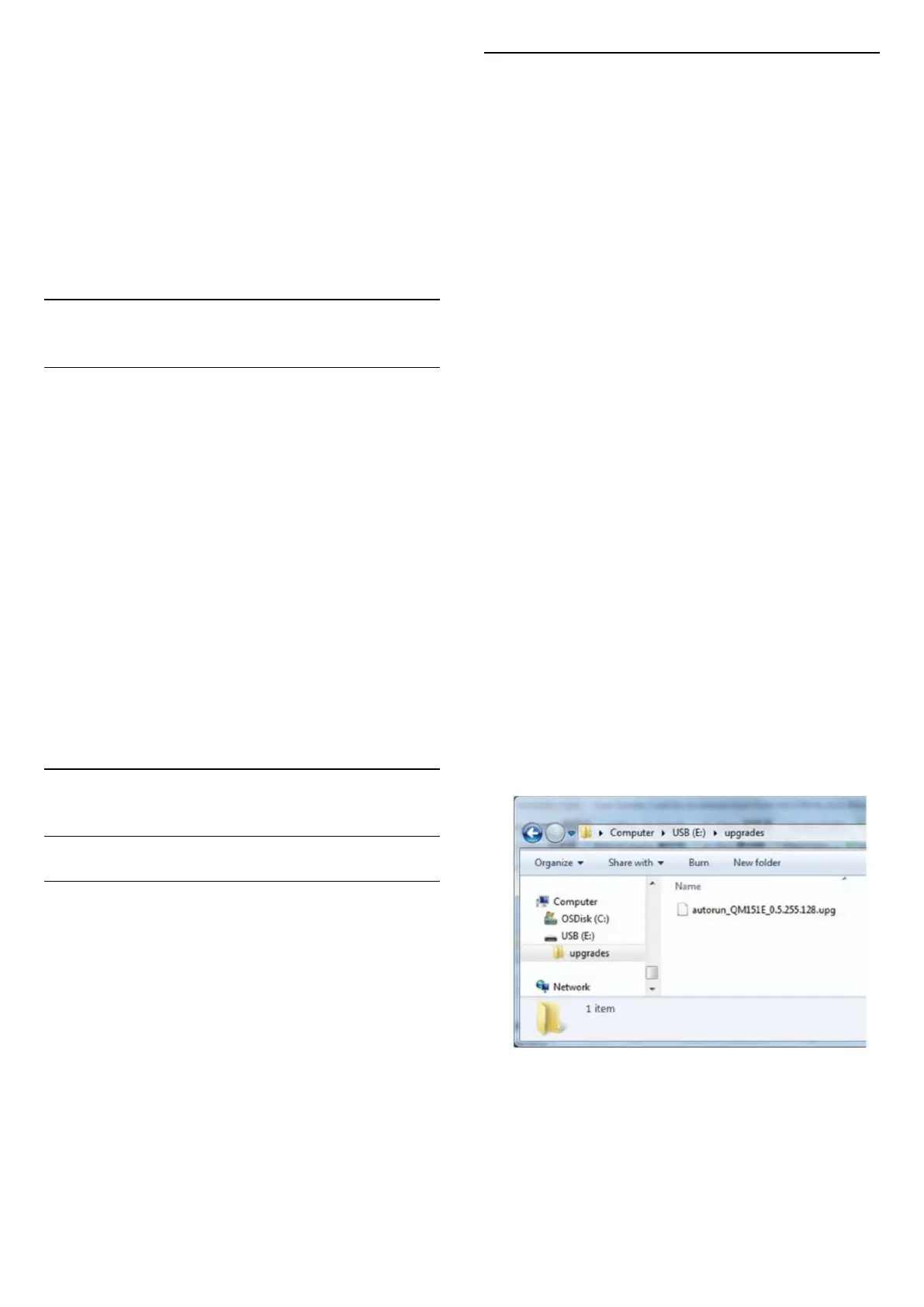
9 - Create a folder name “upgrades” in the main
directory of your USB flash drive.
10 - Copy the upg file you have extract earlier into
the upgrades folder, as depicted in the picture
below.
11 - Disconnect your USB flash drive from the
computer.
Update the software...
1 - Connect your USB flash drive (containing the
software update) to the USB connector on the TV.
Wait 30 seconds or until the USB drive is recognized
by the TV.
2 - Your TV will start loading the software
29





 To Next Page