8
Videos, Photos and
Music
8.1
From a USB Connection
You can view your photos or play your music and
videos from a connected USB flash drive or USB Hard
Drive.
With the TV switched on, plug in a USB flash drive or a
USB Hard Drive to one of the USB connections. The
TV detects the device and will list your media files.
If the list of files does not appear automatically…
1 - Press Press Home, select TV Channels .
2 - Select USB and press OK.
3 - You can browse your files in the folder structure
you have organised on the drive.
4 - To stop playing videos, photos and music,
press .
8.2
Play your Videos
Play Videos
Open video folder
1 - Press Home, select TV Channels .
2 - Select USB , select Videos and
press OK.
To go back to the folder, press .
Play a video
1 - Press Home, select TV Channels .
2 - Select USB , select Videos and
press OK.
3 - Select one of video .
To pause the video, press OK. Press OK again to
continue.
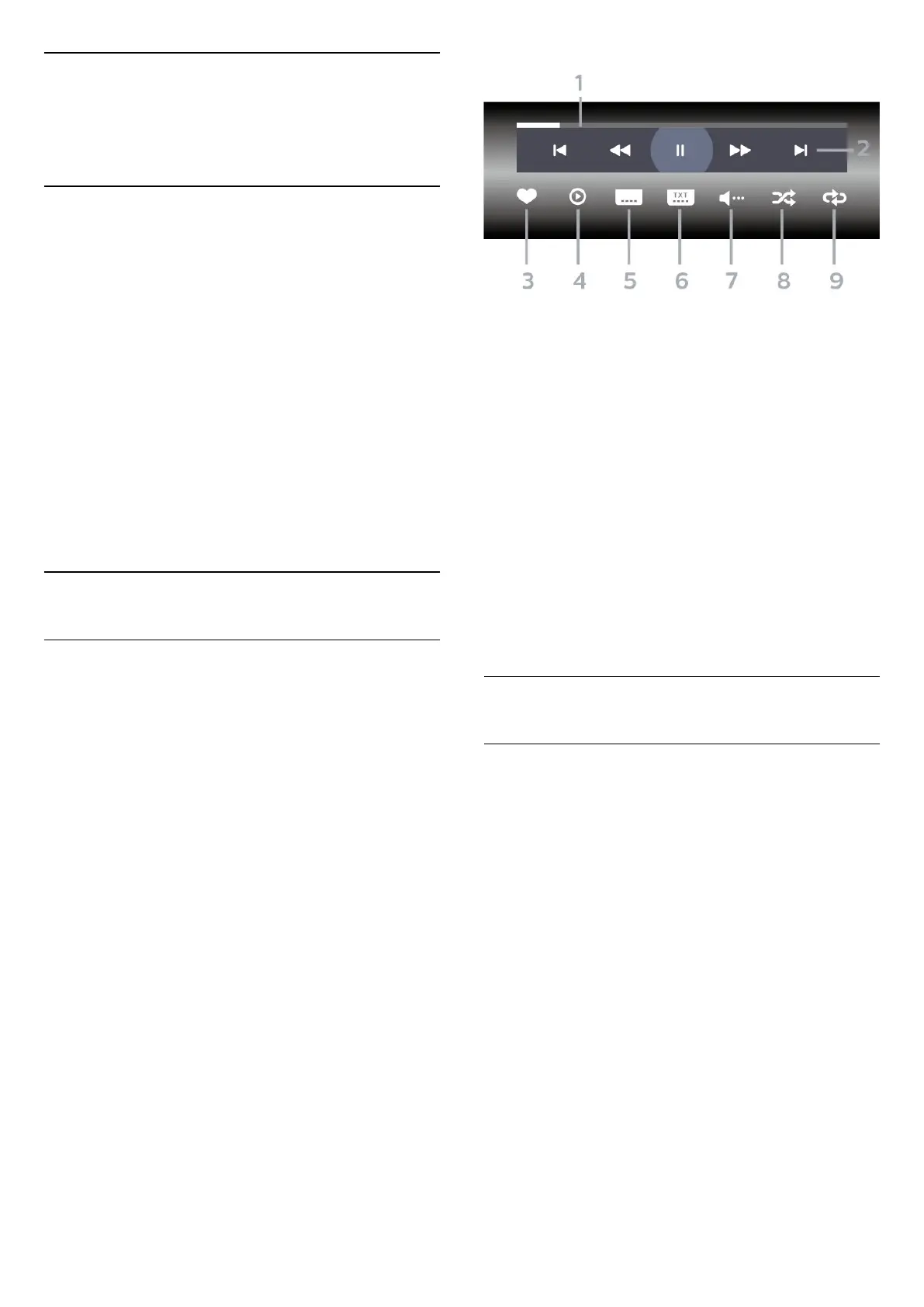
Control bar
To show or hide the control bar when a video is
playing, press OK.
1 - Progress bar
2 - Playback control bar
- : Jump to the previous video in a folder
- : Jump to the next video in a folder
- : Rewind
- : Fast forward
- : Pause the playback
3 - Mark as favourites
4 - Play all videos
5 - Subtitle: switch subtitles On, Off or On During
Mute.
6 - Subtitle language: select a Subtitle Language
(Not available for Professional Mode ON.)
7 - Audio language: select an audio language
8 - Shuffle: play your files in a random order
9 - Repeat: plays all videos in this folder once or
continuously
8.3
View your Photos
View Photos
Open photo folder
1 - Press Home
, select TV Channels .
2 - Select USB , select Photos and
press OK.
View a photo
1 - Press Home, select TV Channels .
2 - Select USB , select Photos and
press OK.
3 - Select Photos and select one of photos .
Control bar
15





 To Next Page