18 EN
Change picture and sound
settings
Change picture and sound settings to suit your
preferences. You can apply pre-dened settings
or change settings manually.
Note
• While you watch TV or external devices, press
ADJUST, then select [Smart picture] or
[Smart sound] for quick access to picture and
sound settings.
Use smart picture
Use smart picture to apply pre-dened picture
settings.
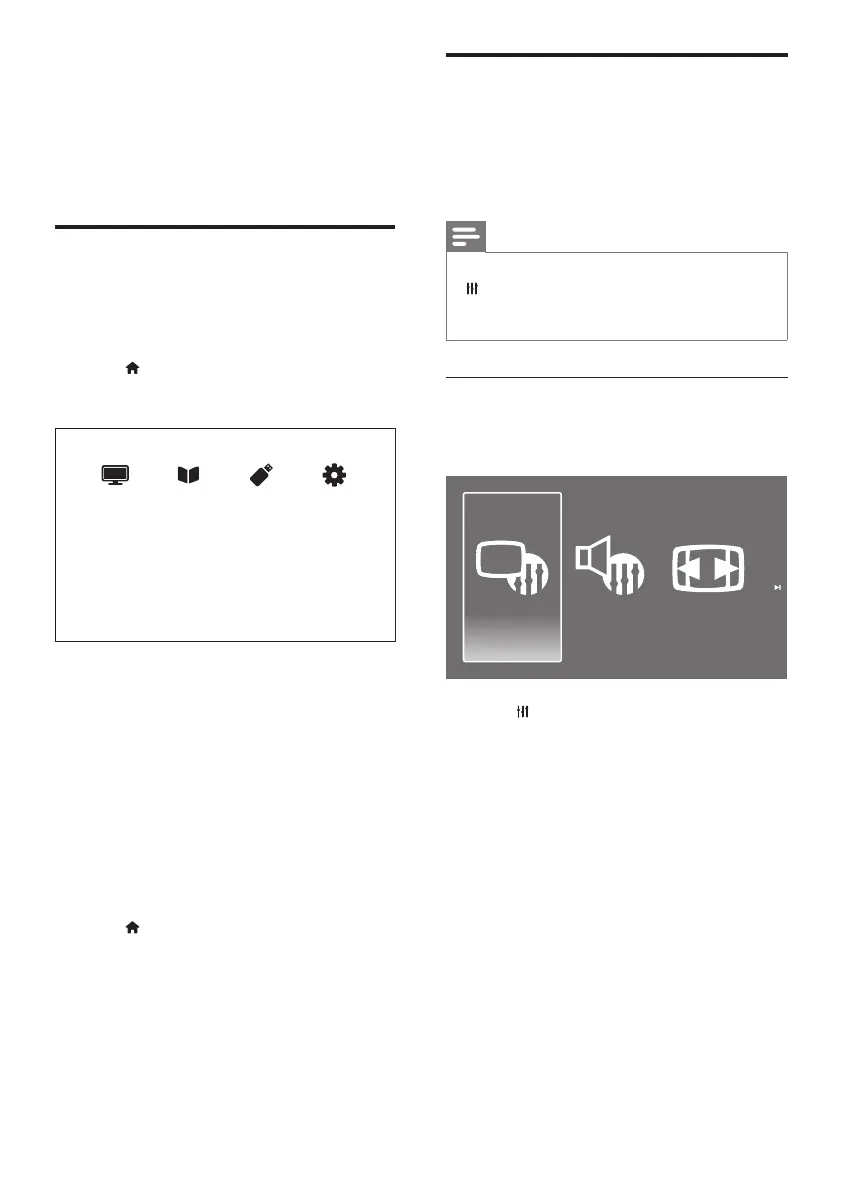
Smart Picture
mart Picture Smart SoundPicture Format
1. Press ADJUST.
2. Select [Smart picture], then press OK.
3. Select one of the following settings, then
press OK.
• [Vivid]: Rich and dynamic settings,
ideal for daytime.
• [Natural]: Natural picture settings.
• [Cinema]: Ideal settings for movies.
• [Game]: Ideal settings for games.
• [Energy saving]: Settings that conserve
the most energy.
• [Standard]: Default settings that suit
most environments and types of video.
• [Photo]: Ideal settings for photos.
• [Custom]: Customise and store your
personal picture settings.
8 Settings
This chapter describes how to change settings
and customize functions.
Access TV menus
Menus help you to install channels, change
picture and sound settings and access other
features.
1. Press .
» The menu screen appears.
Watch TV Programme guide Browse USB Setup
2. Select one of the following, then press OK.
• [Watch TV]: If a source other than
antenna is selected, switch back to the
antenna source.
• [Programme guide]: Access the
electronic programme guide.
• [Browse USB]: If a USB device
is connected, access the content
browser.
• [Setup]: Access menus to change
picture, sound and other settings.
3. Press to exit.




 To Next Page