Service Modes, Error Codes, and Fault Finding
EN 31LC8.1U LA 5.
5.7 Software Upgrading
5.7.1 Introduction
It is possible for the user to upgrade the main software via the
USB port. This allows replacement of a software image in a
stand alone set, without the need of an E-JTAG debugger. A
description on how to upgrade the main software can be found
in the DFU or on the Philips website.
5.7.2 Main Software Upgrade
Automatic Software Upgrade
In “normal” conditions, so when there is no major problem with
the TV, the main software and the default software upgrade
application can be upgraded with the “autorun.upg” (FUS part
in the one-zip file). This can also be done by the consumers
themselves, but they will have to get their software from the
commercial Philips website or via the Software Update
Assistant in the user menu (see DFU). The “autorun.upg” file
must be placed in the root of your USB stick.
How to upgrade:
1. Copy “autorun.upg” to the root of your USB stick.
2. Insert USB stick in the side I/O while the set is in “On”
mode. The set will restart and the upgrading will start
automatically. As soon as the programming is finished, you
will get the message that you can remove your USB stick
and restart the set.
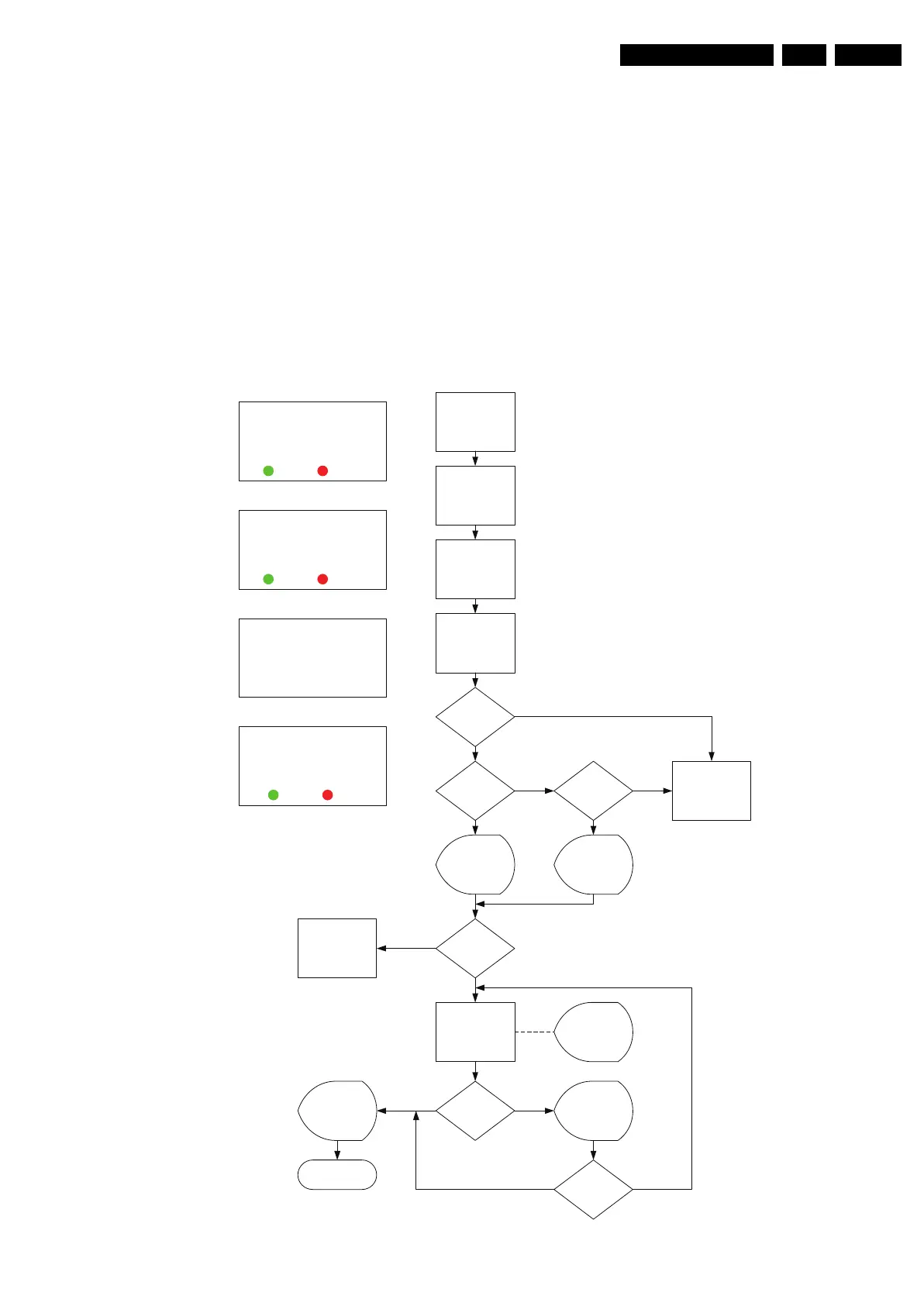
Figure 5-13 SW upgrade flowchart
LC08SSpUser software upgrade flow chart
Power off the set
Plug-in the USB
stick
Power-on the set
Detect USB
‘break-in’ and
check autorun file
Is USB sw
version > set
sw?
Set re-start &
Proceed with sw
upgrade
Display
upgrade
progress
Prompt user to
remove USB
and restart the
set
Successful?
Prompt user to
try again?
Y
N
N
Y
End
Display USB
sw newer than
the TV sw.
Prompt user to
confirm
Proceed?
Display USB
sw equal/older
than TV sw.
Prompt user to
confirm
N
Y
See layout 2
See layout 1
A newer version of software is
detected.
Do you want to upgrade?
YES NO
An equal/older version of software is
detected.
Do you want to proceed?
Note: Should be done only if
necessary.
YES NO
See layout 3
Kindly remove the USB stick and
restart the set.
See layout 4
Software update failed!
Would you like to try again?
layout 4
layout 3
layout 2
layout 1
YES NO
Retry?
N
Y
Valid auto-run
file?
Y
Content browser
Photo & music
N
Is USB sw
version =< set
sw?
Y
N
Content browser
Photo & music
H_17740_038.eps
230408





 To Next Page