English
43
Settingstatus
You can check the status of network settings.
2 Use ▲▼ to select Settingstatus, then press OK.
• Network setting list will be displayed.
• MAC address of this unit will be displayed in the list.
Resetnetworksettings
You can reset the status of network settings.
2 Use ▲▼ to select Resetnetworksettings, then press OK.
3 Press OK to select Startnow.
Returnyoursettingstodefaultvalues
When you return picture and sound settings to their default values the
channel installation settings are not affected.
1 Use ▲▼ to select ResetAVsettings, then press OK.
2 Press OK to select Startnow.
Software
Philips continuously tries to improve its products and we strongly
recommend that you upgrade the TV software when upgrades are available.
New software can be downloaded from our website at
www.philips.com/support using the model number of your TV to nd
information.
1 Press MENU/E�IT and use ▲▼◄► to select Setup, then press
OK.
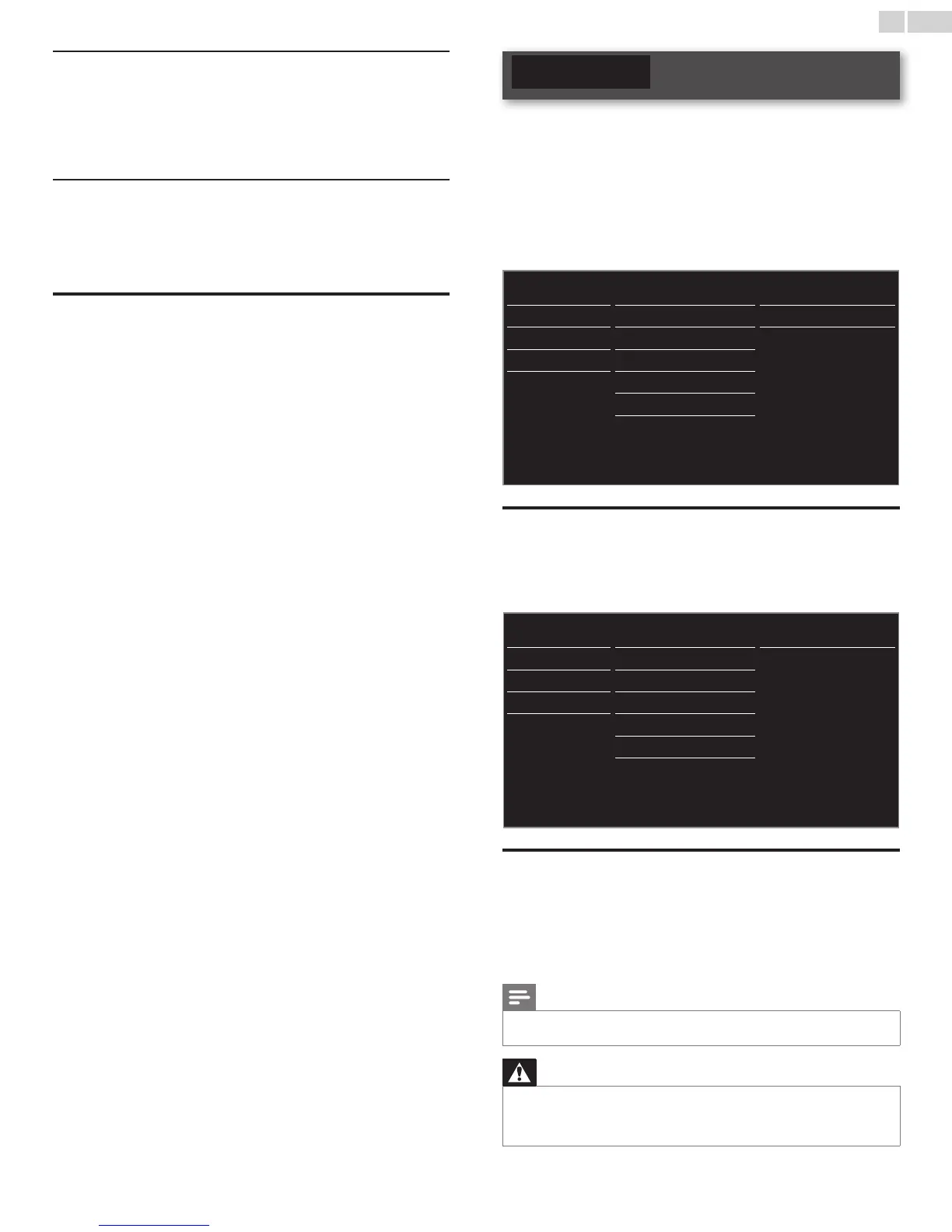
2 Use ▲▼ to select Software, then press OK.
Picture Software information
Software update
Automatically check for
Netflix deactivation
Netflix ESN
VUDU deactivation
MediaConnect code
Select
USB
Off
Sound
Features
Installation
Software
Checkingyourcurrentsoftwareversion
1 Use ▲▼ to select Softwareinformation, then press OK.
• The version and a description of the current software is
displayed.
Picture Software information
Software update
Automatically check for
Netflix deactivation
Netflix ESN
VUDU deactivation
MediaConnect code
FNI-XXXX_XXX_X
Sound
Features
Installation
Software
Preparingforthesoftwareupgrade
You require the following equipment :
– A PC with web browsing capability
– An archive utility that supports the ZIP-format
– (e.g. WinZip for Windows or StuffIt for Mac OS)
– An empty clean formatted USB Memory Stick
Note
• Only FAT / DOS-formatted portable memory is supported.
• Use only software upgrades that can be found on the Philips web site.
Warning
• When the software upgrade is running, don’t press any buttons.
• Do not remove the USB Memory Stick during the software upgrade.
• If an error occurs during the upgrade, retry the procedure or for further assistance,
please contact Call Center.
Continued on next page.






 To Next Page