English
44
Downloadingthesoftware
Find information and software related to your TV and download the
latest software upgrade le to your PC.
1 On your PC, open a web browser and go to
www.philips.com/support.
2 Enter the model number in the “Type the Model Number...” eld.
3 Click the desired software to be downloaded.
• Decompress the ZIP-le.
4 Copy the upgrade le to the root directory of the USB Memory
Stick.
Upgradingthesoftware
USBupgrade
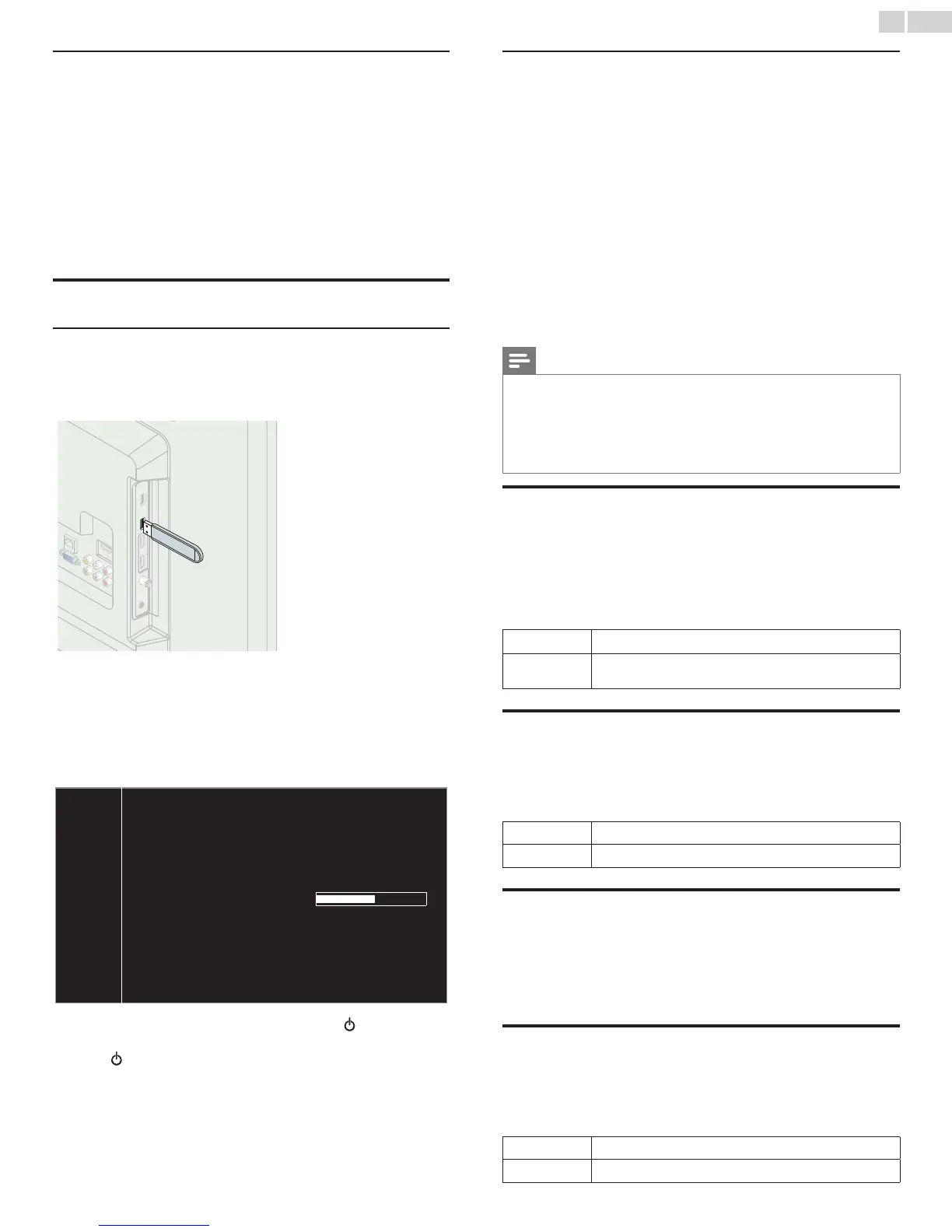
You can upgrade the software by using USB Memory Stick.
1 Connect your USB Memory Stick with the upgrade le to the USB
terminal on the side of your TV.
2 Use ▲▼
to select Softwareupdate, then press OK.
3 Use ▲▼
to select USB, then press OK.
4 Use ▲▼
to select the desired Update le.
5 Use ◄►
to select Yes, then press OK.
6 Read the on-screen instructions and conrm that you want to
continue with the installation.
Softwareupdateisinprogress.Pleasewait.
DonotremovetheUSBstoragedeviceorturntheTVoffwhile
upgradeisinprogress.
UpdateyourTVwithnewsoftware:
7 When the software upgrade is completed, press to set the unit
to go into Standby mode, then remove the USB Memory Stick and
press again to Turn the unit On.
• The TV starts up with the new software.
For further assistance, please contact Call Center.
Networkupdate
You can update the software by connecting the unit to the Internet.
1 Use ▲▼
to select Softwareupdate, then press OK.
2 Use ▲▼
to select Network, then press OK.
3 Use ◄► to select Yes, then press OK.
• This unit will then start checking for the latest rmware version.
4 Conrmation message will appear.
Use ◄► to select Yes, then press OK.
• The unit will start downloading the latest rmware version.
• The unit will start updating the rmware version.
• It may take a while to complete the updating.
5 When the software update is complete, press
.
to make sure the
unit goes to Standby mode. Then switch on the TV again and starts
up with the new software.
Note
• In order to update software via the Internet, you must connect the unit to the Internet
and set up necessary settings. Networksettingsassistant
➠
p.40 Network
➠
p.40
• Please do not unplug the AC power cord or Ethernet cable while executing the
Networkupdate.
• All settings will remain the same even if you update the software version.
• The version of Netix will also be updated if newer version of Netix is available when
updating the rmware.
Automaticallycheckforlatestsoftware
This function lets you know if the latest software is available while the
unit is connected to the Internet.
1 Use ▲▼ to select Automaticallycheckforlatestsoftware, then
press OK.
2 Use ▲▼ to select the desired option, then press OK.
Off
Disable automatically check for latest software.
On
A message will appear if there is the latest software on the
network server.
Netixdeactivation
Displays the deactivation setting for Netix.
1 Use ▲▼ to select Netixdeactivation, then press OK.
2 Use ▲▼ to select the desired option, then press OK.
Yes
Deactivate the connection to Netix.
No
Activate the connection to Netix.
NetixESN
Displays the ESN information.
1 Use ▲▼ to select NetixESN, then press OK.
• Displays the ESN (Electronic Serial Number) to get any services
from Netix.
VUDUdeactivation
Displays the deactivation setting for VUDU.
1 Use ▲▼ to select VUDUdeactivation, then press OK.
2 Use ▲▼ to select the desired option, then press OK.
Yes
Deactivate the connection to VUDU.
No
Activate the connection to VUDU.



 To Next Page