23
Select your system
Note
Skip this step if your system settings are •
correct.
1 Press ( Home).
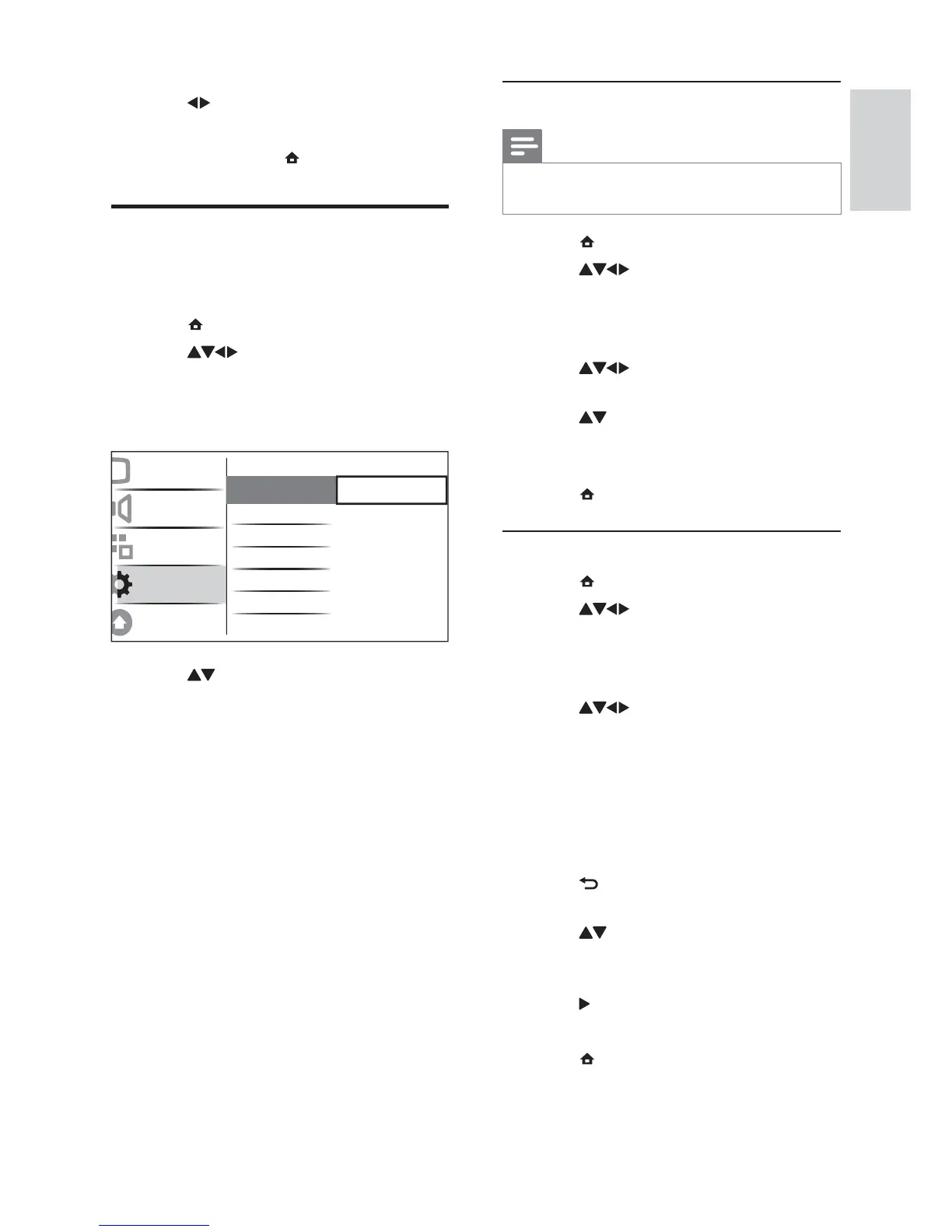
2 Press to select [Setup] >
[Installation] > [Channel install.] >
[Analogue: Manual].
The» [Analogue: Manual] menu appears.
3 Press to select and enter
[System].
4 Press to select your country or
region.
5 Press OK to confi rm.
6 Press ( Home) to exit.
Search and store new TV channels
1 Press ( Home).
2 Press to select [Setup] >
[Installation] > [Channel install.] >
[Analogue: Manual].
The» [Analogue: Manual] menu appears.
3 Press to select and enter [Search].
4 Press Numeric buttons to manually enter
the three-digit frequency.
5 Press OK to begin search.
If a channel is unavailable at the »
selected frequency, the system searches
for the next available channel.
6 Press BACK when the new channel is
found.
7 Press to select [Store new channel]
to store the new channel under a new
channel number.
8 Press to enter [Store new channel].
9 Press OK to store the new channel.
10 Press ( Home) to exit.
6 Press to select [Stop] or [Continue].
7 Press OK to confi rm your choice.
8 When done, press ( Home) to exit.
Manually install channels
This section describes how to search and store
analogue TV channels manually.
1 Press ( Home).
2 Press to select [Setup] >
[Installation] > [Channel install.] >
[Analogue: Manual].
The» [Analogue: Manual] menu appears.
3 Press to select the item you want to
adjust.
• [System]
• [Search]
• [Channel number]
• [Fine-tune]
• [Store cur. chan.]
• [Store new channel]
• [Skip channel]
Picture
Sound
Features
Installation
Software update
Menu language
Channel install.
Preferences
Decoder
Factory setting
Current software
Channel assistant
Analogue: Manual
English
EN









 To Next Page