10
[Noise reduction] : Filters and
reduces noise in an image.
[Color temperature] : Introduces
more orange tones ( [Warm] ) or
blue tones ( [Cool] ) to the picture.
[Pixel Plus HD] : Fine tunes each
pixel to match surrounding pixels.
This produces a brilliant, high-
de nition image.
[Dynamic contrast] :
Automatically enhances contrast
in an image.
[Dynamic backlight] : Adjusts
the brightness of the TV
backlight to match lighting
conditions.
[Color enhancement] : Makes
colors more vivid and improves
the resolution of details in bright
colors. You can switch this
feature on or off.
[PC mode] : Adjusts picture settings
when a PC is connected to the TV.
[Light sensor] : Dynamically adjusts
picture settings to match lighting
conditions.
[Picture format] : Changes the
picture format.
[Horizontal shift] : Adjusts the
picture horizontally for PC-VGA or
HD input.
[Vertical shift] : Adjusts the picture
vertically for PC-VGA or HD input.
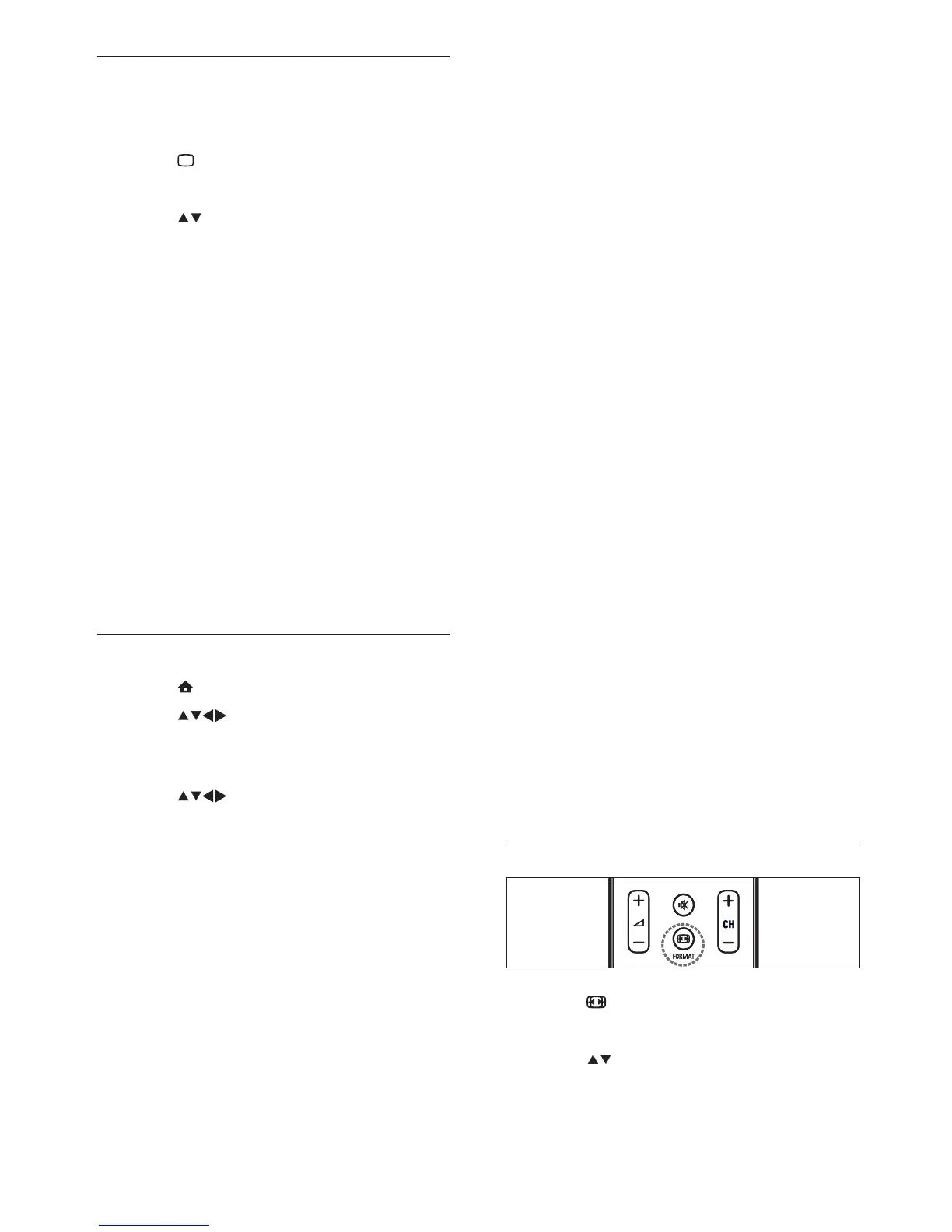
Change picture format
1 Press FORMAT .
A picture format bar appears.
2 Press to select a picture format.
The selected picture format is
activated.
•
•
•
•
•
•
•
•
•
•
•
»
»
Use smart picture
Use smart picture to apply pre-de ned
picture settings.
1 Press PICTURE .
The [Smart picture] menu appears.
2 Press to select one of the following
smart picture settings.
[Personal] Lists customized personal
picture settings.
[Vivid] Maximizes picture settings.
[Standard] Adjusts picture settings
to suit most environments and types
of video.
[Movie] Applies picture settings
ideally suited for movie viewing.
[Game] Applies picture settings
maximized for fast-moving games.
[Energy saving] Applies low-energy
picture settings.
3 Press OK to con rm your choice.
The selected smart picture setting is
applied.
Manually adjust picture settings
1 Press ( Home ).
2 Press to select [Setup] >
[Picture] .
The [Picture] menu appears.
3 Press to select from the following
settings and adjust:
[Smart picture] : Accesses pre-
de ned smart picture settings.
[Contrast] : Adjusts the intensity
of bright areas, keeping dark areas
unchanged.
[Brightness] : Adjusts the intensity
and details of dark areas.
[Color] : Adjusts color saturation.
[Hue] : Compensates color variations
in NTSC encoded transmissions.
[Sharpness] : Adjusts the level of
sharpness in image details.
»
•
•
•
•
•
•
»
»
•
•
•
•
•
•
EN








 To Next Page