12
3 Press OK to select [Select fav. list] >
[Favorite] .
The favourite list appears.
5 Press OK .
Only channels in the favourite list
appear in the channel grid.
Add a channel to a favourite list
Tip
View all channels before adding a channel to a
favourite list.
•
1 When watching TV, switch to the channel
you want to add to a favourite list (see
‘Switch channels’ on page 7 ) .
2 Press to select a channel to add to
a favourite list.
3 Press OPTIONS .
The channel options menu appears.
4 Press to select [Mark as favourite] .
5 Press OK .
The channel is added to the favourite
list.
Tip
When watching TV, press OPTIONS
> [Mark as favourite] to save the current
channel into a favourite list.
•
»
»
»
»
[Dual I-II] : Selects between audio
languages if dual sound is broadcast.
[TV speakers] : Sets the TV
speakers on or off, or outputs sound
to an EasyLink-compliant device.
[EasyLink] must be activated in the
[Preferences] menu to make the
[TV speakers] menu available.
[Mono/Stereo] : Selects between
mono or stereo if stereo is
broadcast.
[Surround] : Enables spatial sound.
[Headphone volume] : Adjusts
headphone volume.
[Auto volume] : Automatically
reduces sudden volume changes, for
example, when switching channels.
When enabled, this produces a more
consistent audio volume.
[Delta volume] : Corrects volume
differences between TV channels
and connected devices (switch
to your connected device when
adjusting [Delta volume] ).
Create and use list of
favourite channels
You can create lists of your preferred TV
channels and radio stations so that you can nd
those channels easily.
Select a favourite list
1 When watching TV, press OK to display
the channel grid.
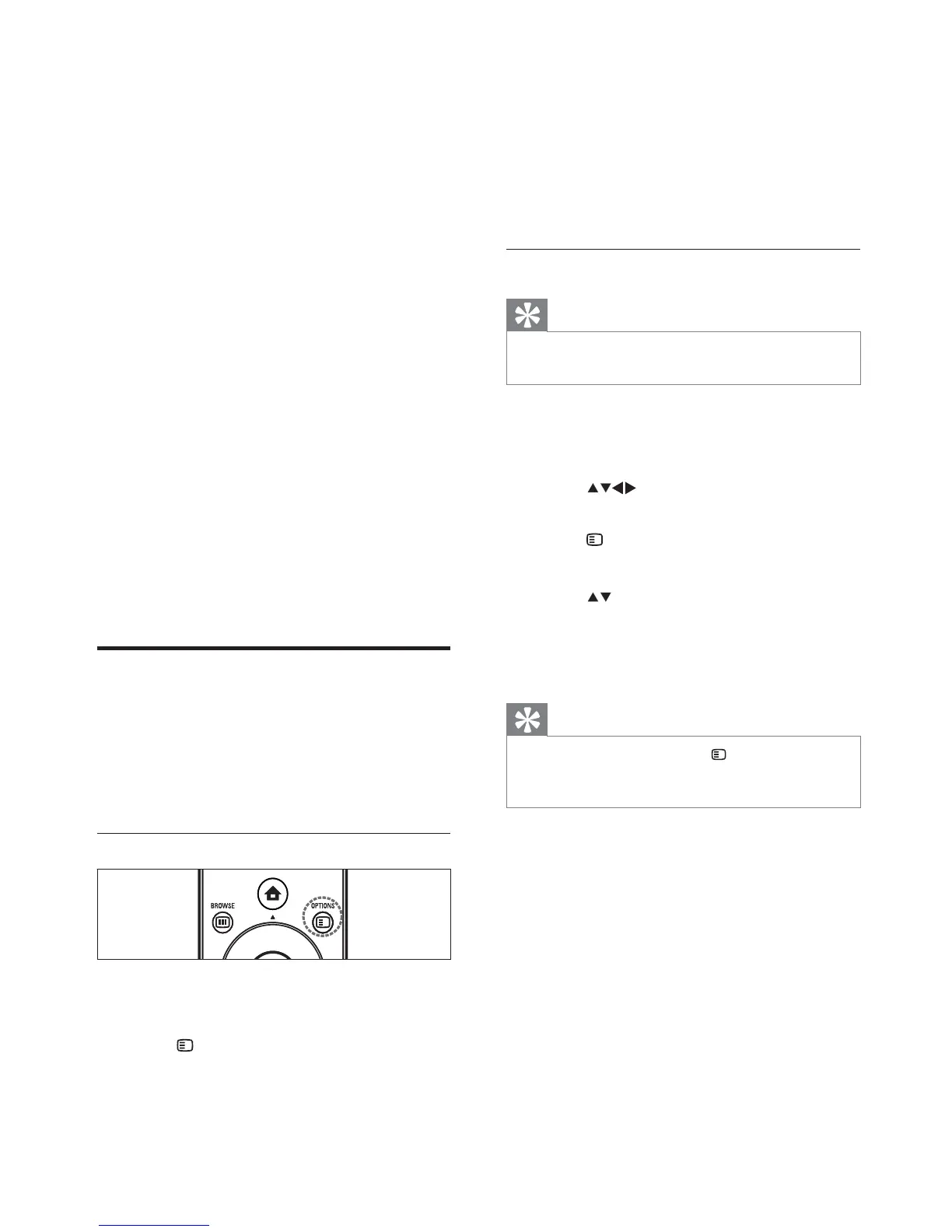
2 Press OPTIONS .
The channel options menu appears.
•
•
•
•
•
•
•
»
EN








 To Next Page