18
Change TV preferences
The [Preferences] menu allows you to
customize various features and functions.
1 Press ( Home ).
2 Select [Setup] > [Installation] >
[Preferences] .
[Location] : Optimizes TV settings
for your location - home or shop.
[Volume bar] : Displays the volume
bar when adjusting the volume.
[EasyLink] : Enables one-touch play
and one-touch standby between
EasyLink-compliant devices.
[Pixel Plus Link] : Overrides the
settings of connected devices and
uses the settings of the TV.
[E-sticker] : For shop mode only.
Sets the location of the e-sticker.
Start a TV demo
You can use demonstrations to better
understand the features of your TV. Some
demos are not available on certain models.
When a demo is available, it is displayed in the
menu list.
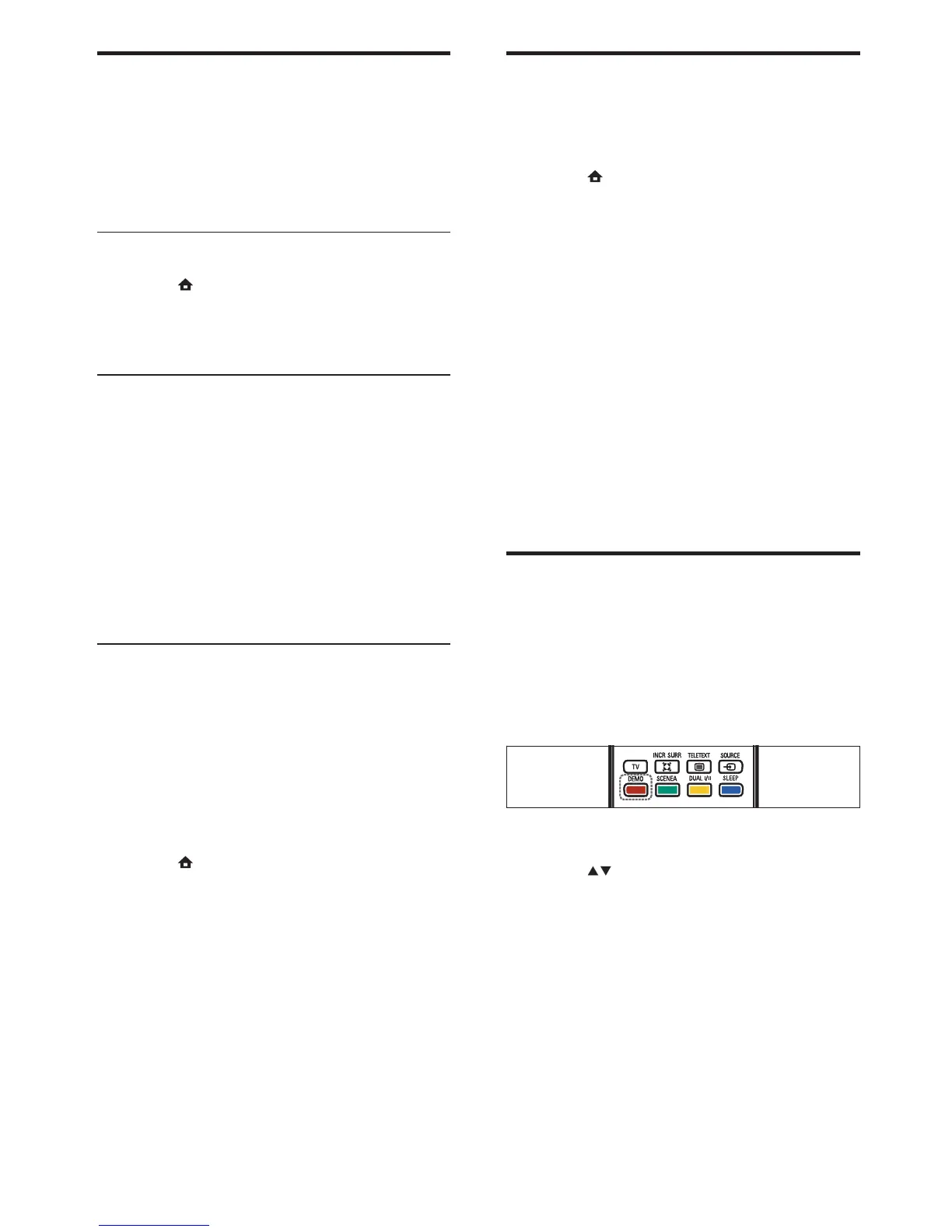
1 Press DEMO on the remote control.
2 Press to select a demo and press OK
to view it.
3 Press DEMO to exit.
•
•
•
•
•
Update the TV software
Philips continuously tries to improve its
products and we recommend that you update
the TV software when updates are available.
Check www.philips.com/support for availability.
Check the current software version
1 Press ( Home ).
2 Select [Setup] > [Software update] >
[Current software] .
Download the software
1 On your PC, open a web browser and go
to www.philips.com/support.
2 Find information and software related
to your TV and download the latest
software upgrade le to your PC.
3 Decompress the ZIP- le.
4 Copy the autorun.upg le to the root
directory of the USB device.
Update software (analog broadcasts)
Before performing this procedure be sure to:
Set aside some time to complete the
entire update.
Have available a USB storage device with
at least 64MB of storage space.
Have access to a computer with a USB
port and internet access.
1 Press ( Home ).
2 Select [Setup] > [Software update] >
[Update assistant] .
3 Select [Start] .
4 Connect the USB storage device to your
computer.
5 Follow the on-screen instructions to
complete the update.
•
•
•
EN





 To Next Page