17
Upload a wallpaper picture from a
USB device
Before performing this procedure, be sure to
have available a USB storage device containing
the picture you intend to use as wallpaper.
Note
The le size of the picture must not be more
than 1MB.
•
1 Connect the USB storage device to the
TV.
2 Press ( Home ).
The home menu appears.
3 Press to select [Browse USB] .
4 Press to select a picture.
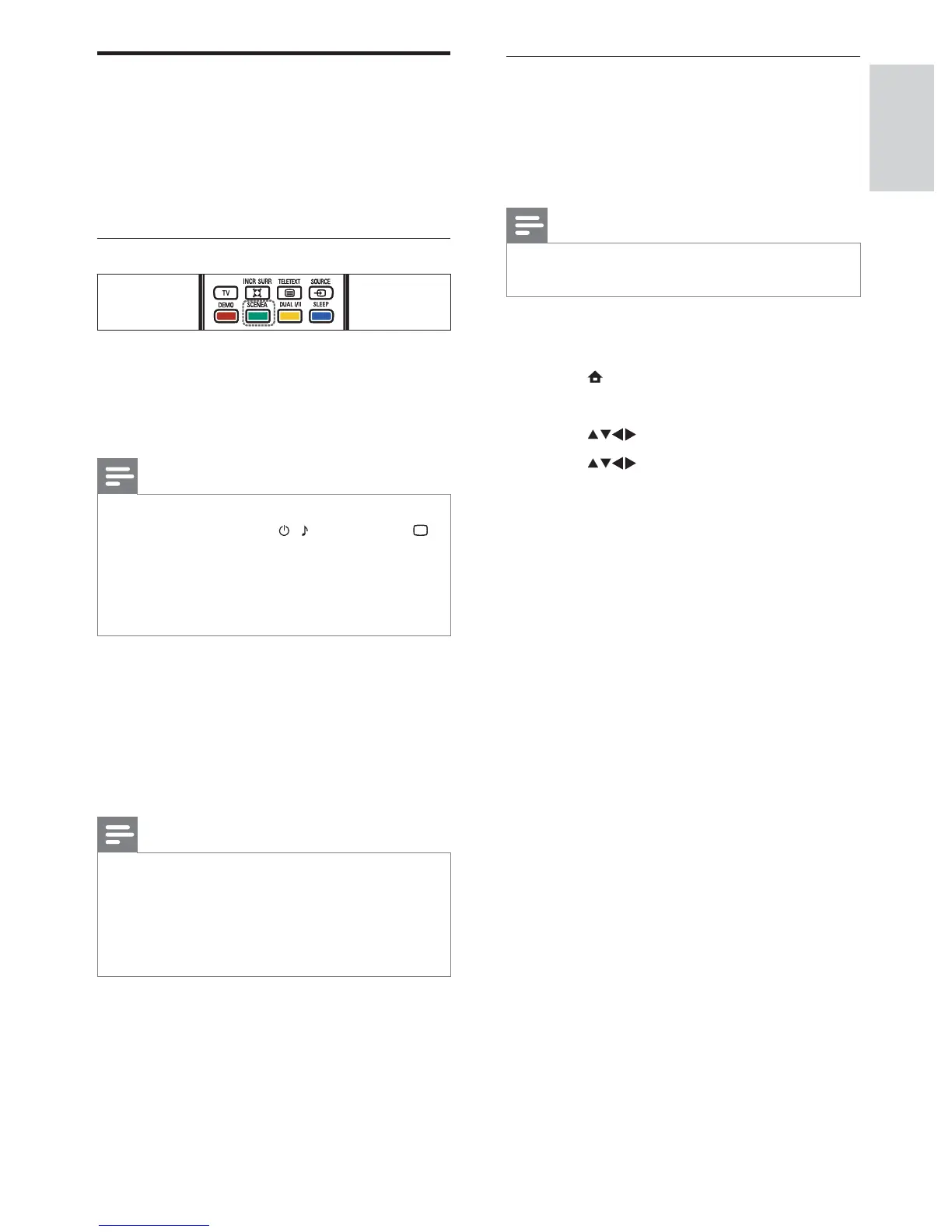
5 Press SCENEA .
»
Use Scenea to display a
picture as TV wallpaper
You can use the Scenea feature to display a still
picture as wallpaper on your TV. This feature is
for home mode only.
Activate Scenea
Single-picture wallpaper
Press SCENEA on your remote control.
The default or pre-loaded picture is
displayed.
Note
To deactivate the wallpaper, press any remote
control button except
, SOUND , and
PICTURE .
The wallpaper is also deactivated when you
connect a USB storage device to the TV or
start an EasyLink-compliant device through
one-touch play.
•
•
Wallpaper slide show
Make sure the wallpaper is not yet activated.
1 Connect a USB storage device to the TV.
2 Press SCENEA .
All pictures in the USB storage device
are displayed.
Note
The wallpaper display duration is determined
by the pre-de ned sleeptimer settings (see
‘Automatically switch the TV to standby
(sleeptimer)’ on page 13 ) . When sleeptimer is
off, the wallpaper is displayed for a maximum
of 120 minutes.
•
»
»
English
EN






 To Next Page