BDL5590VL
27
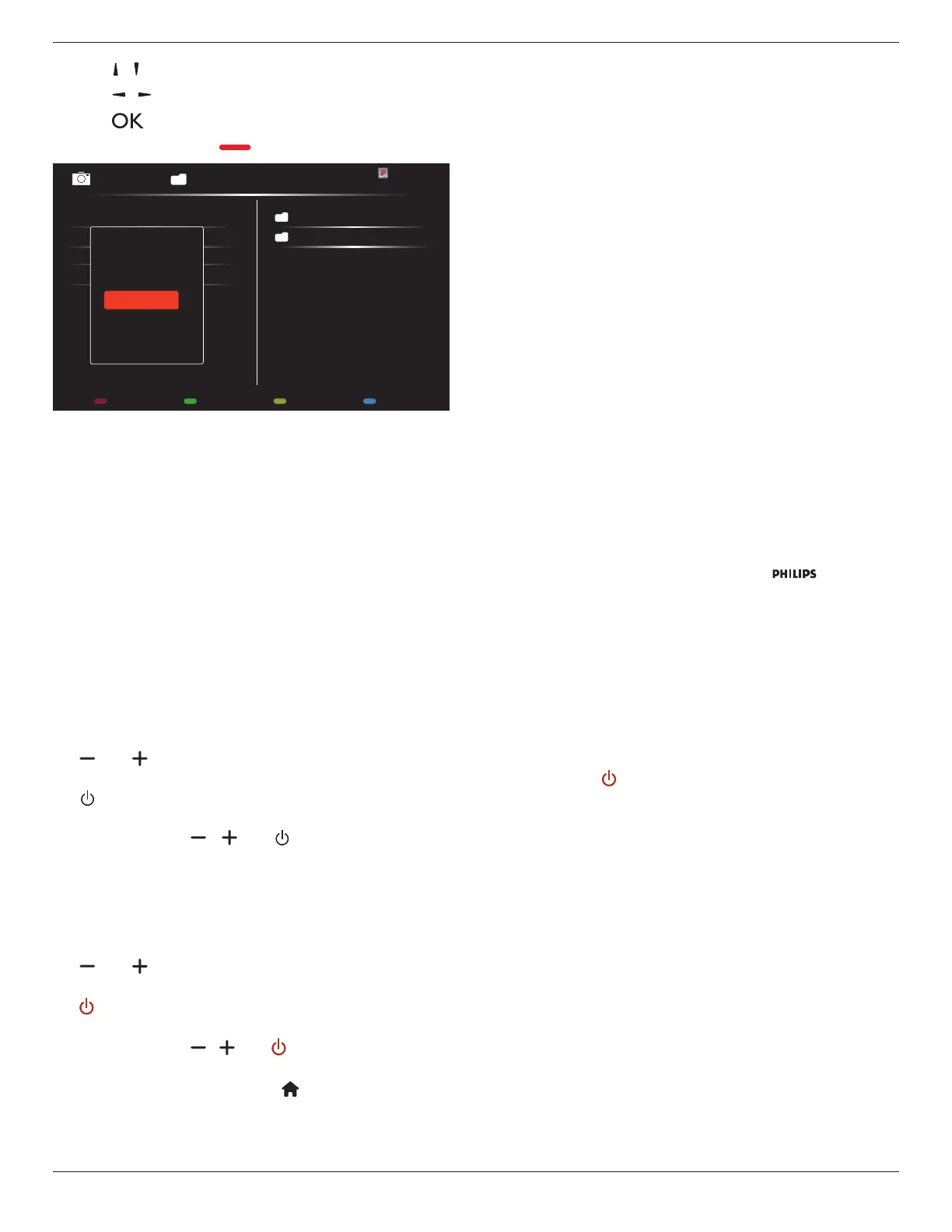
- Press[ ] [ ] buttonstochooseles.
- Press[ ] [ ]buttonstoswitchPlaylistandFileManager.
- Press[ ]buttontosetorcleartheplaylist.
7. Tosavetheplaylist,press[ ] andchoose
Save list
.
0004/0004
Options Exit
Photo
Photo
[..]
Movie.avi
\media\photo
Photo1.jpg
Photo2.jpg
Photo3.jpg
Sort
Recursive Parser
Media Type
Save list
NOTES:
• EachPlaylistsupportsupto30les.
• Playlistwillnotbeclearedafter{Factory settings}.Youhaveto
manuallyremovethelesordeleteusb_schedulinglist.txtinthe
USB.
Sleep timer
Switchoffthisdisplayafteraspeciedtime.
OneWire
ConnectandcontrolyourHDMI-CECcompliantdevicesthroughHDMI
porttothisdisplaywiththesameremotecontrol.
Local KB lock
Choosetoenableordisablethekeyboard(controlbuttons)functionof
thedisplay.
• {Unlock}:Enablethekeyboardfunction.
• {Lock all}:Lockallkeyboardfunction.
• {Lock but volume}:Disableallthekeyboardfunctionexceptthe
[ ] and [ ] button.
• {Lock but power}:Disableallthekeyboardfunctionexceptthe
[ ]button.
• {Lock all expect volume and power}:Disableallthekeyboard
functionexceptthe[ ], [ ] and [ ] button:
RC lock
Choosetoenableordisablethebuttonfunctionoftheremotecontrol.
• {Unlock}:Enablethekeyboardfunction.
• {Lock all}:Lockallkeyboardfunction.
• {Lock but volume}:Disableallthekeyboardfunctionexceptthe
[ ] and [ ] button.
• {Lock but power}:Disableallthekeyboardfunctionexceptthe
[ ] POWERbutton.
• {Lock all expect volume and power}:Disableallthekeyboard
functionexceptthe[ ] [ ] and [ ] POWER button:
NOTE: Todisablethelockfunctionfrom
Local KB lock
or
RC lock
item,pressbuttons[ ] and 1 9 9 8onthe
remotecontrol.
Pixel shift
Forvideoinputsources,youmaychoose{On}tomovethescreen
imageautomaticallytoprotectthedisplayfrom“burn-in”or“after-image”
symptoms30secondsafternotoperatingthedisplay.
Smart power
Chooseabacklightleveltooptimisedynamicpowerconsumptionand
picturecontrast.
Theoptionsare:{Off},{Standard},{Medium},{High}.
Wake on lan
Choose{On}andyoucanturnonthedisplaybynetwork.
Switch on state
Choosethedisplaystatususedforthenexttimeyouconnectthe
powercord.
• {On}-Thedisplaywillturnonwhenthepowercordisconnected
toawalloutlet.
• {Standby}-ThedisplaywillremainStandbywhenthepowercordis
connectedtoawalloutlet.
• {Last status}-Thedisplaywillreturntothepreviouspowerstatus
(on/off/standby)whenremovingandreplacingthepowercord.
Light sensor
Choose{On}andthedisplaywillautomaticallyadjustbacklight.
Power LED Light
Choose{Off}toturnofftheindicator.
Logo
Choose{Off}andthedisplaywillnotdisplaythe logowhen
youswitchon.
TheoptionsareOff, On,andUser.
Note:FortheoptionUser,usershavetocopytheLogole(*.png)to
USBashdeviceandnamedit“WelcomeLogo.png”.Afterthat,goto
StorageandchooseUSBcopyingandselectImportandpress[OK].
Advanced power management
Choose{On}.Then,whennosignal,thedisplaywillautomaticallyturn
off.
Source notication
Whenyoupress[ ] POWERbuttontoturnonthedisplayfrom
standbymodeorchangetheinputsignal,theinformationOSDis
displayedontheupperleftcornerofthescreen.
Choose{Off}toturnoffthisfunction.
DisplayPort Ver.
SettheDisplayPortversionto1.1aor1.2,thissettingisonlyvalidon
DisplayPortinputandoutput,
1.1a:SwitchDisplayPortVer.to1.1a(default),theDisplayPortoutputis
thecloneoftheDisplayPortinput.
1.2:SwitchDisplayPortVer.to1.2tosupportMST(Multi-Stream
Transport)
NOTE: IfthedisplayisblackscreenorabnormalunderDisplayPort
source,pleaseswitchto1.1aandturnACoffandon.
Cooling Fan
Select{On}toturnonthecoolingfanallthetime.Select{Auto}toturn
on/offthecoolingfanaccordingtothedisplay’stemperature.
NOTES:
• Thedefault{Auto}optionwillstartrunningthecoolingfanifthe
temperatureof60°C(140°F)isreached,.





 To Next Page