BDL8470QT
23
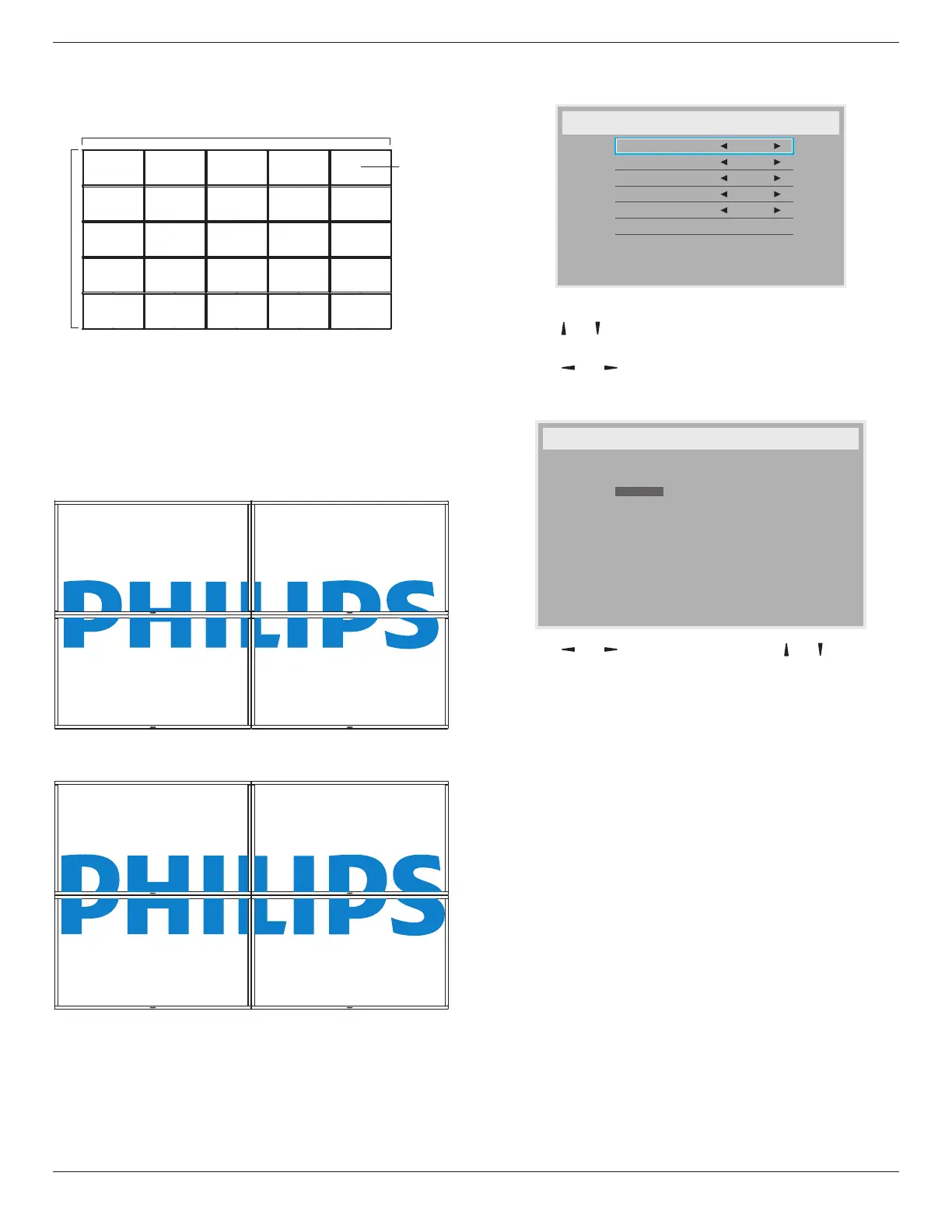
Example: 5 x 5 screen matrix (25 displays)
Hmonitors=5displays
Vmonitors=5displays
1 2
6 7
3 4
8 9
5
10
11 12 13 14 15
16 17 18 19 20
21 22 23 24 25
H monitors
V monitors
Position
• {H monitors}-Selectthenumberofdisplaysonthehorizontalside.
• {V monitors}-Selectthenumberofdisplaysontheverticalside.
• {Position}-Selectthepositionofthisdisplayinthescreenmatrix.
• {Frame comp.}-Choosetoturntheframecompensation
functiononoroff.Ifselected{Ye s },thedisplaywilladjusttheimage
tocompensateforthewidthofthedisplaybezelsinorderto
accuratelydisplaytheimage.
Frame comp. - Yes
Frame comp. - No
• {Enable}-ChoosetoenableordisabletheTilingfunction.Ifenabled,
thedisplaywillapplythesettingsin{H monitors},{V monitors},
{Position},and{Frame comp.}.
• {Switch on delay}-Setthepower-ondelayingtime(inseconds).
Thedefaultoption{Auto}allowsasequentialpowering-onforeach
displaybytheirIDnumberwhenmultipledisplaysareconnected.
Theoptionsare:{Off/Auto/2 ~ 255}
NOTE: TheTilingfunctionwillbedisabledduringusingPIPfunction.
Date and time
Adjustthecurrentdateandtimeforthedisplay’sinternalclock.
Date and time
Year
Month
Day
Hour
Minute
Daylight saving time
Current date time
2014 . 08 . 04 20 : 20 : 17
Press [OK] to set clock
2014
08
04
20
20
1. Press[OK]buttontoenterthesubmenu.
2. Press[ ] or[ ]buttontotogglebetween{Year},{Month},{Day},
{Hour},{Minute},and{Daylight saving time}.
3. Press[ ]
or[ ]buttontoadjustallsettingsexcept{Daylight
saving time}.
4. Press[OK]buttontoenterthe{Daylight saving time}submenu.
Daylight saving time
Daylight saving start date
Daylight saving stop date
Correction time
Daylight saving correction
Sunday of
Jan
0.5 Hour
Off
Sep
1st
1st Sunday of
5. Press[
]
or[ ]buttontoselectitem,press[ ] or[ ] buttonto
adjust.
• {Daylight saving start date}-Select{1st/2nd/3rd/4th/last}
Sundayofthemonth{Jan ~ Dec}.
• {Daylight saving stop date}-Select{1st/2nd/3rd/4th/last}
Sundayofthemonth{Jan ~ Dec}.
• {Correction time}-Theoptionsare:{0.5/1.0/1.5/2.0}
• {Daylight saving correction}Select{On}toenablethisfunction.
Off Timer
Setthedisplaytoturnitselfofftostandbymodewithinanamountof
timespecied.
Theoptionsare:{Off,1 ~ 24}hoursfromcurrenttime.
NOTE: Whenthe“Offtimer”isactivated,the“Schedule”settingswill
bedisabled.
Schedule
Thisfunctionallowsyoutoprogramupto7(seven)differentscheduled
timeintervalsforthedisplaytoactivate.
Youcanselect:
• Thetimeforthedisplaytoturnonandturnoff.
• Thedaysinaweekforthedisplaytoactivate.
• Whichinputsourcethedisplaywilluseforeachscheduled
activationperiod.
NOTE: Werecommendyoutosetupcurrentdateandtimeinthe
{Date and time}menubeforeusingthisfunction.









 To Next Page