9 EN
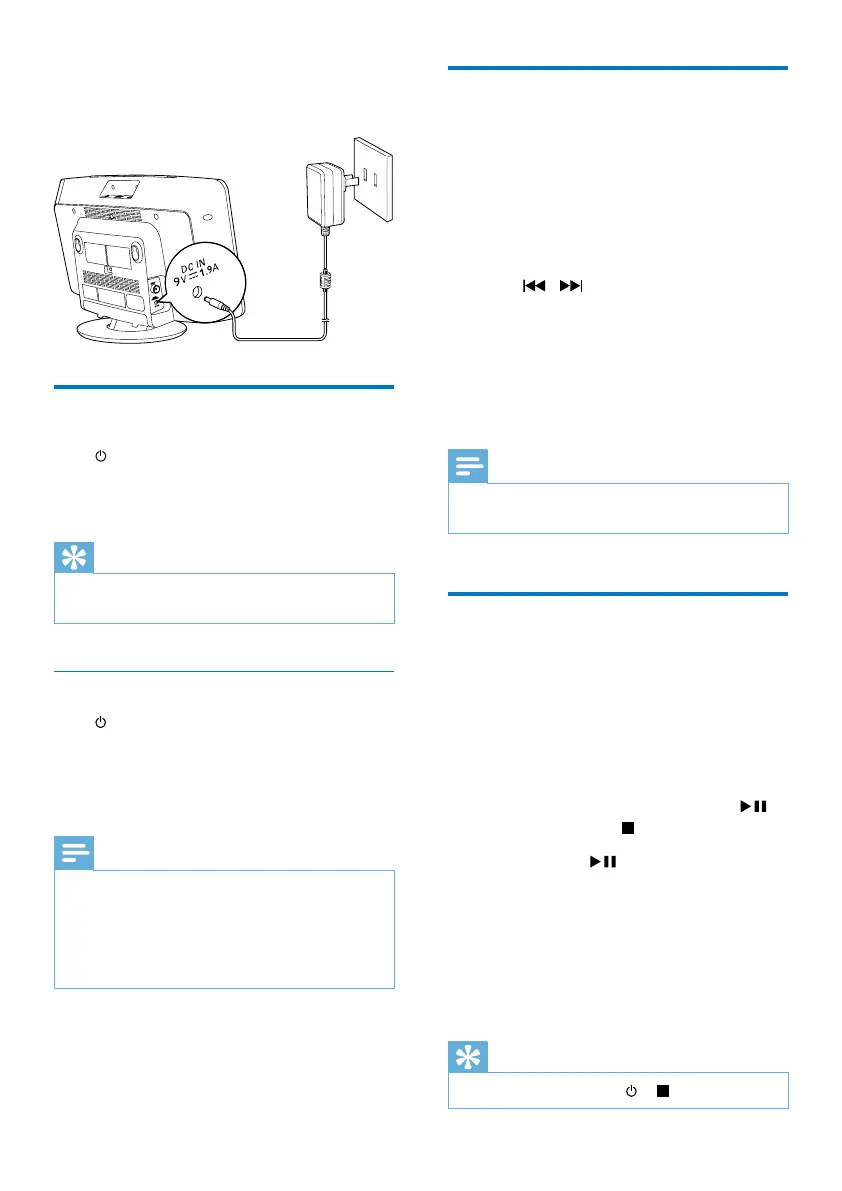
Connect the power adapter to:
• the DC IN socket on the system.
• the wall power socket.
Turn on
Press .
» The system switches to the last selected
source.
Tip
•
To select another source, press SOURCE repeatedly or
the source selection buttons on the remote control.
Switch to standby mode
Press to switch the system to standby mode.
» The clock (if set) appears on the display
panel.
» The display backlight becomes dim.
Note
•
In CD, USB, or Bluetooth mode, if the system stays
inactive for 15 minutes, it switches to standby mode
automatically.
• In MP3 link mode, if music is stopped or paused for
15 minutes and the MP3 link cable is not plugged, the
system switches to standby mode automatically.
Set clock
1
In standby mode, press and hold CLOCK
SET on the remote control for two
seconds.
» [SET CLOCK] (set clock) scrolls on
the display, then the 12/24 hour format
blinks.
2 Press / repeatedly to select an hour
format.
3 Press CLOCK SETtoconrm.
» The hour digits blink.
4 Repeat steps 2-3 to set the hour and
minute.
Note
•
If the system is idle for 90 seconds, it exits clock setting
mode automatically.
Store FM radio stations
automatically
When you connect AC power and no FM
stations are stored, the system prompts you to
search and store all the available FM stations.
1 Connect the system to the power supply.
» [AUTO INSTALL - PRESS PLAY, STOP
CANCEL] (to auto install, press
;
to cancel, press
) is displayed.
2 Press and hold for 3 seconds to start
full scan.
» The system automatically stores FM
radiostationswithsufcientsignal
strength.
» Therstpresetstationisbroadcast
automatically.
Tip
•
To exit storing mode, press or .



 To Next Page