EasyManua.ls Logo

Philips FA 950 - Remote Control Usage

Philips FA 950
14 pages
Print Icon
To Next Page IconTo Next Page
To Previous Page IconTo Previous Page
Loading...
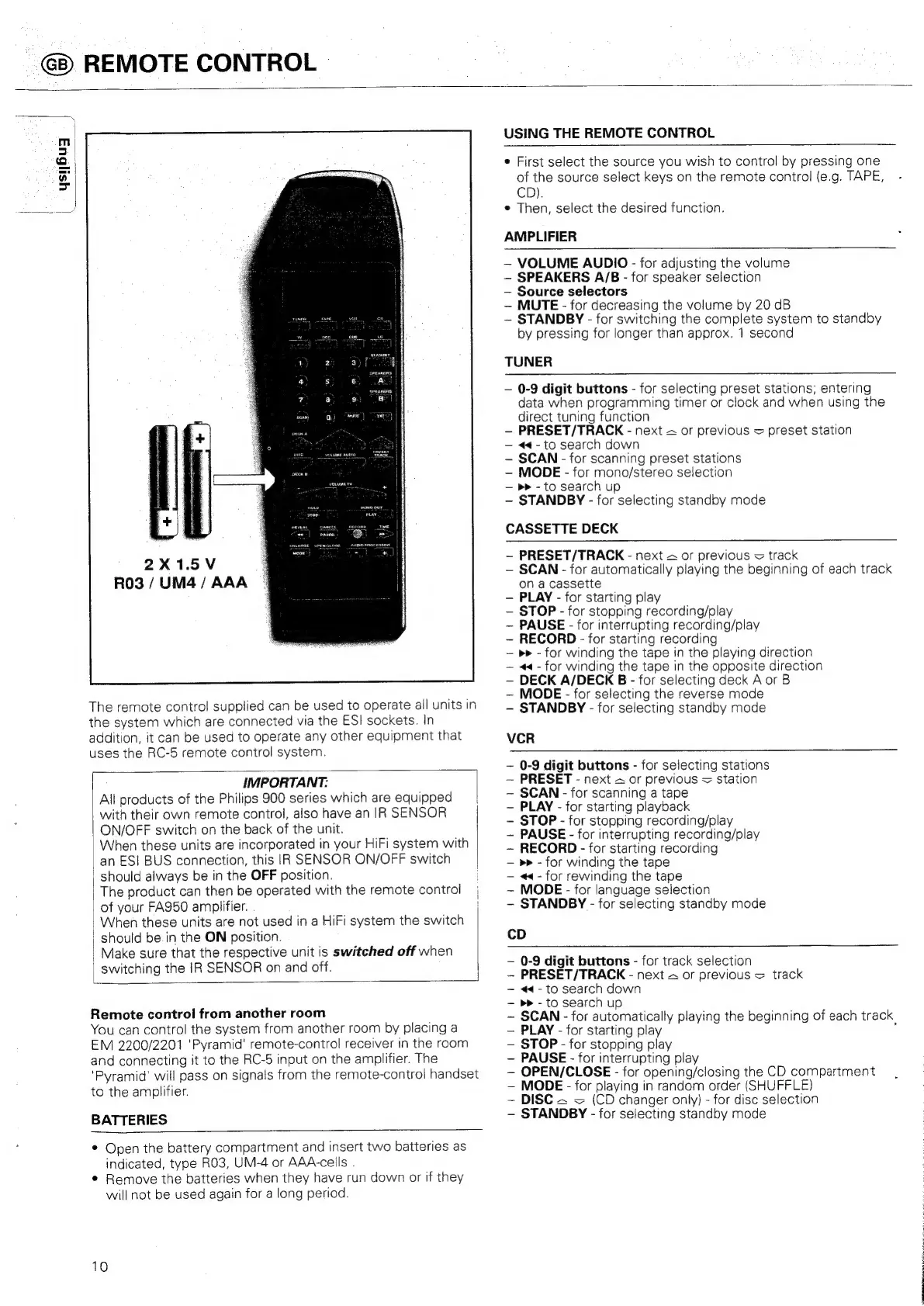
REMOTE
CONTROL
2X1.5V
RO3
/
UM4/
AAA
The
remote
control
supplied
can
be
used
to
operate
ail
units
in
the
system
which
are
connected
via
the
ESI
sockets.
In
addition,
it
can
be
used
to
operate
any
other
equipment
that
uses
the
RC-5
remote
control
system.
IMPORTANT:
All
products
of
the
Philips
900
series
which
are
equipped
with
their
own
remote
control,
also
have
an
IR
SENSOR
ON/OFF
switch
on
the
back
of
the
unit.
When
these
units
are
incorporated
in
your
HiFi
system
with
an
ESI
BUS
connection,
this
IR
SENSOR
ON/OFF
switch
should
always
be
in
the
OFF
position.
|
The
product
can
then
be
operated
with
the
remote
control
of
your
FA950
amplifier.
When
these
units
are
not
used
in
a
HiFi
system
the
switch
|
should
be
in
the
ON
position.
|
Make
sure
that
the
respective
unit
is
switched
off
when
switching
the
IR
SENSOR
on
and
off.
Remote
control
from
another
room
You
can
control
the
system
from
another
room
by
placing
a
EM
2200/2201
‘Pyramid’
remote-control
receiver
in
the
room
and
connecting
it
to
the
RC-5
input
on
the
amplifier.
The
‘Pyramid’
will
pass
on
signals
from
the
remote-control
handset
to
the
amplifier.
BATTERIES
*
Open
the
battery
compartment
and
insert
two
batteries
as
indicated,
type
RO3,
UM-4
or
AAA-cells
.
¢
Remove
the
batteries
when
they
have
run
down
or
if
they
will
not
be
used
again
for
a
long
period.
10
USING
THE
REMOTE
CONTROL
e
First
select
the
source
you
wish
to
control
by
pressing
one
of
the
source
select
keys
on
the
remote
control
(e.g.
TAPE,
CD).
e
Then,
select
the
desired
function.
AMPLIFIER
VOLUME
AUDIO
-
for
adjusting
the
volume
~
SPEAKERS
A/B
-
for
speaker
selection
Source
selectors
MUTE
-
for
decreasing
the
volume
by
20
dB
~
STANDBY
-
for
switching
the
complete
system
to
standby
by
pressing
for
longer
than
approx.
1
second
TUNER
0-9
digit
buttons
-
for
selecting
preset
stations;
entering
data
when
programming
timer
or
clock
and
when
using
the
direct
tuning
function
PRESET/TRACK
-
next
~
or
previous
=
preset
station
<4-
to
search
down
-
SCAN
-
for
scanning
preset
stations
-
MODE
-
for
mono/stereo
selection
>>
-
to
search
up
STANDBY
-
for
selecting
standby
mode
CASSETTE
DECK
~
PRESET/TRACK
-
next
&
or
previous
=
track
SCAN
-
for
automatically
playing
the
beginning
of
each
track
on
a
cassette
PLAY
-
for
starting
play
STOP
-
for
stopping
recording/play
-
PAUSE
-
for
interrupting
recording/play
-
RECORD
-
for
starting
recording
»»
-
for
winding
the
tape
in
the
playing
direction
«<-
for
winding
the
tape
in
the
opposite
direction
DECK
A/DECK
B
-
for
selecting
deck
A
or
B
~—
MODE
-
for
selecting
the
reverse
mode
-
STANDBY
-
for
selecting
standby
mode
VCR
0-9
digit
buttons
-
for
selecting
stations
PRESET
-
next
«
or
previous
=
station
SCAN
-
for
scanning
a
tape
PLAY
-
for
starting
playback
-
STOP
-
for
stopping
recording/play
-
PAUSE
-
for
interrupting
recording/play
~
RECORD
-
for
starting
recording
»»
-
for
winding
the
tape
«<-
for
rewinding
the
tape
MODE
-
for
language
selection
-
STANDBY
-
for
selecting
standby
mode
cD
0-9
digit
buttons
-
for
track
selection
PRESET/TRACK
-
next
=
or
previous
=
track
~
<4
-
to
search
down
-
to
search
up
~
SCAN
-
for
automatically
playing
the
beginning
of
each
track
PLAY
-
for
starting
play
:
STOP
-
for
stopping
play
PAUSE
-
for
interrupting
play
OPEN/CLOSE
-
for
opening/closing
the
CD
compartment
MODE
-
for
playing
in
random
order
(SHUFFLE)
~-
DISC
~ =
(CD
changer
only)
-
for
disc
selection
~
STANDBY
-
for
selecting
standby
mode

Related product manuals