43
User Manual BDH5011
11.2 For Component Video (480p,
720p and 1080i signal) -
Contd.
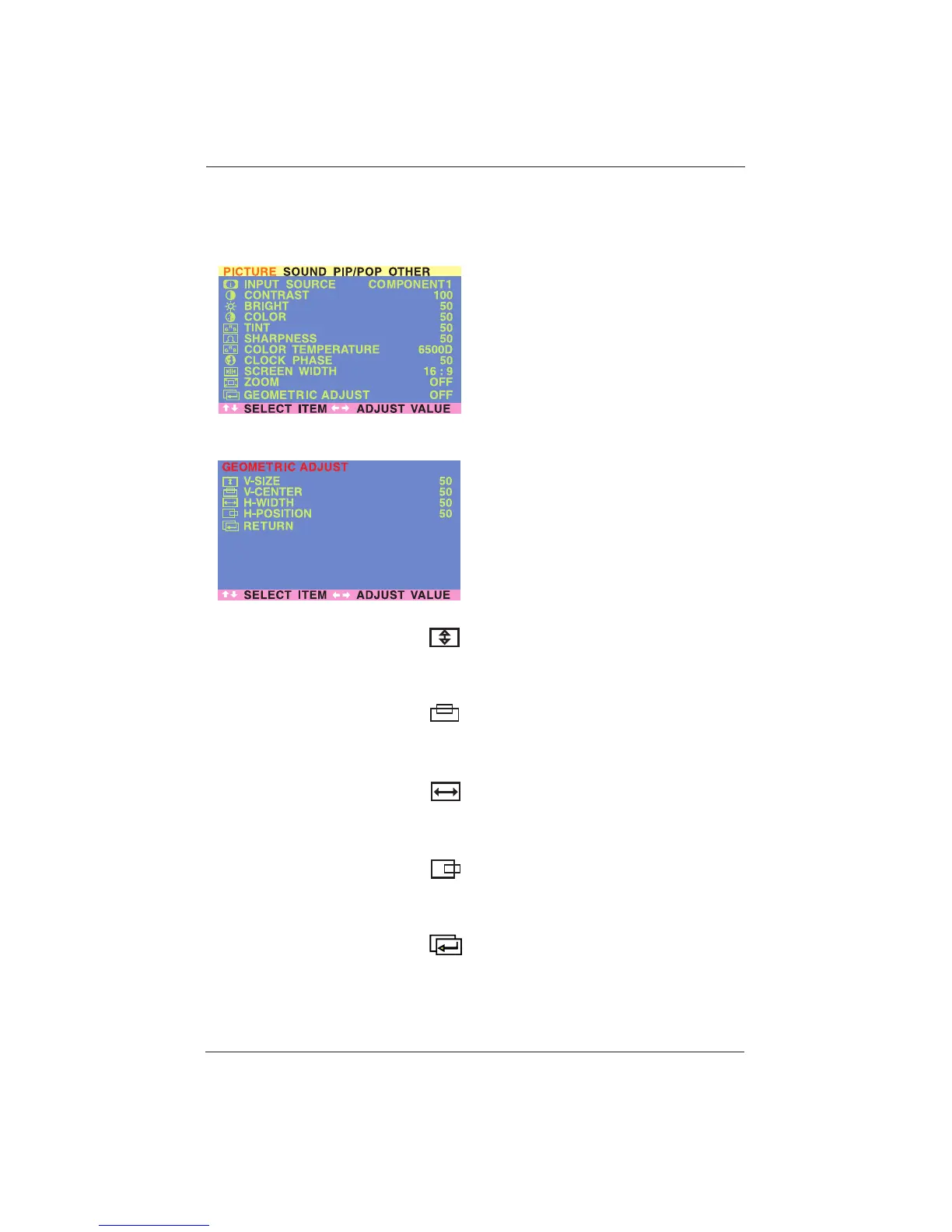
Accessing Geometric Adjustment Mode
Various geometric adjustments can be set using
the Geometric Adjustment OSD menu.To access
the Geometric Adjust sub-menu:
1 Press the MENU +/- buttons on the remote
control or the front control panel.
2 The First menu displayed is the PICTURE
Menu. Make sure that the PICTURE OSD
Menu is displayed.
3 Use the MENU +/- buttons to set the
selection to ON. As soon as you press the
button, the Geometric Adjust sub-menu will
be displayed.
4 Press the ADJ +/- buttons to move up and
down to select the option you wish to
adjust.An explanation of each adjustment is
listed below.
5 Use the ADJ +/- buttons to change the
setting.
V-SIZE
Adjusts the vertical size of the picture. Increase
to enlarge the vertical picture size.
Decrease to reduce the vertical picture size.
V-CENTER
Adjusts the vertical position of the picture.
Increase to shift the picture up. Decrease to shift
the picture down.
H-WIDTH
Adjusts the horizontal size of the picture.
Increase to enlarge the horizontal picture size.
Decrease to reduce the horizontal picture size.
H-POSITION
Adjusts the horizontal position of the picture.
Increase to shift the picture to the right. De-
crease to shift the picture to the left.
RETURN
Return to PICTURE OSD Menu.







 To Next Page