6
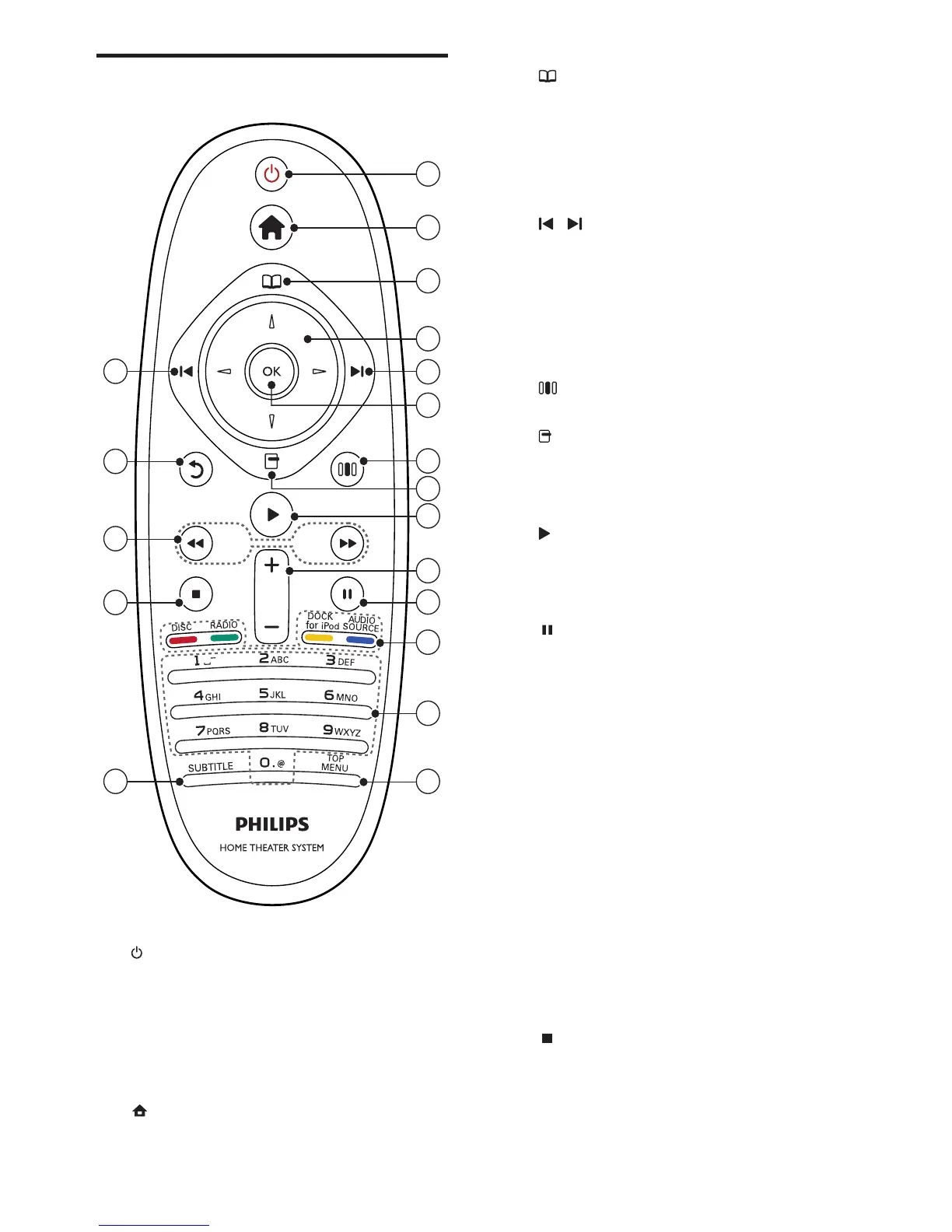
c (Disc menu)
Accesses or exits the disc menu.
d Navigation buttons
• Navigates menus.
• In radio mode, press left or right to
start auto search.
e / (Previous/Next)
• Skips to the previous or next track,
chapter or le.
• In radio mode, selects a preset radio
station.
f OK
Conrms an entry or selection.
g (Sound options)
Accesses or exits various sound options.
h (Options)
• Accesses more play options during
playback.
• In radio mode, programs radio stations.
i (Play)
Starts or resumes play.
j +/- (Volume)
Increases or decreases volume.
k (Pause)
Pauses play.
l Source buttons / Color buttons
• Blu-ray discs: Selects tasks or options.
• AUDIO SOURCE: Selects an audio
input source.
• DOCK for iPod: Switches to Philips
Dock for iPod/iPhone.
• RADIO: Switches to FM radio.
• DISC: Switches to disc source.
m Alphanumeric buttons
Enters values or letters (using SMS style
entry).
n TOP MENU
Accesses the main menu of a video disc.
o SUBTITLE
Selects subtitle language for video.
p (Stop)
• Stops play.
• Press and hold to eject the disc or
open the disc compartment.
• In radio mode, erases the current
preset radio station.
Remote control
a (Standby-On)
• Switches the home theater on or to
standby.
• When EasyLink is enabled, press
and hold for at least three seconds
to switch all connected HDMI CEC
compliant devices to standby.
b (Home)
Accesses the home menu.





 To Next Page