8
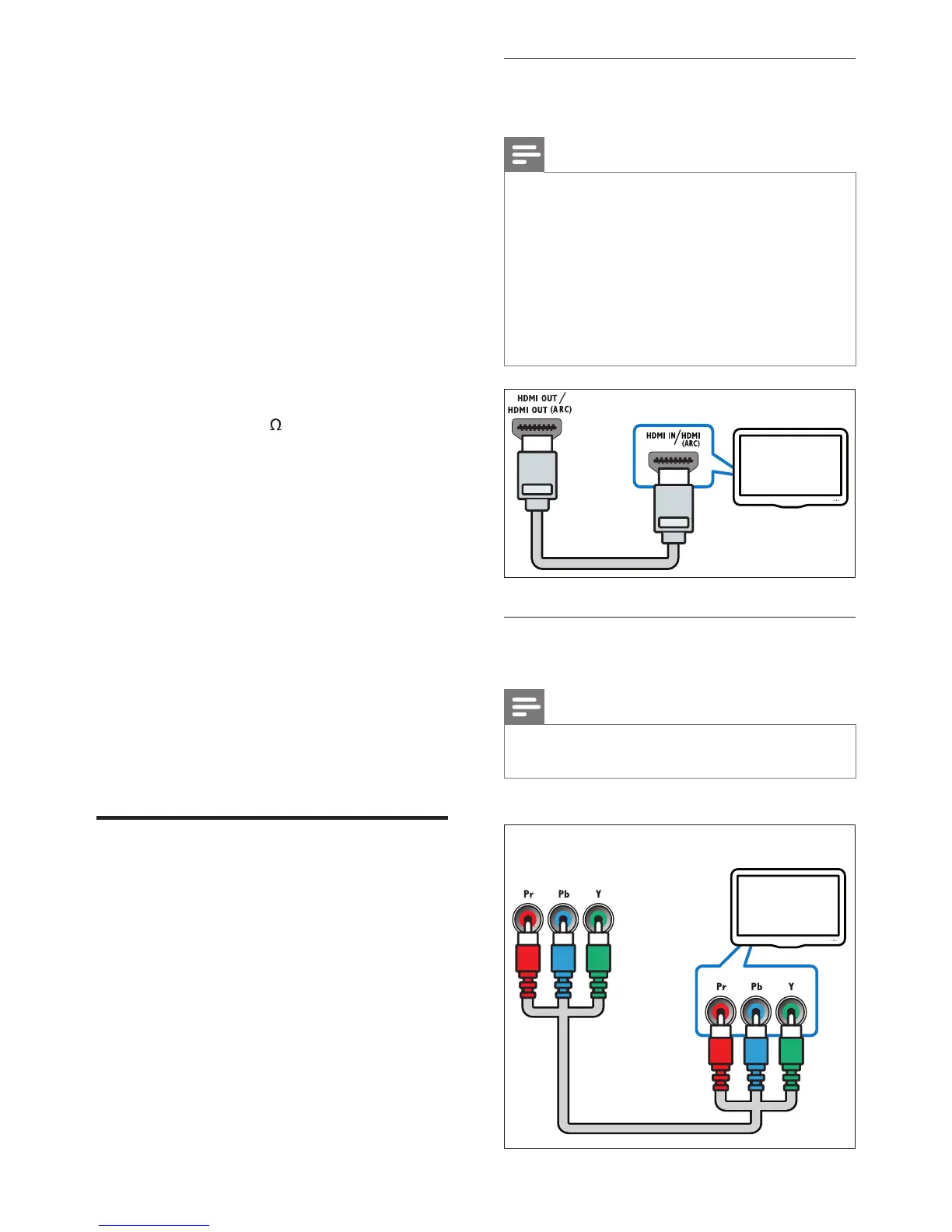
Option 1: Connect to the TV through
HDMI
Note
• The HDMI connector on the TV might be
labeled HDMI IN or HDMI ARC.
• If the TV supports HDMI Audio Return
Channel (ARC), you can use it to output digital
audio to the home theater.
• If the HDTV has a DVI connector, connect
using an HDMI/DVI adapter.
• If the TV supports EasyLink HDMI CEC, control
the home theater and TV with one remote
control (see ‘Use Philips EasyLink’ on page 19).
Option 2: Connect to the TV through
YPbPr (component video)
Note
• The component video cable or connector
might be labeled Y Cb Cr or YUV.
(Cable not supplied)
Connects to a Wi-Fi USB adapter.(Model:
Philips WUB1110, sold separately.)
d SUBWOOFER
Connects to the supplied subwoofer.
e LAN
Connects to the LAN input on a broadband
modem or router.
f HDMI OUT (ARC)
Connects to the HDMI input on the TV.
g VIDEO OUT
Connects to the video input on the TV.
h ANTENNA FM 75
Signal input from an antenna, cable or
satellite.
i DIGITAL IN-OPTICAL
Connects to the optical audio output on
the TV or a digital device.
j DIGITAL IN-COAXIAL
Connects to the coaxial audio output on
the TV or a digital device.
k DOCK for iPod
Connects to a Philips Dock for iPod/iPhone.
(Model: Philips DCK3060, sold separately.)
l Wireless Rear Audio
Connects to a Philips wireless module.
(Model: Philips RWSS9500, sold separately.)
m SPEAKERS
Connects to the supplied speakers.
Connect to the TV
Connect your home theater directly to a TV
through one of the following connectors (from
highest to basic quality video):
a HDMI
b Component video
c Composite video
EN





 To Next Page