07. How to edit labels
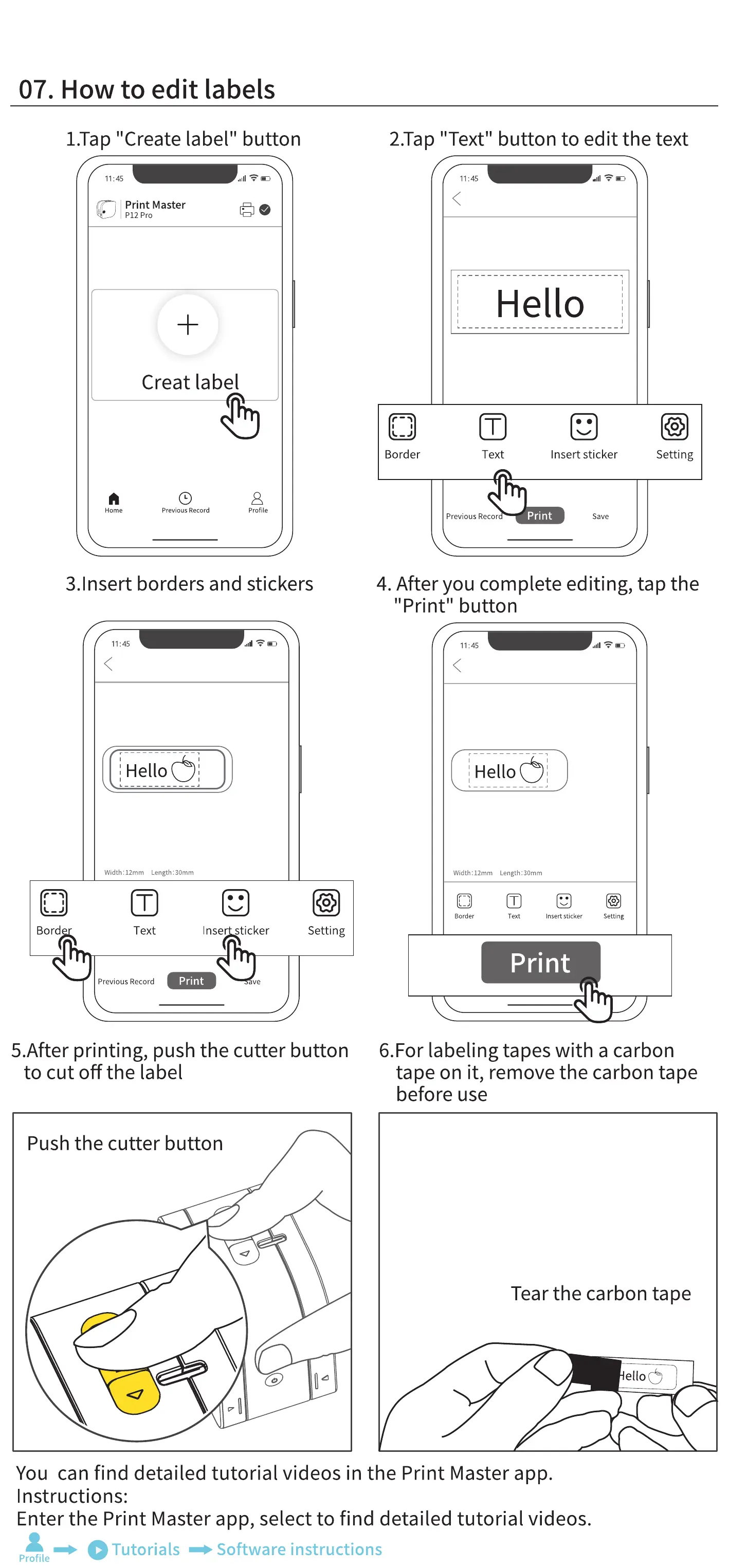
I.Tap "Create label" button
11:45
Print Master
P12 Pro
Creat label
2.Tap "Text" button to edit the text
11:45
Hello
Border
o
Insert sticker
o
Setting
Home
Previous Record Profile
Text
Previous Recor
Print
Save
3.1nsert borders and stickers
11:45
Hello t
Width :12mm Length: 30mm
4. After you complete editing, tap the
"Print" button
11:45
Hello
Width : 12mm
Border
Length :30mrn
Text nsert sticker
Setting
Bord
Text
Previous Record
Inser sticker
Setting
Print
ve
5.After printing, push the cutter button
to cut off the label
Push the cutter button
Print
6.For labeling tapes with a carbon
tape on it, remove the carbon tape
before use
Tear the carbon tape
ellob
You can find detailed tutorial videos in the Print Master app.
Instructions:
Enter the Print Master app, select to find detailed tutorial videos.
O Tutorials •Software instructions
Profile


 To Next Page