Disconnected
Input Monitor Mixer
0.0 dB0.0 dB
Line1
M M
S S
Link
Line2
1
4
3
2
7
5
6
Outputs
0.0 dB
Master 1/2
10
8
9
When there is no digital audio workstation software
is in use, the Firey 808 can be controlled using this
basic mixer which is included along with the driver
and control panel software. The signal from this mix-
ing panel is able to be fed back to the Firey 808 as
a stereo signal, routed to analog outputs 1 and 2 and
the headphones output.
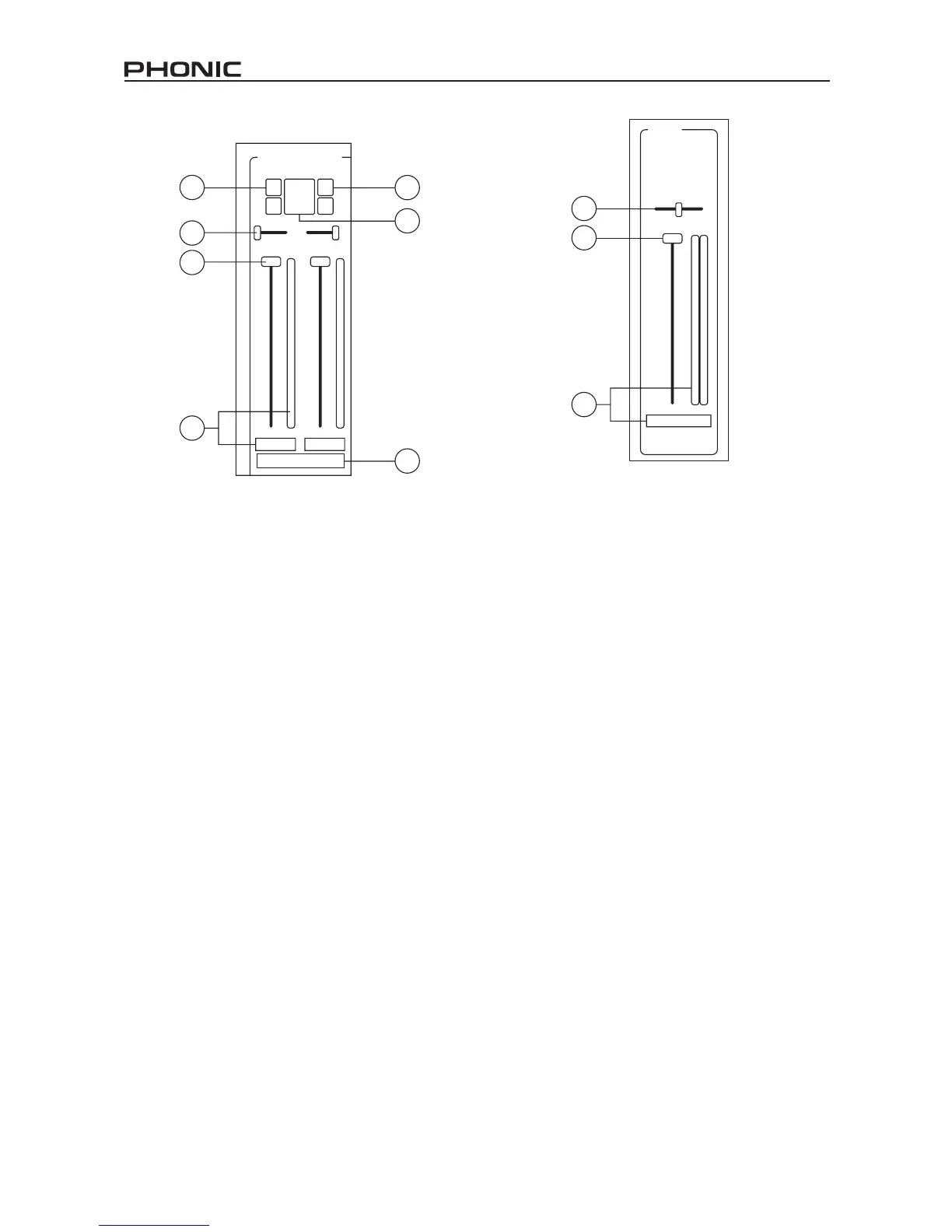
Channel Inputs
1. Mute Button
Pushing this button will mute the corresponding chan-
nel, stopping it from being sent back to the Firey.
2. Solo Button
Use this button to solo the corresponding channel
back to the Firey allowing users to monitor the signal.
The soloed channels will be sent to analog outputs 1
and 2 and the headphones output on the Firey 808.
3. Link Button
Pushing this button will enable a link function, allow-
ing users to control two channels as if they were one
with the fader, mute and solo buttons being ‘linked’ to
two inputs.
4. Pan
Each of the Firey’s inputs are set to either left or right
by default, with odd channels being set to the left, and
even channels being set to the right.
5. Fader
Click and hold the mouse button on the fader to ad-
just the volume of the signal coming into the computer
through the FireWire connection for each channel.
When in link mode, a single fader will control 2 chan-
nels simultaneously.
6. Level Meter
These two parts of the PC-based mixer give users an
idea of the input levels received through the FireWire
interface. The graphic bar will give visual representa-
tion of the level and users are able to read the exact
input level in decibels underneath the fader.
7. Channel Status (digital channels only)
This display window will show whether a digital device
is connected to or disconnected from the Firey unit.
The status will be updated automatically when a digi-
tal device is connected to the correct inputs.
Output Channel
8. Balance
The balance control for the master output is set to the
center by default. Moving it to the left will attenuate the
right signal and intensify the left signal accordingly;
moving it to the right will do the opposite.
9. Fader
Click and hold the mouse button on the fader to ad-
just the volume of the stereo output signal being sent
through the FireWire connection to the Firey. The
signal controlled by these controls is sent through the
Firey’s analog outputs 1 and 2.
10. Level Meter
This gives users an idea of the output levels of both
channels sent through the FireWire interface. The
graphic bar will give visual representation of the level
and users are able to read the exact input level in
decibels underneath the fader.
Firey 808 Mixer Software


 To Next Page