Most of the information provided by your navi-
gation system can be seen on the map. You
need to become familiar with how the informa-
tion appears on the map.
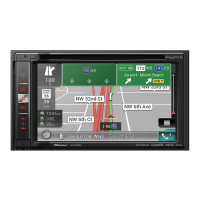
How to read the map screen
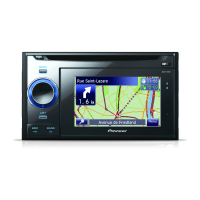
This example shows an example of a 2D map screen.
p Information with the mark (*) appears only
when the route is set.
p Depending on the conditions and settings,
some items may not be displayed.
1 Name of the street to be used (or next gui-
dance point)*
Touching this item enables you to hear the
next guidance again.
2 Next direction of travel*
When you approach a guidance point, this ap-
pears in green. Touching this item enables
you to hear the next guidance again.
3 Distance to the guidance point*
Shows the distance to the next guidance
point.
4 Zoom in/Zoom out
Touching
displays touch panel keys for
changing the map scale and the map orienta-
tion.
5 Current position
Indicates the current location of your vehicle.
The apex of the triangular mark indicates your
orientation and the display moves automati-
cally as you drive.
p The apex of the triangular mark is the
proper current position.
6 Street name (or city name) that your vehi-
cle is travelling along
= For details, refer to Setting the current
street name display on page 29.
7 Menu key
8 Map orientation indicator
! When “North up” is selected, is dis-
played.
! When “Heading up” is selected,
is
displayed.
— The red arrow indicates north.
= For details, refer to Switching the
map orientation on page 24.
9 Direction line*
How to use the map
Engb
22
Chapter
05


 To Next Page
 Loading...