Searching for a location by
coordinates
Entering a latitude and longitude pinpoints
the location.
1 Display the “Navigation Menu” screen.
2 Touch [Coordinate].
The “Coordinate Input Menu” screen ap-
pears.
3 Touch [Longitude].
The “Enter Longitude” screen appears.
Enter the longitude, and then touch [OK].
The screen returns to the previous screen.
p To enter W 50°1’2.5” for example, touch [W],
[0], [5], [0], [0], [1], [0], [2], and [5].
4 Touch [Latitude].
The “Enter Latitude” screen appears.
Enter the latitude, and then touch [OK].
The screen returns to the previous screen.
p To enter N 5°1’2.5” for example, touch [N],
[0], [5], [0], [1], [0], [2], and [5].
5 Touch [OK].
The searched location appears on the map
screen.
Searching for a location by
scrolling the map
Specifying a location after scrolling the map
enables you to set the position as destination,
waypoint, or register the location to “ Favour-
ites”.
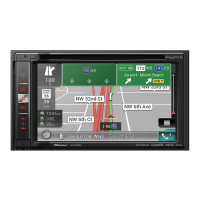
1 Display the map screen.
2 Touch and drag the screen to scroll the
map to the position you want.
The searched location appears on the map
screen.
p When searching for a destination or way-
points, touch
.
Searching for and selecting a location
Engb
43
Chapter
08
Searching for and selecting a location


 To Next Page
 Loading...