EasyManua.ls Logo

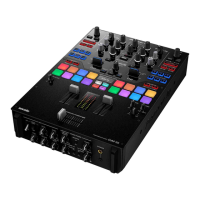
Pioneer DJM-S9 - User Manual

Pioneer DJM-S9
36 pages
Print Icon
To Next Page IconTo Next Page
Loading...
DJ MIXER
DJM-S9
Operating Instructions
http://pioneerdj.com/support/
The Pioneer DJ site shown above offers FAQs, information on software, and various other types of information
and services to allow you to use your product in greater comfort.
http://serato.com/
For the latest version of the
Serato DJ
software, access Serato.com and download the software from there.

Other manuals for Pioneer DJM-S9

Questions and Answers

  • M
    matthewphillipsAug 15, 2025
    What to do if there is no sound from my Pioneer DJM-S9?
    • V
      Victor SmithAug 15, 2025
      If you are experiencing no sound or very low sound from your Pioneer Music Mixer, make sure the [INPUT SELECT] switch is set to the correct position for your channel’s input source. Check that all connection cables are properly connected. Also, ensure the terminals and plugs are clean.
  • S
    Sandra BarnesAug 18, 2025
    Why is my Pioneer DJM-S9 not recognized by my computer?
    • C
      Candice SampsonAug 18, 2025
      If your Pioneer Music Mixer is not being recognized after connecting it to your computer, ensure that the driver software is properly installed; if already installed, try reinstalling it. Connect the unit and the computer directly using the included USB cable. Finally, verify that this unit is selected in the audio output device settings on your computer.
  • L
    larry69Aug 21, 2025
    Why is the sound distorted on my Pioneer DJM-S9 Music Mixer?
    • A
      Amanda HicksAug 21, 2025
      To resolve distorted sound on your Pioneer Music Mixer, first adjust the [MASTER LEVEL] control so that the master level indicator lights at around [0 dB] at the peak level. Also, adjust the [TRIM] control so that the channel level indicator lights at about [0 dB] at the peak level. Finally, ensure the MIC input level selector switch is set to [LINE].
  • C
    curtisallisonAug 25, 2025
    Why tempo (BPM) cannot be measured on Pioneer DJM-S9?
    • M
      Michelle RobbinsAug 26, 2025
      If the tempo (BPM) cannot be measured or the measurement value is implausible on your Pioneer Music Mixer, adjust the [TRIM] control so that the channel level indicator lights at about [0 dB] at the peak level. You can also use the [TAP] button to input the tempo manually.
  • R
    Regina RobertsonAug 28, 2025
    How to turn on Pioneer Music Mixer?
    • S
      Sheri DownsAug 28, 2025
      To resolve the issue where the power is not turning on for your Pioneer Music Mixer, plug the power cord into an AC outlet.
  • S
    Shannon PenaAug 31, 2025
    Why BEAT FX does not work on Pioneer DJM-S9?
    • S
      Susan ReillyAug 31, 2025
      If the BEAT FX does not work on your Pioneer Music Mixer, ensure that the [BEAT FX SELECT] button and [LEVEL/DEPTH] control are set properly.
  • D
    duane26Sep 3, 2025
    What to do if the FILTER effect is not applied on Pioneer DJM-S9?
    • D
      Donald CaldwellSep 3, 2025
      If the FILTER effect is not being applied on your Pioneer Music Mixer, turn the [FILTER] control clockwise or counterclockwise.
  • M
    Matthew SaundersSep 7, 2025
    How to fader start a DJ player on Pioneer DJM-S9?
    • K
      Karen HutchinsonSep 7, 2025
      If you can’t fader start a DJ player with your Pioneer Music Mixer, place a check mark in [Fader Start options.] in the [PREFERENCE] tab of the settings utility.
  • D
    David FloydSep 12, 2025
    Why sound is distorted when an analog player is connected to Pioneer DJM-S9 Music Mixer?
    • J
      jbrownSep 12, 2025
      If the analog player with built-in phono equalizer has a PHONO/LINE selector switch, switch it to PHONO. If the analog player has a PHONO/LINE selector switch, switch it to PHONO.

Summary

Before Start and Setup

How to Read This Manual

Guidelines for understanding manual notation, symbols, and conventions.

Product Features and Package Contents

Overview of the mixer's capabilities and a list of included items.

Software and Driver Installation

Guide to downloading and installing necessary software for the unit.

Part Names and Functions

Browser and Deck Sections

Explains controls for navigating tracks and deck functions.

Mixer Section Controls

Details the controls on the mixer section for audio mixing and level adjustment.

Effect Section Controls

Describes the controls for applying and adjusting audio effects.

Rear and Front Panel Layouts

Identifies all terminals and controls on the rear and front panels of the unit.

Connections

Connecting Input Terminals

Illustrates how to connect various audio sources to the mixer's input terminals.

Connecting Output Terminals

Shows how to connect the mixer's audio outputs to amplifiers and speakers.

Basic Operation

Starting and Quitting the System

Procedures for launching the DJ software and safely powering down the unit.

Importing, Loading, and Playing Tracks

Steps for managing music files and outputting sound through the mixer.

Monitoring with Headphones

How to adjust headphone audio levels and monitor specific channels.

Advanced Operation

Performance Pad Functions

Explains Hot Cues, Cue Loops, Slicers, Samplers, and other pad modes.

Effects and FX Banks

Guide to applying Beat FX, Serato DJ FX, and managing FX Banks.

External Inputs and DVS System

How to use external audio sources and set up the Digital Vinyl System.

Types of Effects

Filter Effect Types

Details the various filter effects and their parameters.

Beat FX Types

Explains Beat FX like Delay, Reverb, Echo, Spiral, and their controls.

Changing Settings

Crossfader Bumper Replacement

Instructions for replacing the crossfader bumper for tactile customization.

Utilities and Settings Configuration

Accessing and configuring unit parameters via utilities and software settings.

Firmware and Driver Information

Checking software versions and accessing the latest driver updates.

Additional Information

Troubleshooting Common Issues

Solutions for problems related to power, sound, effects, and connectivity.

Technical Diagrams and Legal Notices

Includes block diagrams, trademarks, and copyright information.

Pioneer DJM-S9 Specifications

General IconGeneral
Microphone inYes
USB connector typeUSB Type-B
USB ports quantity2
Microphone connectivityXLR
Apple docking compatibilityNot supported
Number of microphone inputs1
MIDI24 bit
Sample rate48 kHz
Product colorBlack
Frequency range20 - 20000 Hz
Number of controls5
Built-in optical driveNo
Number of mixer channels2 channels
Signal-to-Noise Ratio (SNR)107 dB
Number of dedicated effects controls15
Total Harmonic Distortion plus Noise (THD+N)0.005 %
Input voltage100 - 240 V
Power supply typeAC
Minimum RAM4 GB
Minimum processorCore i3, i5 or i7
Minimum processor speed1.07 GHz
Mac operating systems supportedMac OS X 10.10 Yosemite, Mac OS X 10.8 Mountain Lion, Mac OS X 10.9 Mavericks
Windows operating systems supportedWindows 7 Ultimate, Windows 8.1
Minimum display resolution requirement1280 x 720 pixels
Weight and Dimensions IconWeight and Dimensions
Depth407.3 mm
Width267 mm
Height107.9 mm
Weight4600 g

Related product manuals