13
5. Starting Web Management
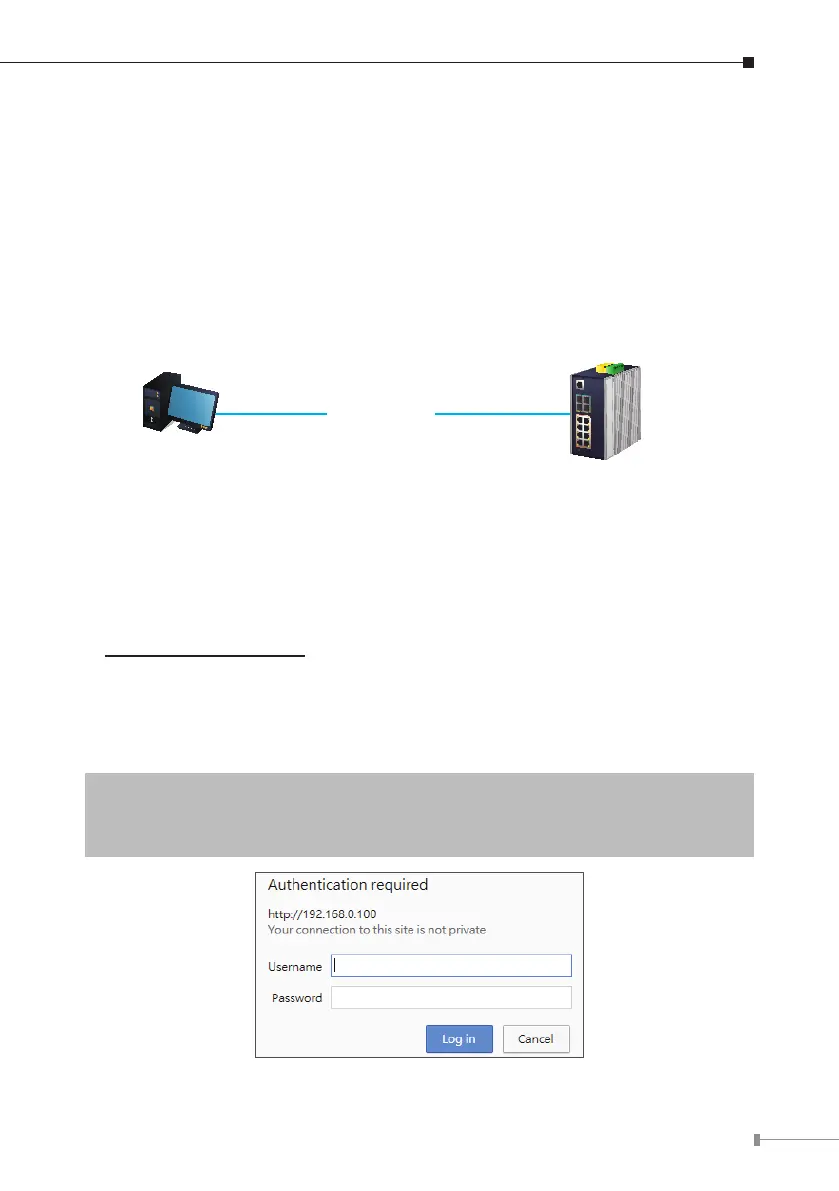
The following shows how to start up the Web Management of the Industrial
Managed Switch. Note the Industrial Managed Switch is congured through an
Ethernet connection. Please make sure the manager PC must be set to the same
IP subnet address.
For example, the default IP address of the Industrial Managed Switch is
192.168.0.100, then the manager PC should be set to 192.168.0.x (where x
is a number between 1 and 254, except 100), and the default subnet mask is
255.255.255.0.
IP Address:
192.168.0.x
IP Address:
192.168.0.100
IGS Industrial Switch
RJ45/UTP Cable
Figure 5-1: IP Management Diagram
5.1 Logging in to the Industrial Managed Switch
1.Use Internet Explorer 8.0 or above for Web browser and enter IP address
https://192.168.0.100 (the factory-default IP address) to access the Web
interface.
2.When the following dialog box appears, please enter the default user name
“admin” and password “admin”(orthepasswordyouhavechangedbefore)as
showninFigure5-2.
DefaultIPAddress:192.168.0.100
DefaultUserName:admin
Default Password: admin
Figure 5-2: Login Screen




 To Next Page