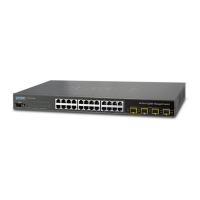
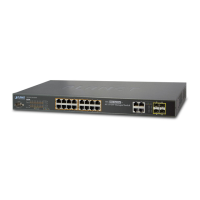
The document describes the PLANET Wireless AP Managed Switch with 10/100/1000Mbps 802.3at PoE+, specifically covering models WS-1032P and WS-2864PVR. This device functions as a central management unit for wireless access points (APs), integrating both switching capabilities and Power over Ethernet (PoE+) to simplify network deployment and power delivery for connected APs.
Function Description:
The core function of this device is to act as a Wireless AP Managed Switch, providing comprehensive control and management over connected wireless access points. It combines the functionalities of a network switch with an AP controller, enabling centralized configuration, monitoring, and maintenance of multiple APs. The switch supports 10/100/1000Mbps Ethernet speeds and incorporates 802.3at PoE+ technology, which allows it to deliver both data and power to compatible APs over a single Ethernet cable. This eliminates the need for separate power adapters for each AP, simplifying installation and reducing cable clutter.
The device is designed to manage various indoor and outdoor AP series, offering a unified platform for network administrators. It provides a Web Management Interface for intuitive configuration and monitoring, accessible via a standard web browser like Google Chrome. This interface allows users to perform a wide range of tasks, from basic network settings to advanced AP management. For more in-depth configuration and troubleshooting, a Terminal Setup via a console port is also available, providing command-line access to the device's operating system.
Usage Features:
The Wireless AP Managed Switch offers several features to facilitate its usage and integration into a network:
- Centralized AP Management: The device includes an AP Controller feature that allows for the centralized management of connected APs. This means administrators can configure general settings, assign pre-defined profiles, and monitor the status of multiple APs from a single interface without needing to log into each AP individually. This significantly streamlines the deployment and ongoing management of wireless networks.
- Web-based User Interface (Web UI): The primary method for managing the switch is through its Web UI. After connecting the manager PC to the switch via an Ethernet cable and ensuring they are on the same IP subnet, users can access the interface by entering the device's IP address (default: 192.168.1.100) into a web browser. The Web UI provides a graphical representation of the system, with a main menu offering access to various commands and statistics, including "AP Control," "System," "Switching," "QoS," "Security," "Maintenance," "PoE," and "Ring."
- Function Icons for Quick Actions: The Web UI incorporates convenient function icons for quick execution of major system commands. These include "Refresh" to update page content, "Save Configuration" to save applied changes and set the current configuration as startup, "Help" for content descriptions, and "Logout" to exit the system.
- DHCP Server Capability: For AP models that support DHCP IP, the switch can function as a DHCP server. This feature can be enabled through the Web UI ("System-> DHCP Server-> Mode"), allowing the switch to automatically assign IP addresses to connected APs, simplifying network setup.
- IP Address Configuration: Users can view and modify the device's IP address through the console interface. This is crucial for integrating the switch into an existing network infrastructure. The process involves entering specific commands in the terminal emulator to set the IP address and subnet mask.
- Gateway Assignment: The WS AP controller series requires a gateway to be assigned within the same segment network (default: 192.168.1.254) for proper network communication.
- Console Port Access: For initial setup, advanced configuration, or troubleshooting, the device provides a console port (RJ45 type). This allows for a direct serial connection from a PC or notebook computer using a terminal emulation software like Tera Term. The console connection requires specific settings (Baud: 1155200, Data bits: 8, Parity: None, Stop bits: 1, Flow control: None). This method is particularly useful when the network configuration prevents Web UI access.
- Secure Login: Both the Web UI and console access require a username and password for login (default: admin/admin). For security reasons, users are strongly advised to change the default password after the initial setup.
Maintenance Features:
The device also incorporates features to aid in its maintenance and recovery:
- Configuration Saving: After making any changes to the device's settings, it is essential to save the running configuration to the startup configuration. This ensures that the changes persist even after a reboot. This can be done via the "Save Configuration" icon in the Web UI or by using the
copy running-config startup-config command in the console.
- Password and IP Address Recovery (Reset Button): In cases where the IP address has been changed and forgotten, or the admin password is lost, the device provides a hardware-based reset button. Pressing and holding this button on the front panel for approximately 10 seconds will revert the IP address to its default (192.168.1.100) and reset the login password to its default value. This is a critical feature for recovering access to the device.
- Help Functionality: The Web UI includes a "Help" function icon that provides content descriptions for the current page, assisting users in understanding and utilizing the various features. Similarly, when using the console, typing "help" at any time will display relevant command descriptions, making it easier for users unfamiliar with command-line interfaces to navigate and configure the device.
- Regular Firmware Updates: Users are encouraged to regularly check the PLANET website for the latest managed AP compatibility list and potentially firmware updates. Keeping the device updated ensures optimal performance, security, and compatibility with new AP models.
- Customer Support Resources: PLANET provides comprehensive customer support, including an online FAQ resource and user manuals available on their website. A dedicated support team is also available via email for further assistance, ensuring users can get help with any issues they encounter. QR codes are provided for quick access to the user manuals for specific models.

 Need help?
 General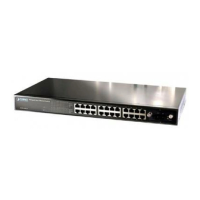




 To Next Page