Maintenance
C
C
a
a
l
l
i
i
b
b
r
r
a
a
t
t
i
i
n
n
g
g
t
t
h
h
e
e
S
S
c
c
a
a
n
n
n
n
e
e
r
r
Calibrate the scanner if colors appear in areas that should be white, or colors of
the scanned image and the original vary a lot. This allows you to adjust and
compensate for variations that can occur in the optical component over time by its
nature.
The following describes how to calibrate the scanner:
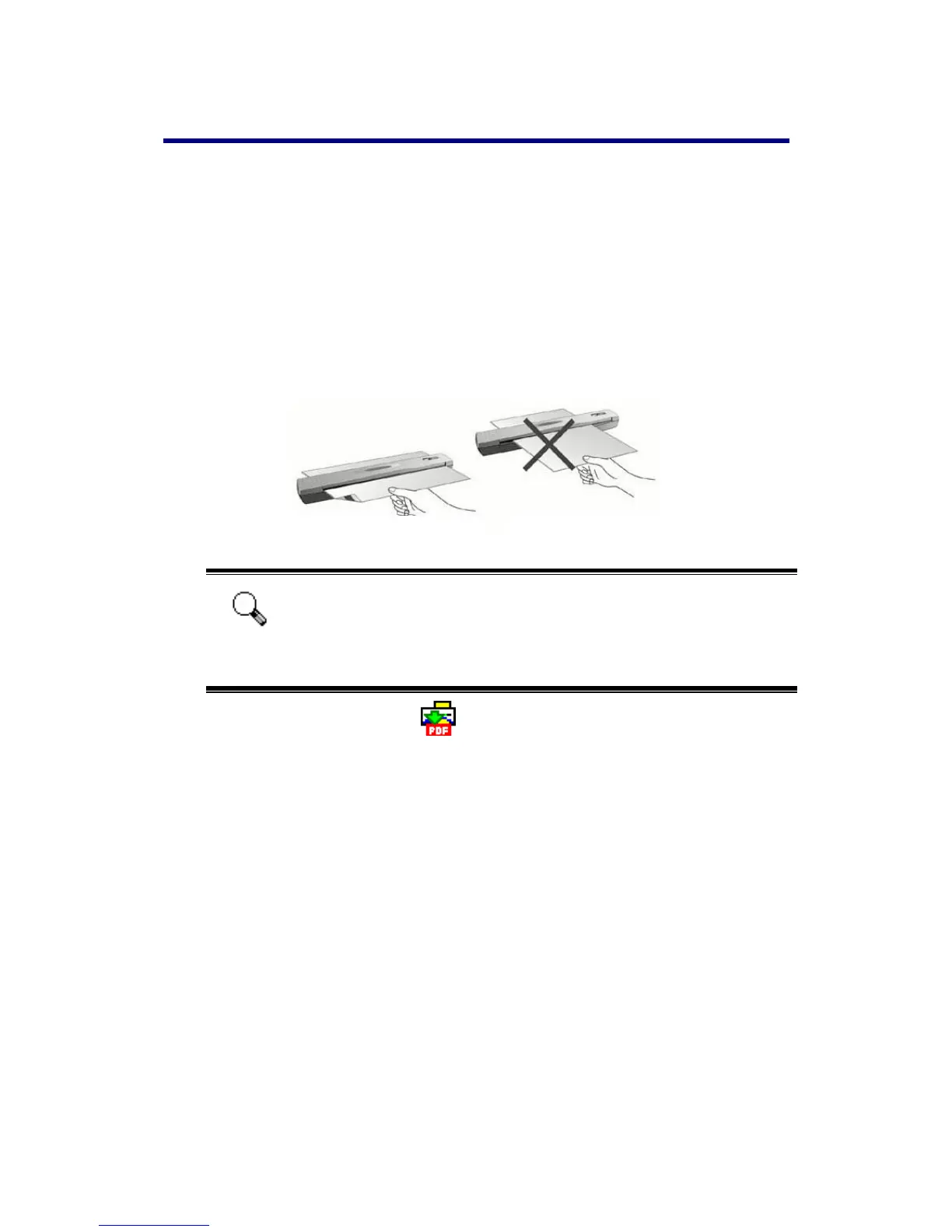
1. Insert the special calibration sheet face down into the page feed slot of the
scanner.
Correct Paper Direction
Incorrect Paper Direction
Attention
Please insert the special calibration sheet included with the scanner.
Alternatively you may also use any plain white sheet of paper sized
in A4 (210 by 297 mm) instead; however, the calibration effect may
be less good than the special calibration sheet.
2. Click on the DigiScan icon located on the Windows system tray.
3. Click “Calibrate” from the menu that pops up.
4. The scanner pulls the calibration sheet through the scanner, which completes
this scanner calibration.
C
C
l
l
e
e
a
a
n
n
i
i
n
n
g
g
t
t
h
h
e
e
S
S
c
c
a
a
n
n
n
n
e
e
r
r
When you use this scanner for the very first time after installation, you are
suggested to clean the scanner before use.
If unusual dots or lines are found in your scanned image, it is very likely that dust
particles or other foreign objects have been brought inside the scanner. You may
clean the scanner to rectify the problem.
The following describes how to clean the scanner:
1. Insert the special cleaning paper into the page feed slot of the scanner.
29




 To Next Page