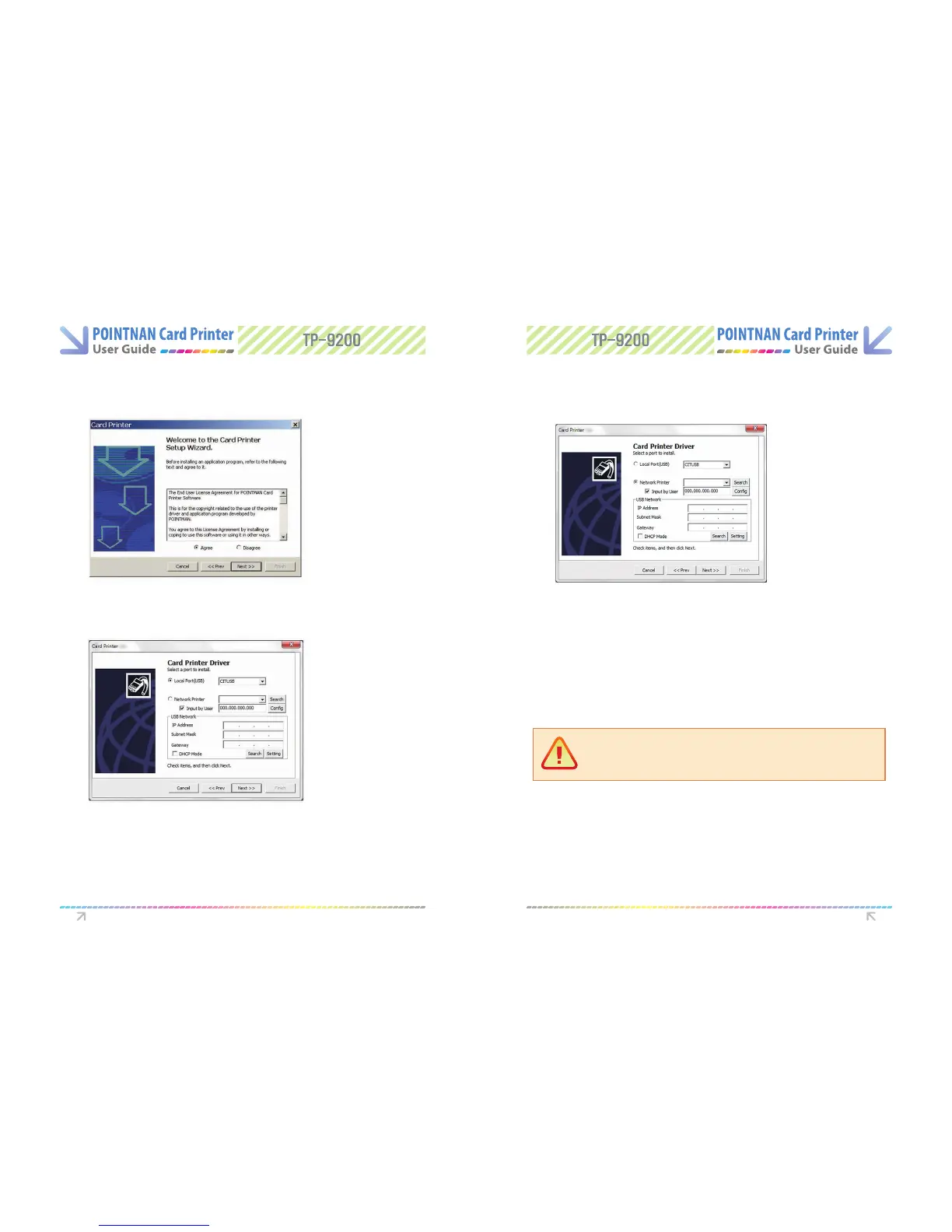
After reading license agreement for the software installation, “Select Agree” and then
“Click Next”.
4
If Network Software is selected. This window will be shown and it will display an IP
address by automatically searching the Network to which the printer is connected.
6
- [Search] button : This searches Network Board.
- [Cong] button : This congures Network architecture.
- [Input by User] : If an IP address is not searched automatically, you can create a port
by inputting an IP address directly. You should use this feature in case that you
can’t search an IP address even though Network Setting is done.
- If an IP address on the right-hand box next to Network Printer is not searched.
you may congure it by clicking Cong button. Please refer to the Network
Conguration Settings section.
- If an IP address is “192.168.0.31”.
network printer port will be address as “IP 192.168.0.31”.
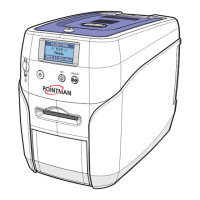
Select the port type you wish to install. “Click Next”.
5
Driver Software install Driver Software install
Caution:
If you stop the document printing, the le in printing can be mixed up with other
spooled le.


 To Next Page