Select the Print in the File menu.
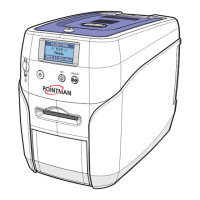
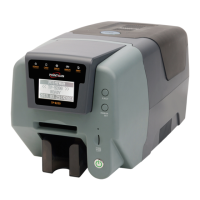
- Make sure that you choose Card Printer .
Select the printer settings you wish to print. Click Print or OK
- Ensur e that the printing image is oriented in same direction (Landscape or Portrait)
as that of the card.
The preview function of the software will help you check it out.
3.3 Printing a Card
3.4 Canceling Print
Open le of the Window application software you wish to print
You can modify the printer settings for all applications.
The values input in printing program will get back to previous one when current operating
program terminates.
There are two ways to cancel printing
1)Canceling in an application software
2)Canceling the printing jobs at printing job window.
If a card jams whilst being printed, press the EJECT button at the front of the printer.
Please do not open the printer cover by pressing “Open” button during the operation,
If the printer cover is opened during the operation the printer would be stopped
automatically.
Keeping your printer operating with printer cover open, you can have the risk of injuries.
If you have any trouble, Please contact your dealer or the manufacturer.
4.1 Opening in printer folder
4.2 Opening Printing Prefernces on application
software
4
Printer Driver Settings
“Click Start”, point to “Settings”, and “Click Printers and Faxes.”
1
Execute printing order in application program.
1
“Right-Click Card Printer, select Properties” (or Printing Preferences) and make the
desired modications.
2
“Click Printing Preferences”.
2
Click each tab and window will open.
3
Click each tab and windows will open.
3
Upon completing settings. “Click OK”.
4
Upon completing settings. “Click OK”.
4
User can set up own printing environment with various functions the printer provides.
NOTE:
You can nd out the detail description for the printing preference at the
next page.
Printer with Card Printer Printer Driver Settings


 To Next Page