19
Accessing the Mobility Center
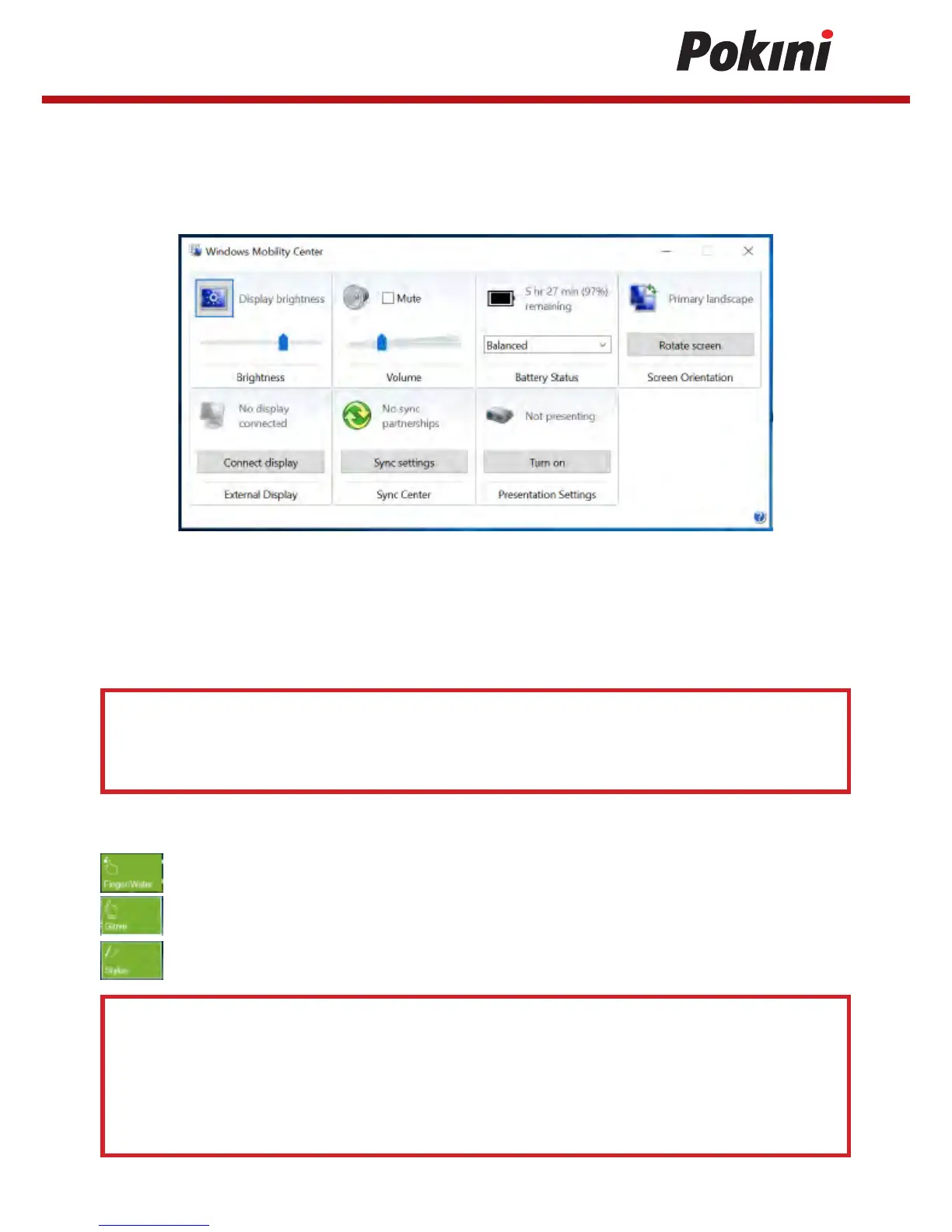
Tap the Mobility Center tab to adjust or configure the brightness, volume level, battery
status, screen orientation, external display, sync, and presentation settings.
Configuring the Touchscreen Settings
Your tablet PC is equipped with a touchscreen. Using the touchscreen, you can navigating
the screen by using touch gestures (any input from your finger, a glove, or a stylus).
CAUTION! - Do not use any sharp object on the touchscreen to prevent scratches.
Note:
An optional protect film has been attached to the screen before shipment.
You should change the film when it gets worn out.
Select one of the available options:
: Select Finger/Water if you are using your fingertips.
: Select Glove if you are wearing gloves.
: Select Stylus if you are using a stylus.
Note:
- If the touch screen mode is set to Glove or Stylus and the touchscreen is wet (i.e.
spilled by liquid), the touch function will not respond to any input. Make sure to
keep the screen dry to ensure proper operation.
- If you assign the P2 button as Touch Screen Mode (refer to page 20), you can easily
switch the touch screen mode by simply pressing the P2 button.


 To Next Page