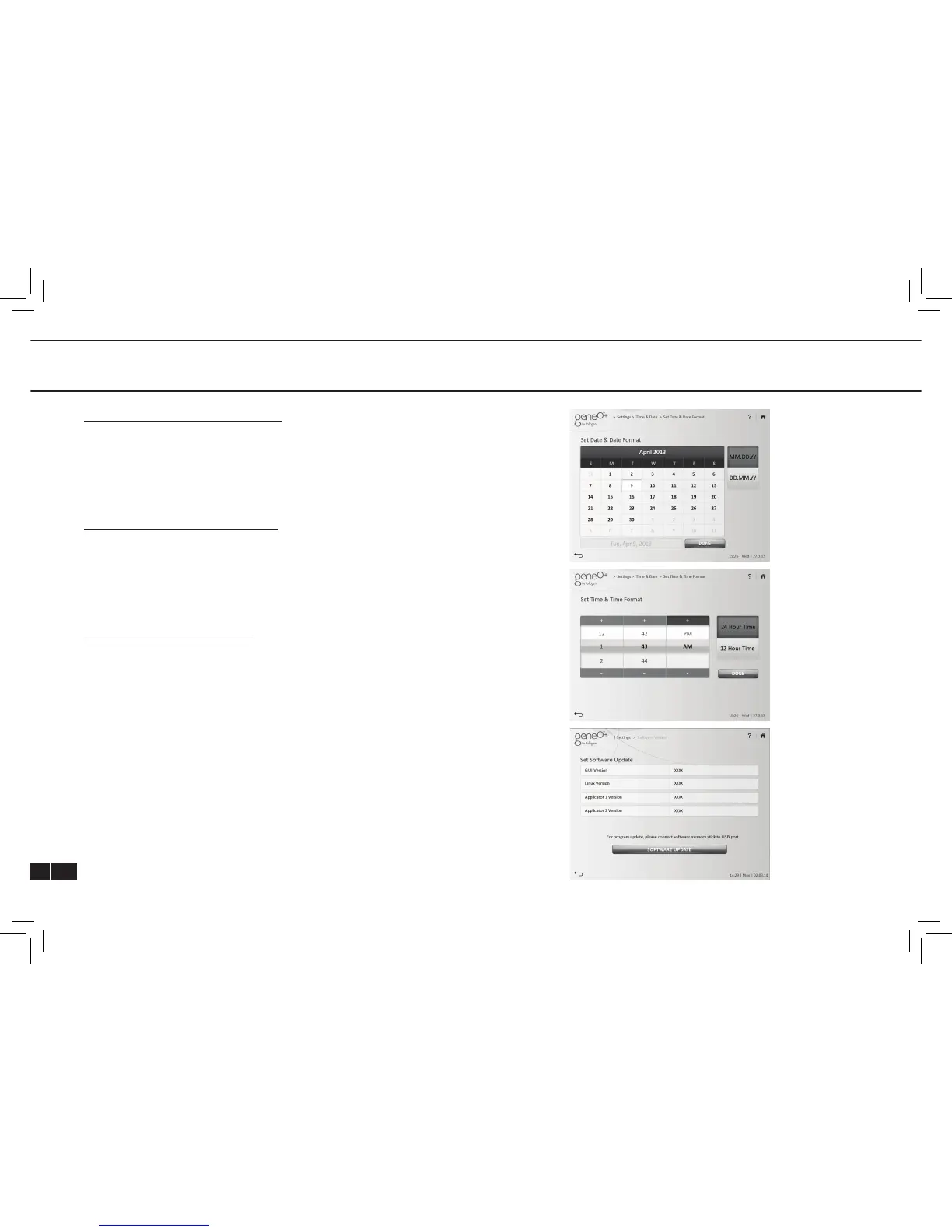
DATE AND DATE FORMAT SCREEN
Enables the operator to select between date formats: DD.MM.YY
or MM.DD.YY.
To set the date:
Select current date and press “DONE”.
TIME AND TIME FORMAT SCREEN
Enables the operator to select between time formats: 24 hour clock or
12 hour clock.
To set the time:
Select current time and press “DONE”.
SOFTWARE UPDATE SCREEN
View current SW versions (GUI, Linux & Applicator).
To update the system SOFTWARE insert the Disk On Key to any of
the USB ports at the back of the platform and tap the “SOFTWARE
UPDATE” key.
First indication you will get is: “SW update, please wait”.
If SOFTWARE was successfully installed the system will indicate: “SW
successfully updated, system will restart now”. Verify the updated
software version on the screen: GUI version.
After tapping OK, the system will restart itself, please wait for
HOMESCREEN to appear.
If SOFTWARE was not successfully installed for any reason, the
system will indicate: “Please make sure you have connected the Disk
On Key to any of the USB ports”.
In case of wrong or incomplete program upload while uploading a
program version using a USB plug, restart the system.
6. OXYGENEO USER APPLICATION


 To Next Page