
 Need help?
Do you have a question about the Poly Blackwire 3310 and is the answer not in the manual?
Explains LED indicators for call status, hold, and mute on the inline control.
Details LED indicators specific to Microsoft Teams functionality and status.
Instructions for powering the headset by connecting to a computer or mobile device.
Guide to installing Poly Lens Desktop App for advanced settings and call control.
Steps to keep headset firmware and software up-to-date for optimal performance.
Instructions on lengthening or shortening the headband for a comfortable fit.
Guidance on wearing the headset on either side and aligning the boom.
How to gently bend the boom for proper microphone placement near the mouth.
Procedures for answering, ending, making, and redialing calls using the headset.
How to adjust the listening volume using the inline control buttons.
Instructions on how to mute and unmute the headset microphone during calls.
Solutions for resolving high-pitched noise issues experienced while wearing the headset.
Steps to troubleshoot problems where the user cannot hear the caller.
Troubleshooting guide for when callers cannot hear the user.
Advice on fixing distorted audio playback in the headset.
How to resolve echo problems experienced during calls.
Troubleshooting steps when headset call control buttons do not function.
Resolving issues when a previously used headset no longer functions.
Steps to troubleshoot when the phone cannot find the headset.
The Blackwire 3300 Series is a line of corded USB headsets designed for communication, offering a 3.5 mm connection for versatile use. This user guide provides comprehensive instructions for setting up, using, and maintaining the headset, ensuring an optimal user experience.
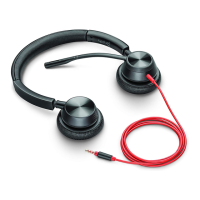
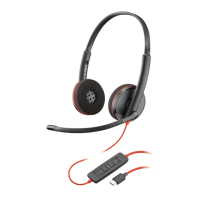
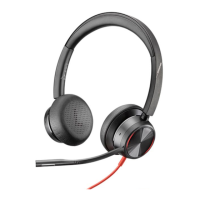
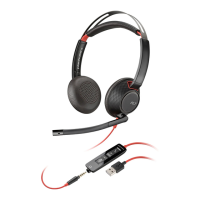
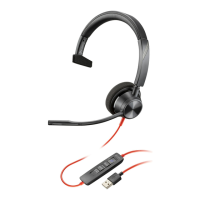
The Blackwire 3300 Series headsets are primarily designed for clear audio communication, whether for calls, conferences, or listening to media. They feature an inline control unit that allows users to manage calls and audio settings directly from the headset cable. The headset connects to devices via a USB-A or USB-C connector for digital audio and control, or a 3.5 mm connector for analog audio, particularly useful for mobile devices or computers without USB ports. The 3.5 mm connection, however, does not support headset call control functionality.
The inline control unit is equipped with several buttons and LED indicators that provide visual feedback on the headset's status. For standard use, the call button manages incoming and ongoing calls. A flashing green LED indicates an incoming call, a solid green LED means a call is active, and a slow flashing green LED signifies a call on hold. Volume up and down buttons allow users to adjust the listening volume, while a mute button, indicated by a solid red LED when active, mutes the microphone.
For users with Microsoft Teams, the headset offers enhanced functionality and specific LED indicators. When connected and integrated with Microsoft Teams, a solid purple LED indicates that the headset is connected and Teams is active. Three flashes of purple signify a connection failure with Microsoft Teams. A flashing blue LED indicates an incoming Teams call, while a solid blue LED means a Teams call is active. A slow flash blue LED indicates a Teams call on hold, and a pulsing purple LED signals a Microsoft Teams notification. The volume and mute controls function similarly, with a solid red LED for mute. These Teams-specific features require the Microsoft Teams variant of the headset and the Teams application to be running.
To power on the headset, simply connect it to your computer or mobile device using the appropriate USB-A/USB-C or 3.5 mm connector. The 3.5 mm connection is available only on Blackwire 3315/3325 models and does not support call control functionality.
For advanced settings and options, users can customize their device behavior through the Poly Lens Desktop App. This software allows for fine-tuning of headset features and is crucial for enabling device call control (answer/end and mute) functionality with certain softphones. The Poly Lens Desktop App can be downloaded from poly.com/lens. Device settings are also accessible via the Plantronics Hub Desktop App.
The headset is designed for comfort and can be adjusted to fit various head sizes. To adjust the headband, lengthen or shorten the band until it sits comfortably, with the ear cushions centered over your ears. The boom microphone can be worn on either the left or right side of the head. To position the boom correctly, rotate it to align with your mouth. It is important to rotate the boom up and over 180 degrees to avoid damage. For optimal microphone performance, gently bend the boom in or out so that it is approximately two finger widths from the corner of your mouth.
Headset call control is a software-dependent feature that relies on a compatible softphone. If the Poly Lens Desktop App is not installed or if the softphone is not compatible, users should press the headset call button first and then manage the call (make/take/end) using the softphone application.
During a call, briefly press the mute button on the inline controller to mute the microphone. Press the button again to unmute.
Keeping the headset's firmware and software up-to-date is crucial for improving performance and accessing new features. Users can update their Poly device using the Poly Lens Desktop App, available at poly.com/lens.
The user guide provides a comprehensive troubleshooting section to address common issues:
 General
| Type | Wired |
|---|---|
| Audio | Wideband audio |
| Connectivity | 3.5mm |
| Microphone | Noise canceling |
| Compatibility | PC, Mac, mobile devices |
| Earpiece Design | On-ear |




 To Next Page