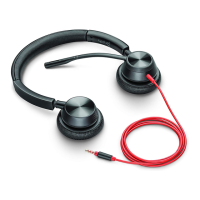
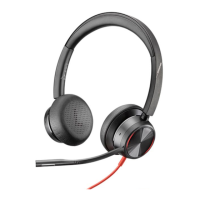
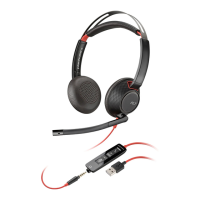
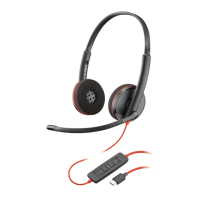
The Poly Blackwire 3200 Series is a line of corded headsets designed for communication, featuring inline call control for ease of use. This series includes models like the Blackwire 3215 and 3225, which offer additional connectivity options.
Function Description:
The Blackwire 3200 Series headsets are primarily designed for clear audio communication in professional environments. They connect to computers or mobile devices via USB-A, USB-C, or a 3.5 mm connector (available on specific models like the 3215/3225). The inline controller provides convenient access to essential call management functions, including answering/ending calls, adjusting volume, and muting the microphone. The headset is compatible with various softphones, and for full call control functionality, installation of the Poly Lens Desktop App (or Plantronics Hub Desktop App) may be required.
Important Technical Specifications:
- Connectivity:
- USB-A/USB-C connector for computers and mobile devices.
- 3.5 mm connector (available on Blackwire 3215/3225 only) for broader mobile device compatibility.
- Note: Headset call control functionality may vary on mobile devices, and is not available when using the 3.5 mm connector.
- Inline Control Icons and Functions:
- Call button: Flashes green for an incoming call, solid green when on a call. Used to answer/end calls, make calls, redial the last call (double key press when not on an active call), and hold calls (press and hold for 2 seconds).
- Volume up (+) button: Increases the listening volume.
- Volume down (-) button: Decreases the listening volume.
- Mute button: Solid red when the headset is muted. Used to mute/unmute the microphone during a call.
- Audio Performance: Designed for clear listening and microphone pickup.
- Compatibility: Works with various softphones. Poly software (Poly Lens Desktop App or Plantronics Hub Desktop App) may be needed for full call control with some softphones.
Usage Features:
- Setup:
- Connect the headset to your computer or mobile device using the appropriate USB or 3.5 mm connector.
- For optimal performance and to enable device call control with certain softphones, download and install the Poly Lens Desktop App from poly.com/lens. This app also allows for customization of device behavior through advanced settings.
- Fit:
- Adjusting the Headband: Lengthen or shorten the headband until it fits comfortably, ensuring the ear cushions sit over the center of your ears.
- Positioning the Boom: The headset can be worn on either the left or right side. Rotate the microphone boom to align with your mouth.
- Adjusting the Boom: Gently bend the boom in or out so it is approximately two finger widths from the corner of your mouth.
- CAUTION: To prevent damage, only rotate the boom up and over 180 degrees.
- Inline Controller Operation:
- Making/Taking/Ending Calls:
- To answer or end a call, tap the Call button or use your softphone.
- To make a call, dial using your softphone application.
- To redial the last call (when not on an active call), double-press the Call button.
- To put a call on hold, press and hold the Call button for 2 seconds.
- If Poly software is not installed or if using an incompatible softphone, press the headset call button first, then manage the call using the softphone application.
- Volume Control:
- Press the Volume up (+) button to increase listening volume.
- Press the Volume down (-) button to decrease listening volume.
- To adjust headset microphone volume (for softphones), place a test softphone call and adjust both softphone volume and PC sound volume accordingly.
- Mute Function: During a call, briefly press the mute button on the inline controller to mute the microphone. Press it again to unmute.
- Troubleshooting:
- "I cannot hear caller": Check listening volume on the headset and computer. Ensure the analog headset is set as the default audio device in sound settings.
- "Callers cannot hear me": Verify the headset is not muted (mute button should not be solid red). Ensure the microphone boom is correctly aligned with your mouth. Confirm the analog headset is set as the default Voice device in audio settings.
- "The sound in the headset is distorted": Lower the listen volume on your softphone until distortion disappears. Adjust volume on the headset.
- "I can hear an echo in the headset": Adjust volume on the headset.
- "The other headset I was using to listen to music does not work anymore": The analog headset may have set itself as the default audio device in Windows. Adjust audio settings in your sound control panel/preferences to change the audio device.
- "My phone is not finding my headset during a call or while listening to music": Ensure audio is routing to the desired headset by checking your phone's settings and confirming the headset is defaulted.
Maintenance Features:
- Software Updates: Keep your Poly device's firmware and software up-to-date using the Poly Lens Desktop App (downloadable from poly.com/lens). Updates improve performance and add new features.
- Update Precautions: During an update, do not use the Poly device, start a second update from another device, stream media, or answer/place calls until the update is complete.

 Need help?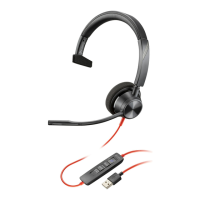



 To Next Page
 General