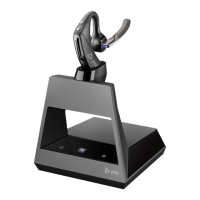
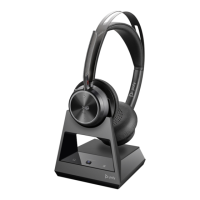
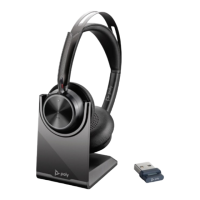
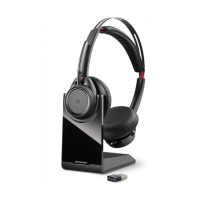
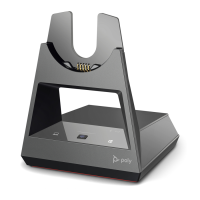
This document is a user guide for the Poly Voyager Office Base, an accessory for a Bluetooth headset system designed for use with computers and desk phones.
Function Description
The Poly Voyager Office Base serves as a central hub for a Bluetooth headset system, enabling seamless connectivity between a compatible Poly Bluetooth headset, a computer, and a desk phone. It facilitates call control, audio management, and charging for the headset. The system allows users to make, answer, and end calls from either their computer (softphone) or desk phone, and to switch between these audio channels. The base also supports integration with Microsoft Teams for Teams-model headsets, providing quick access to the Teams app, meetings, and notifications.
Important Technical Specifications
- Model IDs: Base: CB7222 CD/-M CD, CB4322.
- Connectivity: Bluetooth for headset pairing, USB for computer connection, telephone interface cable for desk phone connection, power jack for power supply.
- Desk Phone Configurations: Supports multiple desk phone setups (A, B, C, D) depending on the phone's features (dedicated headset port, standard handset port, EHS cable, HL10 lifter). Configuration A is default for most phones, while D is for Cisco phones.
- Bluetooth Pairing: The base can be put into pair mode by pressing and holding the Bluetooth pairing button for 2 seconds. The headset can pair with up to 8 devices but maintains 2 simultaneous connections (including the base).
- Call Control: Dedicated buttons on the base for computer and desk phone audio channels. Headset call control button for answering/ending calls.
- Volume Controls: Separate listening and speaking volume controls on the base for desk phone audio, and headset volume controls on the headset itself. Base ringtone volume is adjustable via Poly Lens Desktop App.
- LED Indicators: Bluetooth LED, Charging LED, Microsoft Teams button LED (for Teams models).
- Accessories: Supports Electronic Hookswitch (EHS) cable and HL10 lifter (sold separately) for remote call control with desk phones.
- Software: Requires Poly Lens App (or Plantronics Hub App) for device customization, firmware updates, and softphone call control.
- Physical Separation: Minimum recommended separation of 6 inches between the desk phone and base, and 12 inches between the computer and base to prevent noise and interference.
Usage Features
- System Hookup: Detailed diagrams and instructions are provided for connecting the base to various desk phone types and a computer.
- Headset Pairing: Simple process to pair the Bluetooth headset to the base by activating headset pair mode and then base pair mode.
- Adjusting Volume: Users can fine-tune headset volume, desk phone listening and speaking volumes on the base, and base ringtone volume via software. Softphone microphone volume can be adjusted during a test call.
- Making, Answering, and Ending Calls: Users select the desired audio channel (computer or desk phone) on the base, then dial from their softphone or desk phone. Calls can be answered/ended via the headset call button or the corresponding audio button on the base. For desk phones without EHS or HL10, manual handset removal/replacement is required.
- Holding and Switching Calls: Calls can be put on hold by pressing the corresponding audio button for 2 seconds. Switching between calls is also possible by tapping the audio button. Note that switching two desk phone calls can only be done from the desk phone itself.
- Microsoft Teams Integration (Teams Model Only): A dedicated Teams button on both the base and headset allows quick access to the Microsoft Teams desktop app. The base Teams button illuminates for meetings or notifications, enabling users to join meetings or view notifications with a tap.
- Voice Assistant (Smartphone Feature): Pressing and holding the headset Call button for 2 seconds activates the smartphone's default voice assistant (Siri, Google Assistant, Cortana) for voice dialing, search, and other controls. This feature is active only when the headset is out of base range and paired to a smartphone.
- Changing Default Line: The default outbound phone line/audio channel can be changed using the Poly Lens App.
Maintenance Features
- Firmware Updates: Users are advised to keep their firmware up-to-date using the Poly Lens App to improve performance and add new features. Specific instructions are provided for updating firmware, including precautions like not using the device, disconnecting from paired devices, and avoiding streaming media or calls during the update.
- Troubleshooting: A comprehensive troubleshooting section addresses common issues such as:
- No Dial Tone: Solutions include checking headset charge and pairing, adjusting the base's configuration switch (A-F), verifying desk phone connections, and ensuring HL10 lifter operation.
- Static: Recommendations include maintaining proper physical separation between the base, computer, and telephone, and moving closer to the base if out of range.
- Distorted Sound/Echo: Solutions involve lowering desk phone speaking/listening volumes on the base, adjusting headset volume, checking desk phone volume controls, and ensuring correct microphone positioning.
- Background Buzz: Suggests moving the base further from the phone and plugging the base power supply directly into a wall outlet.
- Voice Assistant Activation Issues: Confirms that the voice assistant is a mobile-only feature, active when the headset is out of base range and paired to a smartphone.
- Handset Lifter Malfunction: Advises checking if the handset lifter power cord is firmly pushed into its jack on the base.
- Softphone Dialing Issues: Solutions include ensuring headset charge and pairing, installing Poly Lens Desktop App, setting the headset as the default sound device, and restarting the computer.
- No PC Speaker Audio: Provides steps for changing default sound playback settings in Windows and Mac OS X.
- Teams Model Softphone Compatibility: Explains that while optimized for Teams, the headset can be configured for other softphones via Poly Lens Desktop App, with implications for the headset's Call button functionality.

 Need help?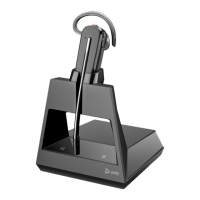




 To Next Page
 General