
 Need help?
Do you have a question about the Poly Voyager 4220 Office and is the answer not in the manual?
Guide to connecting the headset system to various desk phones using different setups (A, B, C, D).
Step-by-step instructions for pairing the headset with its base unit.
Instructions for pairing the headset with a smartphone via Bluetooth.
How to turn the headset on/off and adjust listening and speaking volumes.
Instructions for making, answering, ending, muting, holding, and switching calls.
Resolving issues related to headset connectivity, dial tone, static, and distorted sound.
The document describes the Voyager 4210/4220 Office Bluetooth headset system, designed for use with both computers and desk phones. This system offers a versatile audio solution, allowing users to seamlessly switch between different communication platforms.
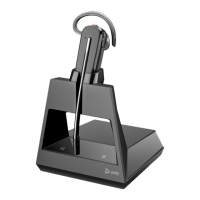
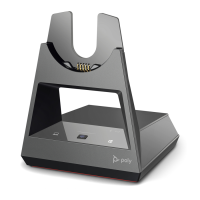
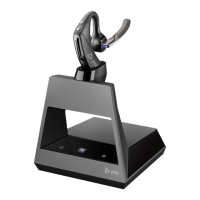
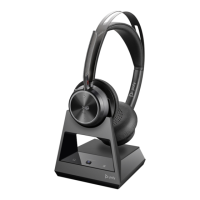
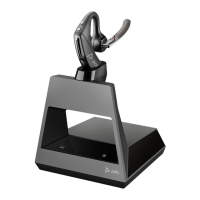
The Voyager 4210/4220 Office is a Bluetooth headset system that includes a headset and a base unit. The primary function of this system is to provide wireless audio communication for calls and media playback from a computer, a desk phone, and a mobile device. The base unit acts as a central hub, connecting the headset to the desk phone and computer, while the headset itself can also directly pair with a mobile device via Bluetooth. This multi-connectivity allows users to manage calls from various sources using a single headset. The system supports call control features such as answering, ending, muting, holding, and switching between calls. It also integrates with voice assistants like Siri, Google Assistant, Cortana, and Amazon Alexa (smartphone feature), enhancing hands-free control. For Microsoft Teams models, dedicated Teams functionality is available, allowing quick access to the Teams app and notifications. The headset is designed for comfortable wear, with adjustable microphone placement and headband flexibility.
The system is designed for ease of use, starting with its setup. Users can connect the base to various desk phone types, including those with dedicated headset ports, standard phones, and those requiring an EHS cable or HL10 lifter (sold separately). The base has a configuration switch (A-G) to ensure compatibility with different desk phone models, with 'A' being the default for most phones and 'D' for Cisco phones. Proper positioning of the base unit is crucial, with recommended separations from the desk phone (6 inches) and computer (12 inches) to prevent noise and interference.
Pairing the headset to the base is typically pre-configured, but re-pairing is straightforward by activating pair mode on both devices. For mobile devices, the headset can be put into pair mode and then connected via the phone's Bluetooth settings. The headset can pair with up to 8 devices but maintains 2 connections simultaneously, including the base.
Once connected, the headset offers intuitive call management. Users can power the headset on/off, adjust headset volume using the on-ear controls, and fine-tune desk phone listening and speaking volumes directly on the base. The base also has a ringtone to alert users of incoming calls when the headset is not worn. For softphone calls, microphone volume can be adjusted through the softphone application.
Making and answering calls is simplified by dedicated Audio buttons on the base for computer and desk phone lines, allowing users to switch between channels. The headset itself has a Call button for answering/ending calls, holding calls (2-second press), and switching between calls. Muting is done via a dedicated mute button on the headset.
Beyond calls, the headset supports media playback with play/pause, next track, previous track, fast-forward, and rewind functions, though functionality may vary with web-based applications. Voice assistant activation is achieved by pressing and holding the Call button for 2 seconds (when out of base range and paired to a smartphone). Amazon Alexa can be enabled and used through the Plantronics Hub mobile app, allowing users to tap the Mute button to ask questions. The Tile integration feature helps locate a lost headset by ringing it or showing its location on a map via the Tile app. An online indicator LED on the headset illuminates red during calls to signal to others that the user is busy.
For situations with Bluetooth density problems, the system offers a "corded mode" where the headset can be directly connected to a computer via a USB cable, improving audio performance. In this mode, the headset also charges.
Maintaining the system primarily involves keeping the headset charged and updating its firmware. The headset charges when placed in its cradle, with the base display's battery icon indicating charging status (solid blue for charging, off when complete). A full charge takes approximately 90 minutes, but a minimum of 20 minutes is recommended before first use. Alternatively, the headset can be charged using a micro-USB cable connected to a power source. Users can check the headset battery status by sliding and releasing the Power switch and listening to the voice alert or observing the headset LEDs.
Firmware updates are crucial for improving performance and adding new features. These updates are managed through the Poly Lens App (or Plantronics Hub App), which can be downloaded from poly.com/lens. During firmware updates, it's important not to use the Poly device, disconnect it from paired devices, avoid starting a second update, refrain from streaming media, and not answer or place calls to ensure a successful update. The Poly Lens App also allows users to customize device behavior through advanced settings and options, including changing the default outbound phone line/audio channel and setting the target softphone.



 To Next Page
 General