
 Need help?
Do you have a question about the Poly Voyager Focus 2 UC Series and is the answer not in the manual?
Details the headset components and controls for operation and interaction.
Instructions for connecting the headset to a computer via the USB Bluetooth adapter.
Guides on how to pair the headset with a mobile phone using Bluetooth.
Instructions for charging the headset using a micro USB cable or charge stand.
Methods for adjusting headset volume and voice prompt volume.
Core functions for answering, ending, muting, and holding calls.
Resolving problems with pairing devices and general connectivity.
Troubleshooting audio playback and microphone issues on a computer.
This document is a user guide for the Poly Voyager Focus 2 UC Series Bluetooth Headset, providing comprehensive instructions for its setup, operation, and maintenance.
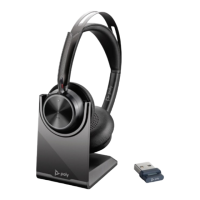
The Poly Voyager Focus 2 UC Series Bluetooth Headset is designed for high-fidelity audio and seamless communication, particularly in professional environments. Its primary function is to provide clear audio for calls and media, while also offering advanced features like Active Noise Cancelling (ANC) to minimize distractions. The headset is pre-paired with a high-fidelity Bluetooth USB adapter, ensuring a robust and reliable connection to a PC or laptop for softphone functionality and superior sound quality. This adapter is crucial for optimizing the headset's performance with computer audio and various softphone applications.
The headset offers a wide array of usage features designed for convenience and efficiency.
Connectivity: The headset can connect to a PC via the included Bluetooth USB adapter and simultaneously pair with a mobile device. The adapter comes pre-paired, simplifying the initial setup for PC use. For mobile devices, users can put the headset into pairing mode by sliding and holding the power switch, then selecting "Poly VFOCUS2 Series" from their phone's Bluetooth settings. The headset can remember up to 8 devices but maintains 2 active connections at a time. If the USB adapter needs to be re-paired, the Poly Lens Desktop App is required, where users can select "Pair new device" for the BT700 adapter.
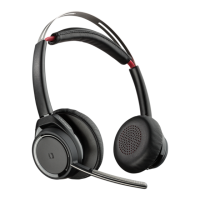
Audio Control: Users can adjust the volume by tapping the Volume up (+) or down (-) buttons. The microphone boom can be rotated to position it on either the right or left side, with the headset intelligently syncing audio to the correct side. The microphone boom should be approximately two finger widths from the corner of the mouth for optimal voice pickup.
Call Management: Making, taking, and ending calls is straightforward with the dedicated Call button. A single tap answers or ends a call. To answer a second incoming call, users first tap the Call button to end the current call, then tap it again to answer the new call. For holding a call, standard headsets require pressing the Call button for 2 seconds, while Microsoft Teams headsets use the Mute button for 2 seconds. The headset also supports switching between two active calls (flash) by pressing the Call button for 2 seconds (standard headset) or the Mute button for 2 seconds (Microsoft Teams headset), though this feature is not available for mobile calls. Users can also call back the last dialed number on a smartphone by double-tapping the Call button.
Mute Functionality: Muting can be done in several ways: tapping the Mute button, rotating the microphone boom into the up position, or taking off the headset (if smart sensors are active). To unmute, users can put the headset back on.
Active Noise Cancelling (ANC): The ANC feature helps reduce external noise and enhances music and sound quality. Users can slide the ANC switch to choose between "Low" (recommended for office environments) and "High" (recommended for loud environments) settings.
Smart Sensors: The headset incorporates smart sensors that respond to user actions. By default, putting on the headset will answer a mobile/softphone call or resume music/media. Taking off the headset will keep a call in the headset, pause music/media, or mute an active call (if activated in the Poly Lens App). These sensor behaviors can be customized via the Poly Lens App.
Voice Assistant: For smartphone users, pressing and holding the Call button for 2 seconds activates the phone's default voice assistant (Siri, Google Assistant, Cortana), allowing for voice dialing, search, and other controls.
Microsoft Teams Integration (Teams Model Only): For Teams models, a dedicated Teams button allows quick access to the Microsoft Teams desktop app. Tapping the button when not on a call opens the app, and when the connected USB adapter LED pulses purple, tapping the button views Teams notifications. This integration requires the Teams desktop application and is not supported by the mobile app.
Corded Mode (Audio over USB): If Bluetooth density issues cause audio cutouts during softphone calls, the headset can be used in a corded mode. This involves disconnecting the Bluetooth USB adapter, connecting the headset directly to the computer with the provided 1.5m USB cable, and powering off the headset. This mode also charges the headset battery.
The user guide also outlines several maintenance and configuration features to ensure optimal performance.
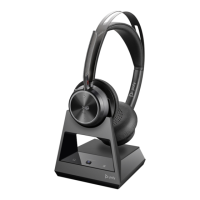
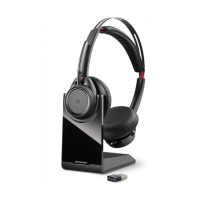
Charging: The headset can be charged using the micro USB cable or an optional charge stand. Both plug into a computer or wall charger's USB port. The headset LEDs flash while charging and turn off when fully charged, which takes approximately 2 hours.
Battery Status: Users can check the headset's battery status by sliding and releasing the Power switch away from the off position when the headset is inactive. A voice alert will indicate the battery level, or users can observe the headset LEDs (solid for high/medium/low, flashing for critical).
Software Updates: Keeping the headset's firmware and software up-to-date is crucial for improved performance and new features. Updates are managed through the Poly Lens Desktop App, which can be downloaded from poly.com/lens.
Poly Lens Desktop App: This application is a central tool for customizing headset behavior, enabling features, changing settings, configuring call control for softphones, updating device firmware, managing notifications and alerts, and scheduling health and wellness reminders. It is essential for unlocking the full potential of the headset.
Sensor Reset/Disable: If smart sensors are not working as expected, they can be reset by charging the headset on the stand for 10 seconds while powered on, or by powering on the headset while pressing the Mute button for more than 4 seconds until the LEDs flash purple 4 times. Sensors can be disabled via the Poly Lens App or by holding both the Mute and Call buttons for more than 4 seconds until the LED flashes purple then red. Reactivating them involves repeating the button press until the LED flashes purple then blue.
Language Selection: The headset's language can be wirelessly changed using the Poly Lens App.
Online Indicator: The headset features an LED that illuminates red to indicate when the user is on a call, informing others. This setting can also be managed in the Poly Lens App.
Troubleshooting: The guide provides a comprehensive troubleshooting section addressing common issues such as pairing problems, audio not working as expected, and call control issues with softphones. It directs users to specific sections of the guide or to the Poly Lens Desktop App for solutions. For instance, if headset talk time is inaccurate, users are advised to deplete and then fully charge the battery to reset the accuracy of the prompts. If there are not enough charge ports, users can plug the charge stand into a wall charger or use corded mode for charging while connected to a computer.
 General
| Wearing Style | Over-the-head |
|---|---|
| Speaker Frequency Response | 20 Hz - 20 kHz |
| Microphone Frequency Response | 100 Hz - 8 kHz |
| Dynamic Mute Alert | Yes |
| Warranty | 2 years |
| Type | Wireless |
| Connectivity | Bluetooth 5.1 |
| Active Noise Cancellation | Yes, Hybrid Active Noise Cancelling (ANC) |
| Microphone | Yes |
| Battery Life (Listening Time) | Up to 40 hours (ANC off), Up to 24 hours (ANC on) |
| Charging Time | 2 hours |
| Wireless Range | Up to 50 meters/164 feet |
| Compatibility | PC, Mac, Mobile |
| Weight | 175 grams |
| Smart Sensors | Yes |
| Ear Cushions | Leatherette |
| Battery Life (Talk Time) | Up to 19 hours |
| Charging | USB-C |






 To Next Page