www.evolveip.net Client Support: 877.459.4347 support@evolveip.net 3
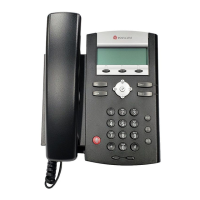
User Guide For: Polycom 335
1.6 CONFERENCE CALLING
1.6.1 Creating a call
Make outbound call
Press More soft key
Press Conf soft key and Make 2
nd
outbound call
Press Conf soft key again to bridge all 3 parties together
* Note – Participants of a conference call will remain connected after initiator hang
up.
1.6.2 Dissolving a conference call into individual calls
At anytime during the call press the Split soft key and all calls will be put on
independent lines and placed on hold
To navigate to a caller press the line of the desired caller to speak with.
2
2
.
.
P
P
r
r
o
o
d
d
u
u
c
c
t
t
i
i
v
v
i
i
t
t
y
y
I
I
t
t
e
e
m
m
s
s
2.1
USING CALL LOGS
Press Menu button
Press 1 to select Features
Press 6 or arrow down to select Call Lists
Select Placed or Received calls by pressing the correlating number or
highlighting and press the check mark in middle of the navigation arrows.
(*Note – Missed calls will show a full phone icon compared to just a handset
for answered calls)
Highlight desired call and press Dial button to execute a call to that number.
You may also press the check mark and then the Save soft key to add them
to your contacts/speed dials.
ALTERNATIVELY – use the navigation arrows
Right Arrow = Placed calls, Down Arrow = Received/Missed calls
2.2
USING THE CONTACT DIRECTORY
To view your saved contacts (or add new) press the Menu button
Press 1 to select Features
Press 5 or arrow down to select Contact Directory
Use the up/down arrows to scroll through contacts
Once you have highlighted the desired party press the check mark in middle
of the navigation arrows and press Edit soft key to edit the details of the
contact. If adding a new contact select <New Entry> at the top of the
contact list
Use the up down navigation arrows to access the various contact elements
(First Name, Last Name, and “Contact” which is the 10-digit phone number)
and press check mark to make/edit entries using the key pad.
2.3
FORWARDING A RINGING CALL TO YOUR VOICEMAIL
While call is ringing
Press More soft key
Press Reject soft key
Phone will stop ringing and caller will be immediately sent to your voicemail
greeting.





 To Next Page
