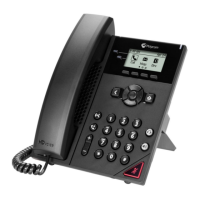
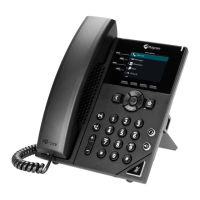
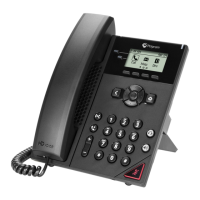
The Poly VVX150 is a user-friendly IP phone designed for basic and advanced communication functions, offering a range of features to manage calls efficiently. This guide provides a comprehensive overview of its setup, call handling capabilities, and other phone actions.
Function Description:
The Poly VVX150 is primarily a voice communication device that allows users to make, receive, and manage phone calls over an internet connection. It supports a maximum of three active, incoming, and held audio calls at any given time, though only one call can be active while others are incoming or on hold. The phone is pre-configured and requires connection to the internet via Power over Ethernet (PoE) or an AC power supply to function. Its core purpose is to facilitate clear and reliable voice communication, enhanced by features like HD Voice.
Usage Features:
The VVX150 offers a variety of features for call management, including:
- Placing Calls: Users can initiate calls by typing a phone number, selecting "New Call," pressing a line key, or picking up the handset and pressing the speakerphone or headset button. After entering a number or selecting a recent contact, the "Dial" option completes the call.
- Answering Incoming Calls: Incoming calls can be answered by picking up the handset, pressing the speakerphone or headset button, or selecting "Answer" on the screen. Once answered, the call becomes active.
- Holding and Resuming Calls: Any active call can be placed on hold by selecting the "Hold" button. A hold icon will appear on the line of the held call. Held calls can be resumed by selecting "Resume" or by choosing the call from the "Calls" screen and then selecting "Resume." The phone allows users to view and resume all held calls.
- Ending Calls: Active calls can be ended by placing the handset back on the cradle, pressing "End Call," or by highlighting the call in the "Calls" screen and selecting "End Call." Held calls must be resumed before they can be ended.
- Transferring Calls: The VVX150 supports two types of call transfers:
- Blind Transfer: Transfers a call directly to another line without prior conversation with the recipient.
- Consultative Transfer: Allows the user to speak with the recipient before completing the transfer.
Users can choose a default transfer type in the phone's preferences (Settings > Basic > Preferences > Default Transfer Type). During a call, pressing "Transfer" uses the default type, while pressing and holding "Transfer" uses the non-default type. Alternatively, users can press "Transfer," then "More," and select "Blind" or "Consultative." After dialing a number or selecting a contact, the transfer is completed (immediately for blind transfers, or by selecting "Transfer" again for consultative transfers after speaking with the contact). Transfers can be canceled if the recipient doesn't answer or if the user wishes to continue speaking with the original contact.
- Managing Multiple Calls: The phone allows users to display calls from both the "Lines" screen and the "Calls" screen. On the "Lines" screen, selecting a line with a held call automatically resumes the first held call on that line. The "Calls" screen provides a list of active and held calls for each line, enabling users to hold, resume, or transfer calls directly from this interface.
- Rejecting Incoming Calls: Users can reject an incoming call, sending it directly to voicemail. Rejected calls are logged in the "Missed Calls" list. This feature is not available for shared lines.
- Rejecting Calls from a Contact: Specific contacts can be configured to have their calls automatically sent to voicemail. This is done by navigating to Directories > Contact Directory, selecting a contact, editing their information, and enabling "Auto Reject."
- Do Not Disturb (DND): Enabling DND prevents the phone from ringing and sends all incoming calls directly to voicemail. All calls received during DND are logged in the "Recent Calls" list. On shared lines, DND only disables ringing, with a visual notification of the call still displayed, allowing the option to answer or ignore. DND can be enabled by selecting "DND" from the phone's interface. When DND is active, a message indicating the status scrolls under the time display.
- Call Forwarding: Incoming calls can be forwarded to a specific contact, or all incoming calls can be forwarded. To forward an incoming call, select "Forward" from the Incoming Call screen, enter the forwarding number, and confirm. To forward all incoming calls, navigate to Settings > Features > Forward, select a line (if applicable), choose a forwarding type, enter a contact's number (if enabled), and select "Enable." If "No Answer" is chosen, the number of rings before forwarding can be set. Call forwarding can be disabled by following a similar path and selecting "Disable."
- Audio Conference Calls: The VVX150 supports conference calls with up to two additional contacts, managing a maximum of three active or held conference calls.
- Initiating a Conference Call: Call a contact, and once they answer, select the "Conference" soft key (this places the first call on hold). Then, dial another contact's number or select them from the directory/call lists. When the second contact answers, select the "Conference" soft key again to join all participants.
- Joining Calls to Create a Conference Call: If there is an active call and one or more held calls, users can select the "Join" soft key to combine an active call with a selected held call into a conference. If multiple calls are held, others remain on hold.
- Ending a Conference Call: Selecting "End Call" during a conference will terminate the connection for all participants.
- Holding a Conference Call: Placing a conference call on hold will place all participants on hold.
- Resuming a Conference Call: Resuming a held conference call enables all participants to hear the audio.
- Mute and Unmute Audio: During any call, including a conference, pressing the mute key will mute the microphone, preventing other parties from hearing the user. The user can still hear other parties. Pressing the mute key again will unmute the microphone.
- Viewing the Contact Directory: The contact directory can be accessed from the Home screen by navigating to "Directories > Contact Directory."
- Listening to Voicemail: To access voicemail, navigate to "Messages," then "Message Center." If multiple lines are present, select the line with the new message. From the Messages screen, select "Connect" and follow the prompts.
Maintenance Features:
The manual does not explicitly detail maintenance features in terms of device upkeep or troubleshooting. However, it does mention:
- Security Slot: The phone includes a security slot on the back, allowing users to attach a universal security cable lock to secure the phone to a desktop, preventing theft.
- Reversible Tab: The handset cradle features a reversible tab designed to secure the handset when the phone stand is positioned at a high angle. To use this, the tab is removed, reversed so its protrusion points up, and re-inserted, allowing the handset to fit securely into the slot.
The phone's interface includes various icons and status indicators to provide visual feedback on its state and ongoing activities, such as registered/unregistered lines, outgoing/incoming/held calls, active conferences, DND status, call forwarding, presence status (available, busy, away, offline), new messages, and wireless network status. These indicators help users quickly understand the phone's operational status and manage their communications effectively.

 Need help?
 General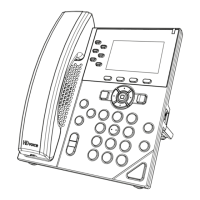



 To Next Page