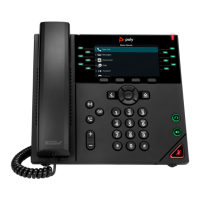
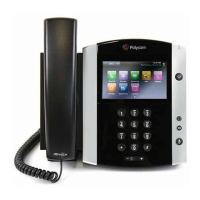
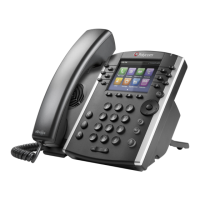
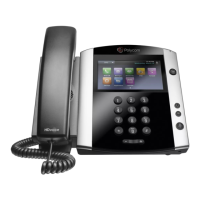
The Polycom VVX 600 is a premium business media phone designed to enhance collaboration and personal productivity. It features a touchscreen display, allowing users to interact with the phone by tapping icons and swiping to scroll. The phone integrates with Microsoft Lync, enabling users to view their contact list and presence status directly on the display, even before their PC boots up.
Function Description:
The Polycom VVX 600 serves as a comprehensive communication device for business environments. Its primary functions include making and receiving calls, managing multiple calls, transferring calls, forwarding calls, and facilitating conference calls. The phone supports various call modes, including handset, speakerphone, and headset. It also offers advanced features such as voicemail integration with Microsoft Outlook, contact management, and customizable ringtones.
Usage Features:
Touchscreen Interface:
The phone's touchscreen is the primary interface for navigation and interaction. Users can tap to select and highlight items, and swipe their finger up, down, right, or left to scroll through lists or screens. To return to a previous screen, users tap the "Back" button. A slightly heavier touch is recommended when scrolling through lists to ensure proper selection.
Phone Views:
The VVX 600 offers four main views:
- Home: Displays icons for accessing various phone functions. Users can touch and hold the Page Indicator to show more or fewer icons, or swipe the screen to display additional icons.
- Calls: Accessible when the phone has multiple calls or one held call. This view displays call status, with different colors indicating active, incoming, or held calls.
- Active Call: Accessible when the phone has only one active call.
- Lines View (Default): Displays phone lines, Lync Favorites, and soft keys. From this view, users can tap a phone line to access the Dialer.
Making and Receiving Calls:
- Placing a Call: Users can pick up the handset, press the speakerphone or headset button, enter the phone number, and tap the dial icon. Alternatively, from the Lines view, they can tap a phone line, enter the number, and tap the dial icon.
- Answering a Call: To answer with the handset, users simply pick it up. For a headset, they press the headset button. To answer with the speakerphone, they press the speakerphone button or tap "Answer" on the screen. If a new call comes in while an active call is in progress, tapping "Answer" will hold the current call and connect to the new one.
Call Management:
- Ending a Call: To end an active call, users can replace the handset, press the speakerphone or headset button, or tap "End Call" on the screen. To end a held call, users navigate to the Calls view, highlight the held call, tap "Resume," and then tap "End Call."
- Placing a Call on Hold: From Lines, Calls, or Active Call view, users tap "Hold." If in Calls view, the call must be highlighted first. To resume a held call, users tap "Resume" from either Lines or Calls view.
- Transferring a Call: From Lines, Calls, or Active Call view, users tap "Transfer," call the other party, and then tap "Transfer" again once the ringback sound is heard or after speaking with the other party.
- Forwarding a Call: To enable call forwarding, users tap "Forward" from Home or Lines view, select the forwarding type, enter a forwarding number, and tap "Enable." To disable, they follow the same steps but tap "Disable." For per-call forwarding, users tap "Forward" when the phone rings, enter the forwarding number, and tap "Forward."
- Conference Calls: To start a conference call, users call the first party, tap "Confrnc" after the call connects, then dial and connect with the second party, and tap "Confrnc" again. From Lines or Calls view, users can "Hold" all participants, "End Call" to remove themselves while keeping others connected, "Manage" each participant, or "Split" to end the conference and hold all participants.
Voicemail and Directories:
- Setting Up Voicemail: Users tap "Messages" from Home view, then "Message Center," "Connect," and enter their PIN. The PIN is typically found in the "Welcome to Exchange Unified Messaging" email from Microsoft Outlook.
- Listening to Voicemail: Users tap "Messages" from Home view, then "Message Center," "Connect," and follow the prompts.
- Voicemail on Microsoft Outlook: Voicemail messages are transcribed to text and appear in the Outlook email inbox, with the sender indicated as "Voice Mail From Senders Name" and an icon. A log of all voicemails is located in the Search Folders.
- Lync Favorites: The Lync Favorites list is displayed in the Lines view. Users can tap a favorite's name to dial them.
- Viewing Recent Calls: To view the Recent Calls list, users tap "Directories" from Home view, then "Recent Calls." From this list, they can sort and order calls, filter calls by Missed, Received, or Placed calls, and tap a call record to call the person.
Audio and Settings:
- Muting the Microphone: During a call, users press the mute button to prevent others from hearing them. Pressing it again disables mute.
- Adjusting Volume: During a call, users press the volume buttons to change call volume. When the phone is idle or ringing, pressing the volume buttons adjusts the ringer volume.
- Updating Ringtones: To change the incoming call ringtone, users tap "Settings" from Home view, then "Basic" > "Ring Type," and select the desired ringtone. To set a ringtone for a specific contact, users navigate to their Contact Directory, tap the contact, tap the ringtone icon, select the desired ring type, and tap "Save."
- Do Not Disturb (DND): If supported by the service, users can enable or disable ringing by tapping "DND" from Home or Lines view. When DND is enabled, a DND icon appears in the status bar. Tapping the icon again disables DND.
Entering Data:
Users can enter information using the onscreen keyboard or the dialpad keys. To use the onscreen keyboard, they tap the keyboard icon. To backspace, they tap the "X" icon. When using the dialpad keys, pressing a key repeatedly cycles through character options. "Encoding" or "Mode" can be tapped to enter other characters, using the 1, *, 0, and # keys.
Technical Specifications (Implied):
- Display: Touchscreen.
- Connectivity: Integration with Microsoft Lync.
- Audio: HDvoice for clear audio quality.
- Input: Touchscreen, physical dialpad keys, handset, speakerphone, headset.
Maintenance Features:
The manual does not explicitly detail maintenance features, but the software-based updates for ringtones and call settings suggest that the device's functionality can be managed and customized through its interface. The integration with Microsoft Outlook for voicemail also implies a streamlined approach to managing communications and records.

 Need help?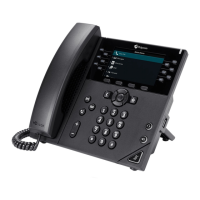




 To Next Page

 General