23
1. Right click at the printer driver icon installed on the PC, select “Printer Preferences” →
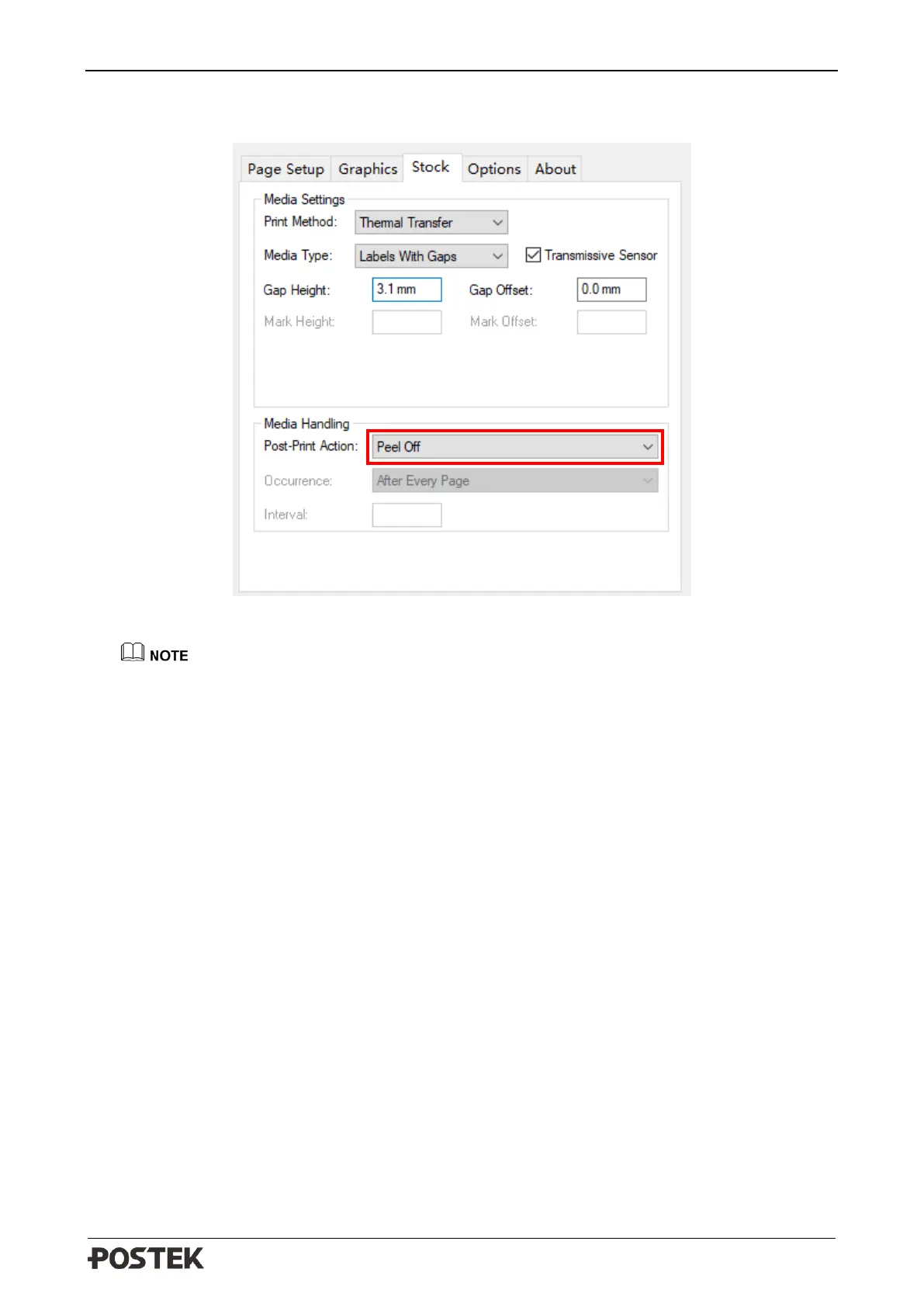
“Stock” → “Post-Print Action” → “Peel Off” to enable Peeler Mode, as shown in Figure 3-3.
Figure 3-3 Stock Interface
For Win 10 operating system, please click at the printer driver icon, choose “Management”
→
“Printer Preferences”
→
“Stock”
→
“Post-Print Action”
→
“Peel Off” to enable Peeler Mode.
2. Load consumables referring to operations under Standard Mode.
3. Turn on the printer and perform Media Calibration: Press and hold the [FEED/Calibration]
button (hold for around 4 seconds), the printer will automatically feed labels and the media
calibration is done.
4. Create the label template on your PC using the Bartender label software. Click at “print” to
initiate the print job.
5. Remove the peeled label, and the printer will resume printing.
6. The peeling position can be adjusted by Peel Offset in Utility tool under Peeler Mode, please
refer to “Help” document in the Utility tool to adjust accordingly.
Cutter Mode (Cutter accessory required)
The steps to set the printer to Cutter Mode are as follows:
1. Right click at the printer driver icon installed on the PC, select “Printer Preferences” →
“Stock” → “Post-Print Action” → “Cut” to enable the Cutter Mode, as shown in Figure 3-4.


 To Next Page