EasyManua.ls Logo

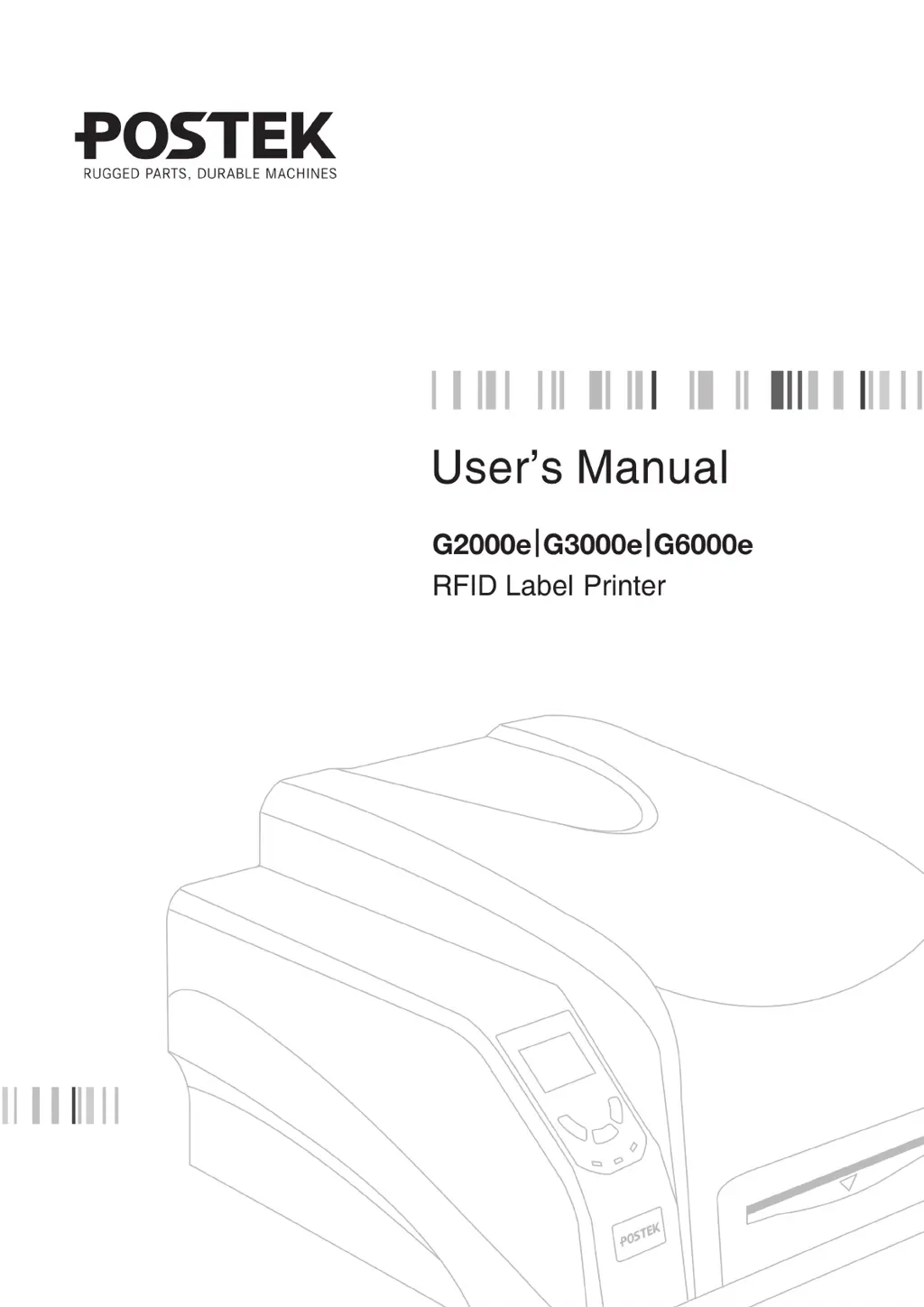
Postek G2000e - User Manual

Postek G2000e
50 pages
Print Icon
To Next Page IconTo Next Page
Loading...

Questions and Answers

  • M
    Michael RodriguezAug 18, 2025
    Why are the READY and MEDIA indicators blinking on my Postek Label Maker?
    • R
      Richard RojasAug 19, 2025
      If the [READY] and [MEDIA] indicators on your Postek Label Maker are blinking simultaneously, it could be due to several reasons: * The media sensor may not be detecting the media. Ensure the media is loaded correctly and the sensor can detect the gap, hole, notch, or black mark. * The media may have run out. Try loading a new roll. * There might be a media jam. Clear any obstructions. * The media roll guides might not be installed correctly or pushed firmly against the media. Ensure they are properly installed and snug. * The media sensor could be dirty. Clean the sensor. * In rare cases, the media sensor might be malfunctioning, and you should contact technical support.
  • K
    Kristin MooreAug 21, 2025
    What to do if READY and RIBBON indicators blink simultaneously on Postek Label Maker?
    • C
      caitlinbarnesAug 21, 2025
      If the [READY] and [RIBBON] indicators are blinking simultaneously on your Postek Label Maker, the issue could be due to: * The ribbon has run out, so load a new roll of ribbon. * The ribbon is jammed; ensure it follows a steady and smooth path. * The ribbon spindle is installed incorrectly. Refer to the manual for the correct installation process. * The ribbon sensor is dirty, so clean the sensor. * The ribbon sensor is out of order, in which case contact technical support.
  • E
    Eric MartinezAug 23, 2025
    Why is my Postek Label Maker not printing even though data is being sent?
    • K
      Kathryn HoganAug 25, 2025
      If your Postek Label Maker is sending data but not printing, there could be two possible causes: * The incorrect driver is selected. Make sure that the correct driver is chosen in the label software. * There is a memory overflow. Try resetting the printer.
  • S
    Samuel GrantAug 26, 2025
    How to improve poor printing quality on Postek Label Maker?
    • M
      Mrs. Jodi WoodsAug 26, 2025
      If you are experiencing poor printing quality with your Postek Label Maker, consider the following possible causes and solutions: * The printing parameters might be set inappropriately. Try adjusting the print darkness and speed settings. * The printhead could be dirty. Clean the printhead following the recommended maintenance guidelines. * You might be using poor-quality consumables. Consider switching to higher-quality consumables.
  • G
    Gregory CervantesAug 28, 2025
    Why is only the READY indicator blinking on my Postek Label Maker?
    • K
      karen24Aug 28, 2025
      If the READY indicator is blinking on your Postek Label Maker, it could mean: * The printer is in a paused state. Press the [PAUSE/Self Test] button to resume. * The printhead module is released or unlocked. Press down the printhead module to the close position.
  • E
    Erik SalazarAug 30, 2025
    What to do if I get a DATA ERROR on my Postek Label Maker?
    • B
      brittany65Aug 30, 2025
      To resolve a 'DATA ERROR' on your Postek Label Maker, the label data sent to the printer may be in an invalid format or syntax. Ensure that you follow the command syntax or data format in the command manual when editing the data, and then resend it to the printer.
  • S
    Stephanie PruittSep 2, 2025
    How to fix a memory error on Postek Label Maker?
    • J
      James RobinsonSep 2, 2025
      To resolve a 'MEMORY ERROR' on your Postek Label Maker, restart the printer and then disable the “DUMP MODE” setting from the main menu. If the problem persists, contact an authorized POSTEK service provider for technical support.
  • M
    Mark DominguezSep 4, 2025
    Why are there vertical blank lines on labels from my Postek Label Maker?
    • A
      Andrew TranSep 4, 2025
      To address the issue of vertical blank lines appearing on labels printed by your Postek Label Maker, the printhead is likely dirty. Clean the printhead following the recommended maintenance guidelines.
  • A
    Andrew ScottSep 6, 2025
    What does PRINTHEAD OPEN mean on my Postek Label Maker?
    • J
      John LeeSep 6, 2025
      If your Postek Label Maker displays 'PRINTHEAD OPEN', it means the printhead module is released or unlocked. Press down the printhead module to the close position.
  • K
    Kelsey StevensSep 8, 2025
    What to do if the upgrade failed on Postek Label Maker?
    • C
      Cynthia SotoSep 8, 2025
      If your Postek Label Maker displays 'UPGRADE FAILED', it indicates that the firmware upgrade was interrupted. Contact an authorized POSTEK service provider for technical support.

Summary

Key Safety and Usage Notes

Printhead Handling and Cleaning

Guidelines for handling and cleaning the printhead to prevent damage and ensure print quality.

Cutter Accessory Safety Guidelines

Safety precautions and best practices for operating the optional label cutter accessory.

Introduction to Postek RFID Label Printers

Printer Specifications

Detailed technical specifications including printing speed, width, length, memory, media, and interfaces for the G2000e/G3000e/G6000e printers.

Package Contents Verification

Lists the items included in the printer's packaging for user verification upon receipt.

Printer Setup and Operational Use

Printer Components Overview

Identifies and describes the main external and internal components of the label printer.

Initial Printer Setup and Connections

Provides step-by-step instructions for connecting the printer, power, loading media, and ribbon.

Operating the Printer and Configuration Settings

Basic Printer Controls and Indicators

Explains the function of the front panel buttons, LED indicators, and basic operations like power switch.

Printhead Pressure Adjustment

Guides on how to properly adjust the printhead pressure for optimal print quality and longevity.

RFID Functionality and Settings

Details procedures for RFID calibration, reading data, and setting RFID power and offset.

Software Installation Guide

Instructions for installing the printer driver and accompanying label editing software for Windows.

Printer Maintenance Procedures

Printhead Cleaning Procedure

Step-by-step guide for cleaning the thermal printhead to prevent damage and ensure print quality.

Platen Roller Cleaning

Instructions for cleaning the platen roller to remove debris and maintain performance.

Internal Printer Cleaning

Advises on periodically cleaning the printer's interior to prevent dust accumulation and damage.

Sensor Cleaning and Maintenance

Explains the importance of cleaning sensors and how to do it to ensure accurate media detection.

Troubleshooting Common Printer Issues

Resolving LCD Error Messages

Lists common LCD error messages, their possible causes, and recommended solutions for quick resolution.

Interpreting LED Error Indicators

Explains the meaning of blinking LED indicators and provides troubleshooting steps for various error states.

Troubleshooting RFID Encoding Errors

Details common RFID error codes, explanations, and solutions for calibration and encoding problems.

General Printer Problem Solving

Addresses general printing problems like vertical blank lines, no printing, and poor print quality.

Postek G2000e Specifications

General IconGeneral
Print Resolution203 DPI
Print TechnologyThermal transfer
ConnectivityUSB, Serial, Ethernet
Media TypeRoll, Fanfold
Operating System CompatibilityWindows
Memory8MB Flash
Power SupplyAC 100-240V, 50-60Hz
Supported Barcode TypesCode 39, Code 128, UPC-A, UPC-E, EAN-8, EAN-13, Interleaved 2 of 5, Codabar, Postnet, PDF417, Data Matrix, QR Code

Related product manuals