
 To Next Page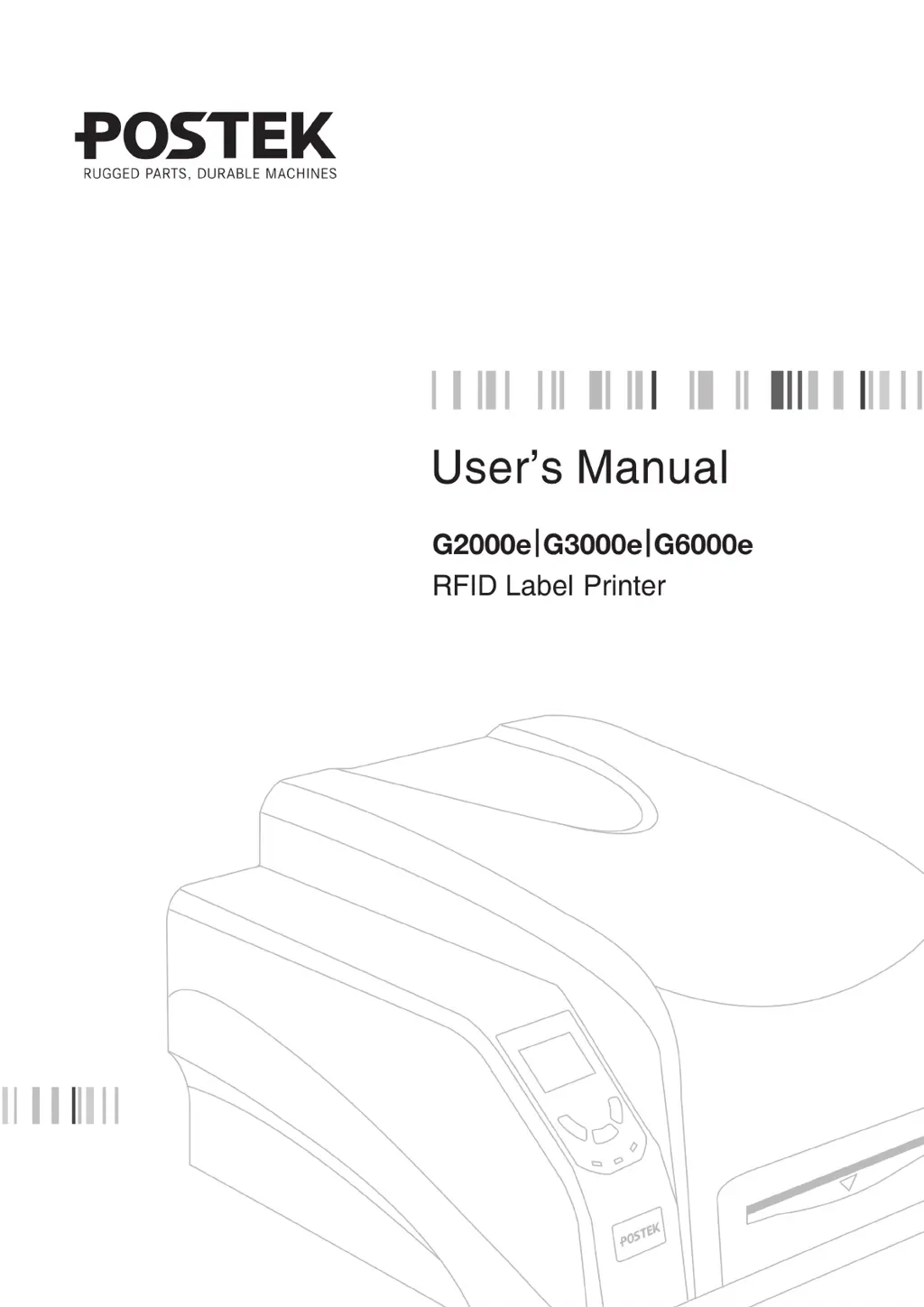
J
janegonzalezSep 12, 2025
What does VOID3 error mean on Postek Label Maker?
- KKenneth RussellSep 12, 2025
To address the 'VOID3' error on your Postek Label Maker, decrease the RFID read power and test print and encode directly.

What does VOID3 error mean on Postek Label Maker?
To address the 'VOID3' error on your Postek Label Maker, decrease the RFID read power and test print and encode directly.
How to fix VOID2 error on Postek Label Maker?
To resolve the 'VOID2' error on your Postek Label Maker, manually set the RFID OFFSET value, referring to section 3.3.4 Setting RFID Offset, then test print and encode directly.
What does VOID1 error mean on my Postek Label Maker?
To address the 'VOID1' error on your Postek Label Maker: * Check whether the RFID label is locked. * Check whether the encoding data exceeds the chip memory. * Check the data format is correct; it should usually be 4 bytes or multiples of 4 bytes. * Check whether it's a special label that can only be encoded once. * If all the above are excluded and you are using Ge series printers, increase the RFID write power and test print and encode directly.
Guidelines for handling and cleaning the printhead to prevent damage and ensure print quality.
Safety precautions and best practices for operating the optional label cutter accessory.
Detailed technical specifications including printing speed, width, length, memory, media, and interfaces for the G2000e/G3000e/G6000e printers.
Lists the items included in the printer's packaging for user verification upon receipt.
Identifies and describes the main external and internal components of the label printer.
Provides step-by-step instructions for connecting the printer, power, loading media, and ribbon.
Explains the function of the front panel buttons, LED indicators, and basic operations like power switch.
Guides on how to properly adjust the printhead pressure for optimal print quality and longevity.
Details procedures for RFID calibration, reading data, and setting RFID power and offset.
Instructions for installing the printer driver and accompanying label editing software for Windows.
Step-by-step guide for cleaning the thermal printhead to prevent damage and ensure print quality.
Instructions for cleaning the platen roller to remove debris and maintain performance.
Advises on periodically cleaning the printer's interior to prevent dust accumulation and damage.
Explains the importance of cleaning sensors and how to do it to ensure accurate media detection.
Lists common LCD error messages, their possible causes, and recommended solutions for quick resolution.
Explains the meaning of blinking LED indicators and provides troubleshooting steps for various error states.
Details common RFID error codes, explanations, and solutions for calibration and encoding problems.
Addresses general printing problems like vertical blank lines, no printing, and poor print quality.
 General
| Print Resolution | 203 DPI |
|---|---|
| Print Technology | Thermal transfer |
| Connectivity | USB, Serial, Ethernet |
| Media Type | Roll, Fanfold |
| Operating System Compatibility | Windows |
| Memory | 8MB Flash |
| Power Supply | AC 100-240V, 50-60Hz |
| Supported Barcode Types | Code 39, Code 128, UPC-A, UPC-E, EAN-8, EAN-13, Interleaved 2 of 5, Codabar, Postnet, PDF417, Data Matrix, QR Code |