18 PowerBox-Systems − World Leaders in RC Power Supply Systems
Which servo types are suitable for auto matching?
All types of servos are suitable - with one exception: servos which do not beco-
me “soft” when the signal is switched off. There are a few digital servos which re-
main xed at their position even when no signal is present. In steps 1 and 2 of auto
matching this would cause the servos to draw a high current for an extended period,
i.e., for as long as the matching process lasts, and this is not acceptable. Such ser-
vos can only be matched manually!
Start
In the rst servo-matching display you select your main servo under Output. In
most cases this would be - in the case of ailerons - the servo closest to the fusela-
ge. Connect the servo, and set the centre and travel at the transmitter. Initialize the
servo with maximum travels.
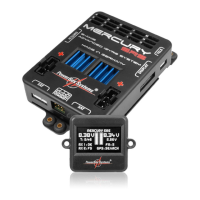
Now select Auto Matching. At this moment all the PowerBox Mercury SR2’s other
outputs are switched off, and you will see this screen:
Now connect the second and - if present - the third servo to the appropriate out-
puts, and complete the mechanical linkages. Now set for AUX1 and AUX2 the other
participating outputs. When selected, these outputs are assigned to the same input
channel as the main servo, and initialized. This means that you do not need to set
the assignment of the participants beforehand in Output Mapping, and also do not
need to initialize them.
For example, if you accidentally select the wrong output, and wish to cancel your
choice, the output will be reset to its previous function.
Once you have completed the selection of the participants, move the cursor to Start
Matching: the matching process commences. If you wish to interrupt the process,
you can do this by pressing the SET button.
The procedure is automatically interrupted if the system fails to detect a minimum


 To Next Page
 Loading...