: Displays the device connection status and various warnings. You can
touch it to access the device auto-check details screen.
1. Device status bar
: Displays the number of satellites and the GPS signal status. If the number of
satellites is displayed in green, the GPS signal is good; if the number of satel-
lites is displayed in red, the GPS signal is poor. Red GPS signal may cause vari-
ous problems, including a failure to obtain home location.
2. GPS status
Device connected
8
: When the connection to PowerDolphin is established through mobile device
direct connection, it indicates the strength of the connection signal between
your mobile device and PowerDolphin.
3. Connection signal strength
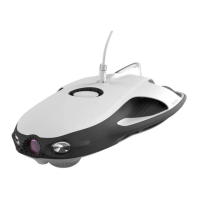
: Indicates the current battery level of PowerDolphin.
4. PowerDolphin battery level
: When the connection to PowerDolphin is established through the remote
controller, it indicates the strength of the connection signal between the
remote controller and PowerDolphin.
60%
: Indicates the current battery level of the remote controller.
5. Remote controller battery level
60%
: Indicates the current battery level of PowerSeeker.
6. PowerSeeker battery level
50%
23
: Touch the button to open the settings menu to configure parameters for
the remote controller, PowerSeeker, and PowerDolphin.
7. Settings


 To Next Page